
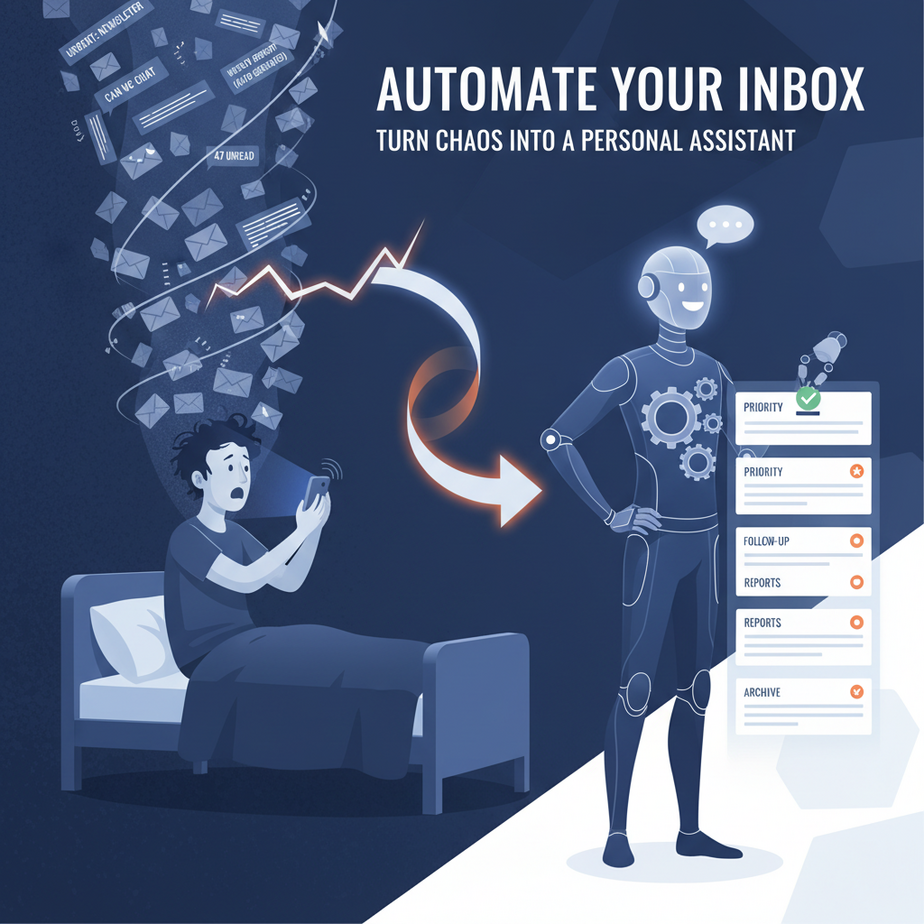
Hook: The 2 AM Email Avalanche
You wake up to your phone buzzing. 47 unread emails. “Urgent: Newsletter”, “Re: Re: Re: FYI”, “Weekly Report (Auto-Generated)”, “Can we chat?” — it’s a digital battlefield. You spend the first hour of your workday just sorting the battlefield, leaving you no energy for the war that actually matters. Most people treat email like a pile of newspapers: pile on top, hope for the best. We’re going to build a sorting robot that does this for you. Think of it less like checking email and more like a super-powered gatekeeper for your brain. Let’s turn the chaos into a calm, prioritized to-do list.
Why This Matters: The Economics of Attention
Every email is a tiny tax on your focus. If you check email 20 times a day and spend just 5 minutes sorting, that’s 1.6 hours of lost productivity. A small business owner making $50/hour is effectively paying an intern $80 a day to *read* email. What if you could have a zero-cost intern who works 24/7, never gets tired, and has a PhD in sorting your priorities? This isn’t just about saving time; it’s about protecting your most valuable asset: your focused attention. We’re automating the mental labor of triage so you can focus on the decisions that need a human.
What This Tool / Workflow Actually Is
This workflow is an automated email assistant that sits between you and your inbox. It uses AI (specifically, a text classification model) to perform three simple tasks:
- Sort & Prioritize: It labels every incoming email (e.g., “Action Required”, “Waiting for Later”, “Reference”, “Junk”).
- Filter the Noise: It automatically archives or deletes newsletters, spam, and automated reports you don’t need to read.
- Draft Responses: For simple queries (like “Can you send me the report?”) it can auto-draft a reply for you to review and send.
It is NOT a magic box that reads your mind. It follows a set of rules you define. It is NOT a full human replacement for nuanced or sensitive communication. It’s a tireless, incredibly organized first-pass system.
Prerequisites: What You Need Before We Start
Brutally honest: You don’t need to be a coder. We’ll build a simple version you can run from a single script. Here’s your toolkit:
- A Gmail account: This is where we’ll test. If you use Outlook, the logic is identical—just different code libraries.
- A free account on a cloud automation platform: We’ll use Make.com (formerly Integromat). It’s a visual, drag-and-drop tool that connects apps. The free plan is perfect for this.
- A free OpenAI API key: This is the “brain” of our system. Sign up at OpenAI, create an API key (like a password for your programs), and give it $5 worth of credits. This will last you for thousands of emails.
If you’ve never used any of these, that’s fine. This lesson is your guide. Grab your coffee; we’re building your first automated gatekeeper.
Step-by-Step Tutorial: Build Your Email Triaging Robot
We’ll build this in two stages: 1) the brain (AI classification), and 2) the body (the automation that connects to your email).
Part 1: The Brain (Classifying Emails with AI)
We need a system that reads an email’s subject and body and decides what it is. We’ll use a simple prompt to an AI model. In Python, this looks like this. You can run this on your local machine or in a Google Colab notebook.
# First, install the OpenAI library: pip install openai

import openai

# Paste your OpenAI API key here (keep it secret!)
openai.api_key = "YOUR_OPENAI_API_KEY_HERE"

def classify_email(email_text):
    """
    Takes an email's subject and body, returns a category.
    """
    prompt = f"""
    You are an expert office assistant. Classify this email into one of these categories:
    - Action Required: A task for you, a decision, or a meeting.
    - Waiting for Later: Read, but no immediate action.
    - Newsletter/Report: An automated update you can probably skip.
    - Junk/Spam: Clearly unsolicited or promotional.

    Email to classify:
    ""{email_text}"""

    Choose ONLY ONE category. Respond with the exact category name.
    """

    response = openai.ChatCompletion.create(
        model="gpt-3.5-turbo",
        messages=[{"role": "user", "content": prompt}],
        max_tokens=10,
        temperature=0.3  # Lower temp = more consistent
    )

    category = response.choices[0].message.content.strip()
    return category

# TEST IT - Replace this with an email subject + body
test_email = "Subject: Re: Project Deadline\
\
Hi, can we push the deadline by Friday? Let me know."
category = classify_email(test_email)
print(f"Email classified as: {category}")
# Output should be: "Action Required"
Part 2: The Body (Automation in Make.com)
Now, let’s connect this to live email. We’ll use Make.com to create a visual workflow (called a “scenario”).
- Sign up at Make.com and connect your Gmail account.
- Create a New Scenario: Click the big blue “Create a new scenario” button.
- Trigger Module: Click the big “+”, search for “Gmail”. Choose the trigger “Watch Emails” (for incoming emails). You can filter by a specific label (like “INBOX”) to start.
- Function Module: Click “+”, search for “HTTP”. Choose “Make a GET request”. This is where we’ll call our AI classifier. But for a beginner, a simpler method is to use Make’s built-in “Text Parser” and “Router” modules to set up basic rules first. However, for true AI power, we connect to our Python script or a simple no-code AI tool. For this lesson, let’s use a simpler, no-code method with Make’s built-in AI to avoid complex API setup on your first try.
- Simpler No-Code Path in Make:
- After your Gmail trigger, add a module called “Router” (this splits the workflow).
- For each branch, use a “Filter” module. For example, first branch filter: “Subject” “Contains” “Newsletter”. If true, route to an “Archive” module.
- Second branch: Subject “Contains” “Weekly Report” -> “Delete” module.
- Third branch (everything else): Go to a “Text Parser” to extract the sender and key text.
While this is a good start, the real power is in Part 1. For our main example below, we’ll assume you’ve tested your Python classifier and are ready to connect it.
- Connecting the Pieces: The final flow in Make.com would look like this: Gmail Trigger -> HTTP Request to your AI script (on a service like PythonAnywhere or Glitch) -> Router based on the returned category -> Actions (Archive, Create Task, Draft Reply).
Complete Automation Example: The ‘Weekly Report’ Killer
Let’s automate a specific, common pain: Auto-generated reports that pile up weekly.
Goal: Any email with “Weekly Report” in the subject is automatically deleted after being forwarded to a shared archive folder (just in case).
Workflow in Make.com:
- Trigger: Gmail > “Watch Emails” (Filter: Subject contains “Weekly Report”).
- Action 1: Gmail > “Forward Email” (Send to `archive@yourcompany.com`).
- Action 2: Gmail > “Delete Email”.
Why this works: It removes clutter from your main inbox in real-time, but keeps a copy for legal/compliance without your manual intervention. This is the kind of “silent automation” that quietly improves your daily life.
Real Business Use Cases (5 Examples)
- Consulting Firm: Problem: A consultant’s inbox is a mix of client actions, meeting notes, and vendor spam. Automation sorts emails into folders: “Client Actions” (Priority 1), “Project Notes” (Priority 2), “Vendor/Admin” (Priority 3). This creates a live task list from email.
- Real Estate Agent: Problem: Dozens of automated listing alerts, client emails, and CRM updates. Automation forwards all “New Listing” alerts to a separate viewer, archives all “Zillow/Zoopla” alerts, and flags any email with “offer” or “contract” as “Action Required”.
- Freelance Developer: Problem: Mix of GitHub notifications, client requests, and invoice reminders. Automation filters all “pull request” emails to a GitHub folder, archives “CI/CD” notifications, and drafts a “thanks, I’ll review” response for client emails.
- E-commerce Store Owner: Problem: Flooded with “Order Confirmation” and “Shipment Update” emails. Automation: These go straight to a dedicated “Orders” label, bypassing the main inbox entirely, keeping the “Inbox” for unique customer queries.
- Startup Founder: Problem: Investor updates, partner messages, and team coordination. Automation: Emails from investor@domain.com are tagged “VIP” and sent to a critical folder, while emails from “@team” are tagged “Internal” and archived after reading. This visual priority system saves hours of mental switching.
Common Mistakes & Gotchas
- Over-Automating (The Robot Tyrant): Don’t auto-delete based on AI classification until you’ve tested it for a week. Start with auto-labeling and manual review.
- Forgetting the Human Loop: Your automation should always pass sensitive emails (from lawyers, doctors, key partners) to a human for a final glance. Set filters for trusted senders.
- API Cost Creep: If you use OpenAI for every email, costs add up. Start with a rules-based filter (like Make.com’s text parser) for 80% of emails, and only call the AI for the ambiguous 20%.
- Ignoring Mobile: Your automation should work on all devices. Test your labels and filters in Gmail’s mobile app to ensure the mental model is clean everywhere.
How This Fits Into a Bigger Automation System
This email triage is the sensory input layer for your entire digital operation.
- CRM Integration: When an email is classified as “Action Required: Client Query”, the automation can trigger a Zap to create a new ticket in your helpdesk (like Zendesk) or a lead in your CRM (like HubSpot).
- Knowledge Base & RAG: All archived emails can be fed into a vector database (like Pinecone). Later, you can ask a question like “What was our last discussion about Project X?” and get a synthesized answer, all powered by the context of your past emails.
- Multi-Agent Workflow: Imagine a team of agents. Your Email Triage Agent (this lesson) identifies a “Contract Review” request. It passes it to a “Legal Agent” (another automation) that drafts the first clause. It then notifies you in Slack for final review. This is the future of collaborative automation.
What to Learn Next: From Inbox to Action Engine
You’ve just built your first intelligent filter. This is foundational. In our next lesson, we’ll take the emails you’ve identified as “Action Required” and automatically turn them into tasks in your project management tool. Think of it: an email arrives, our system classifies it, and it instantly becomes a ticket in Asana or Trello, complete with a due date extracted from the text.
But first, get this triage system running. Try it for one week. Observe how much clearer your focus becomes. Then come back, and we’ll connect the dots between your inbox and your to-do list. The course is just getting started.
Stay curious, and build your first system today.
“,
“seo_tags”: “email automation, AI email assistant, workflow automation, business productivity, Make.com tutorial, OpenAI API”,
“suggested_category”: “AI Automation Courses