
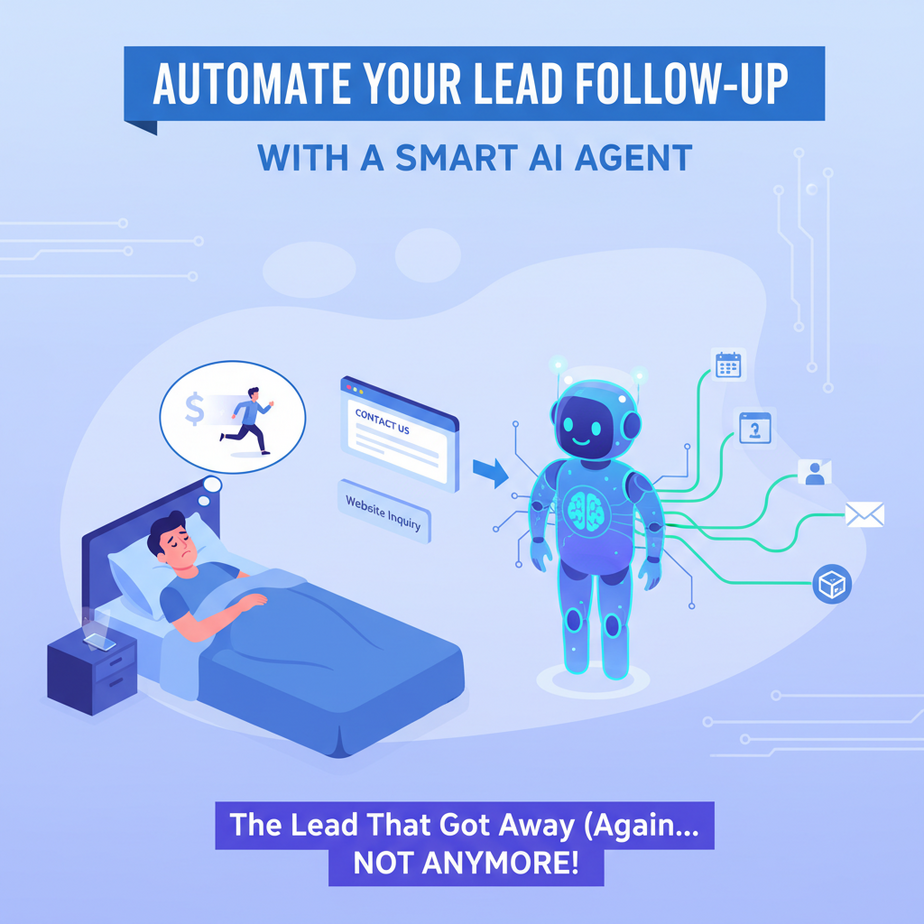
Hook: The Lead That Got Away (Again)
Imagine this: It’s 11 PM. You’re exhausted. Just as you’re about to sleep, your phone pings. A lead submitted a “Contact Us” form on your website. They’re interested, hot, and looking for a quote. But you’re too tired to craft a perfect reply. You promise yourself you’ll email them first thing in the morning.
By 9 AM, they’ve already gotten two competitor replies and booked a call elsewhere. Your lead is gone.
This isn’t a technology problem. It’s a human energy problem. You can’t be awake 24/7, smiling, and typing personalized follow-ups. But you know who can? A smart AI agent. Your new tireless intern.
Why This Matters
Lead follow-up is the single biggest point of failure in most small businesses. The data is brutal: responding within the first 5 minutes increases your chances of qualifying a lead by 900%. Yet most businesses wait hours, sometimes days. This isn’t just about speed; it’s about consistency, tone, and data capture.
Automating this replaces three things:
- Manual Email Typing: No more copy-pasting the same greeting.
- Memory-Lapse Chaos: The agent remembers every detail from the form.
- The 9-to-5 Jail: Leads get immediate engagement, even on weekends.
You’re not just sending emails. You’re building a 24/7 sales qualification machine.
What This Automation Actually Is
What it is: A workflow that triggers when someone fills out a form. It then uses an AI model (like GPT) to draft a personalized response based on the lead’s own words. It doesn’t just say “Hi.” It says, “Hi Mark, I saw you’re interested in our startup package for your new coffee shop. Let’s talk about custom grinders.”
What it is NOT: It’s not spam. It’s not a magic bot that closes deals for you. It’s not a replacement for a real human conversation—it’s the perfect introduction to one.
Prerequisites
Brutally honest: You don’t need to code. You need to be curious and willing to click around a few web apps.
- Conceptual: You understand what a “form submission” is.
- Tools: You can sign up for a free account on Make.com (our automation engine) and OpenAI (for the AI brain).
- Time: Set aside 30 focused minutes.
If you’ve ever used Zapier or IFTTT, you’ll find Make more visual and powerful. If you haven’t, that’s fine—we’ll build your first bot step-by-step.
Step-by-Step Tutorial: Building Your Lead-Followup Agent
Let’s build this in Make. We’ll use a Google Form as our lead source, but the principle works with any form (Typeform, JotForm, your website’s CMS).
Step 1: The Trigger – The Form Submission
In Make, click “Create a new Scenario.” Search for and select the Google Forms module. Choose “Watch Responses.” Connect your Google account and select your form. Every new form submission will now trigger our automation.
Step 2: The Brains – AI Email Drafting
We need an AI to write the email. This is where OpenAI comes in.
- Add a new module. Search for “OpenAI” and choose “Create a Message (ChatGPT).”
- Connect your OpenAI API key (you get one when you sign up).
- In the “User Message” field, we’ll give the AI a very specific prompt. This is the most important step. We will paste data from the form directly into the prompt.
Step 3: The Magic Prompt
Copy this exact prompt structure into the “User Message” field. Replace the brackets with the actual fields from your Google Form.
You are a friendly, expert sales assistant for [Your Business Name, e.g., 'CodeCraft Software'].

A potential lead has submitted the following details:
- Name: {{form_data.name}}
- Company: {{form_data.company}}
- What they need: {{form_data.message}}
- Industry: {{form_data.industry}}

Write a personalized, helpful email response in a conversational tone.
DO NOT use formal marketing jargon. Be specific about their need.
Keep it under 150 words.
End with a question to encourage a reply.
Pro Tip: The {{form_data}} fields are dynamic tokens from Step 1. Make will automatically pull the form data into this prompt.
Step 4: The Action – Send the Email
Now, we need to send the AI’s drafted response.
- Add a new module: “Gmail” (or your email provider).
- Select “Send an Email.”
- Connect your email account.
- In the “To” field, map it to {{form_data.email}}.
- For the “Subject,” create a rule-based one: e.g., “Re: {{form_data.subject}}” or “Following up on your request.”
- In the “Body,” use the output from the OpenAI module. It will be a text token (usually labeled something like “Text”).
Step 5: The Record – Log in CRM (Optional but Smart)
Add a final module for your CRM (HubSpot, Salesforce, or even a Google Sheet). Map the lead details and the AI email draft to a new row or contact. This gives you a permanent record of the interaction.
Step 6: Turn it On
Save your scenario, turn the toggle on, and test it. Submit a fake lead on your form. Watch the magic happen. Within minutes, you’ll have a personalized email in your inbox (or the lead’s inbox, if you configured it to send directly).
Complete Automation Example: The Agency Lead Machine
Let’s walk through a real scenario for a digital marketing agency.
Trigger: A visitor fills out the agency’s “Get a Proposal” form on their website. They ask for help with “Facebook Ads for a local restaurant.”
Automation Process:
- Make.com gets the data: Name, Email, “Facebook Ads for a local restaurant,” etc.
- OpenAI receives a prompt: “Write a friendly, expert email for an agency lead who needs Facebook Ads. Mention their specific need for a ‘local restaurant.’ Be knowledgeable about hyper-local targeting. Suggest a free 30-minute audit.”
- AI drafts an email: “Hi Alex, Saw your note about Facebook Ads for your local restaurant. Getting those foodies in the door with targeted local campaigns is my specialty. Happy to chat about your goals for a quick 30-minute audit. What’s the best time for you this week?”
- Gmail Module sends this email to Alex from the agency’s address, CC’ing the account manager.
- HubSpot Module creates a new lead with the conversation logged.
From form submission to personalized, value-packed reply: 12 minutes. Done while you’re in another meeting.
Real Business Use Cases
- Real Estate Agent: Buyer fills out a property inquiry form. AI agent instantly emails them with asking price, square footage, and asks if they’d like to schedule a virtual tour.
- Consultant (e.g., Business Coach): Lead downloads a “Growth Hacks” PDF. AI emails the lead, referencing the download, and offers a free 15-minute strategy call to discuss their specific bottleneck.
- Freelance Designer: Client submits a project brief. AI acknowledges the submission, confirms understanding of the style (e.g., “minimalist logo”), and asks for 3 key brand assets to start the creative process.
- E-commerce Store: Abandoned cart recovery. When a user leaves items in their cart, AI sends a friendly “Forgot something?” email with the specific product names and a small incentive.
- Service Business (e.g., Plumbing): Emergency form submission. AI instantly responds, confirms they received the request, and provides a 1-800 number and an approximate ETA based on the reported issue.
Common Mistakes & Gotchas
- The “Spam-Bot” Trap: If your prompt is generic (“Hi, thanks for your interest!”), you sound like a bot. Always include specific field data in the prompt.
- Forgetting to Map Fields: A classic. You write a brilliant prompt, but if {{form_data.name}} doesn’t match the exact field name in Make, you’ll get a blank.
- API Key & Costs: OpenAI charges per 1,000 tokens (words). A single email draft costs a fraction of a cent. Monitor your usage in your OpenAI dashboard.
- Over-Promising: The AI can’t book your calendar. The goal is to qualify and engage, not close. Always include a “Let’s schedule a call” or “What’s the best time to chat?” CTA.
- Not Testing the Human Loop: Initially, set up a rule to CC yourself. You need to see the AI’s work and intervene if necessary. Over time, as you trust it, you can let it reply directly.
How This Fits Into a Bigger Automation System
This lead follow-up agent is the perfect gateway drug to advanced automation. Here’s how it plugs into the larger ecosystem:
- CRM Integration (Step 5 above): This agent is now feeding clean, organized data into your customer database.
- Email Marketing Nurture Sequences: Once a lead replies “Yes, call me,” your CRM can tag them as “Hot Lead” and trigger a separate email sequence about your case studies.
- Voice Agents: If your AI email gets a positive reply with a phone number, a subsequent automation can trigger a text-to-speech AI to send a follow-up call reminder.
- Multi-Agent Workflows: Imagine a system where Agent A (this one) qualifies the lead. Agent B (a data scraper) researches the company for you. Agent C drafts a proposal. This is the future you’re building right now.
- RAG (Retrieval-Augmented Generation): For advanced users, you could connect this AI agent to your own knowledge base (like your past client reports). It could then answer specific questions about your services in the email, making it even smarter.
What to Learn Next
You’ve just built the first employee for your automated business. It’s hungry for data, fast, and works while you sleep. But this is just one intern. What if you had a whole team?
In our next lesson, we’re scaling up. We’re going to build a Multi-Agent Content Factory. Imagine one agent that researches trending topics, another that writes the first draft, and a third that edits for tone—all working together to publish a blog post every single day.
You’ve tamed the lead follow-up beast. Now, let’s see what else we can automate in this factory of yours. The work is never done, but the tedious work is.
“,
“seo_tags”: “AI automation, lead follow-up, business automation, no-code AI, Make.com, OpenAI, marketing automation, sales automation, AI agent tutorial”,
“suggested_category”: “AI Automation Courses