
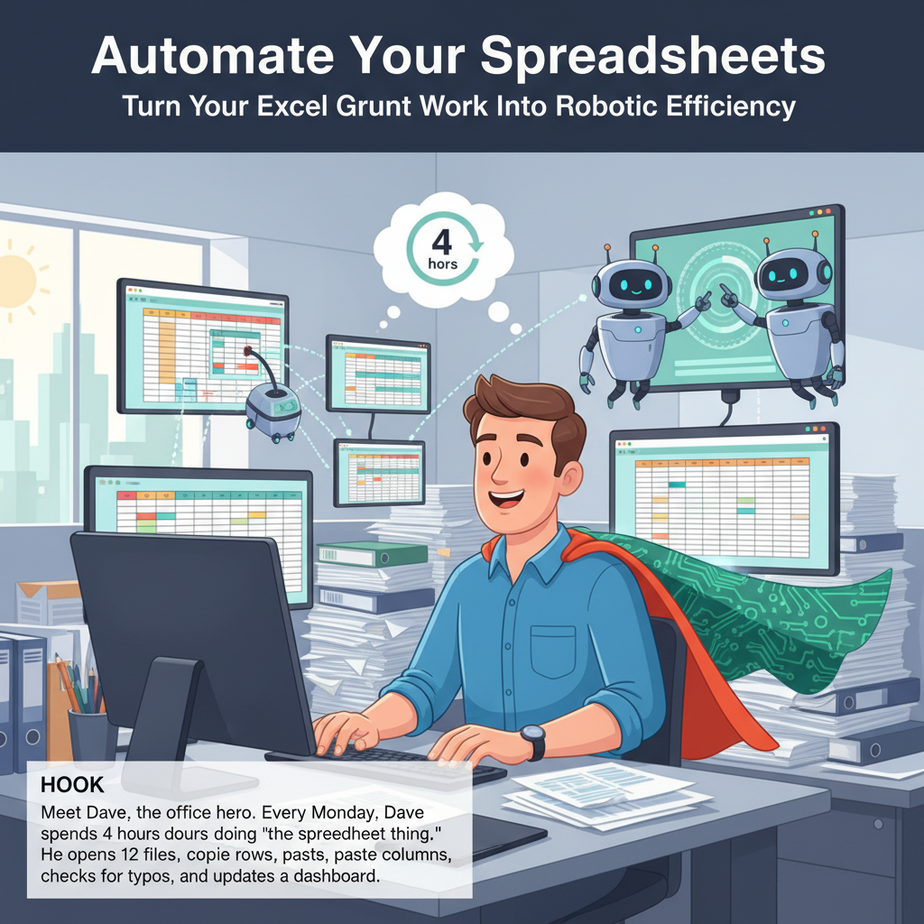
Hook
Meet Dave, the office hero. Every Monday, Dave spends 4 hours doing “the spreadsheet thing.” He opens 12 files, copies rows, pastes columns, checks for typos, and updates a dashboard. Dave is a human copy-paste machine. His soul is 80% VLOOKUP errors.
Then Dave took our course. He wrote a script. Now, Dave’s robot works at 3 AM while Dave sleeps. The spreadsheet is updated before he arrives. Dave now drinks coffee and pretends he’s a genius.
Dave’s secret? He learned to treat his spreadsheet like a factory production line—not a digital sticky note.
Why This Matters
Manual spreadsheet work is the silent killer of business productivity. It’s slow. It’s error-prone. It scales terribly. One person can do maybe 100 rows an hour with coffee breaks. A bot does 10,000 rows in 30 seconds.
Business Impact:
- Time: Replaces 5-10 hours of weekly manual labor.
- Accuracy: Eliminates copy-paste errors, formula typos, and mismatched columns.
- Scale: Processes 100,000 rows as easily as 100 rows.
- Sanity: Removes the “Monday Morning Spreadsheet Dread.”
Who This Replaces: The intern doing data entry, the manager double-checking numbers, the entire late-night Excel session.
What This Tool / Workflow Actually Is
We’re using Python with OpenPyXL—a library that lets you read, write, and manipulate Excel files (.xlsx) programmatically. It’s like giving your spreadsheet a remote control.
What It Does:
- Opens Excel files automatically.
- Reads data from cells, rows, and columns.
- Writes data to specific cells.
- Creates formulas (like “=SUM(A1:A10)”).
- Formats cells (fonts, colors, borders).
- Processes thousands of rows in seconds.
What It Does NOT Do:
- It doesn’t create interactive Excel dashboards (though it can generate them).
- It doesn’t work on Google Sheets natively (but can with other libraries).
- It doesn’t understand your business logic—you must write it.
Prerequisites
Brutally Honest Checklist:
- Python Installed: Download from python.org. If you can run
python --versionin your terminal, you’re good. - Code Editor: VS Code, PyCharm, or even Notepad++.
- Excel File: Any .xlsx file. We’ll make one.
- Zero Excel Macro Skills Needed: Forget VBA. We’re going Python.
Installation (One Command):
pip install openpyxlIf that works, you’re ready. If not, update pip: python -m pip install --upgrade pip
Step-by-Step Tutorial
Step 1: Create a Sample Excel File
Create a file named sales_data.xlsx. In it, create a sheet called RawData with this structure:
| Date | Product | Quantity | Price | Salesperson |Fill rows 2-5 with dummy data (e.g., “2024-01-01”, “Widget”, 10, 5.99, “Alice”).
Step 2: Write a Python Script to Read the Data
Open your code editor. Create a new file automate_spreadsheets.py. Paste this:
import openpyxl

# Load the workbook
wb = openpyxl.load_workbook('sales_data.xlsx')

# Select the sheet
sheet = wb['RawData']

# Read data from row 2 to 5
print("\
" + "="*40)
print("SALES DATA READOUT")
print("="*40 + "\
")

for row in sheet.iter_rows(min_row=2, max_row=5, values_only=True):
    date, product, quantity, price, salesperson = row
    sales = quantity * price
    print(f"{date}: {product} by {salesperson} - ${sales:.2f}")
Run It: python automate_spreadsheets.py
You should see your data printed with calculated sales.
Step 3: Write New Data Back
We'll add a total sales column and a summary sheet. Update your script:
import openpyxl

# Load the workbook
wb = openpyxl.load_workbook('sales_data.xlsx')
sheet = wb['RawData']

# Calculate total sales per row and write to new column
print("\
Adding Sales Totals...\
")

for row in range(2, sheet.max_row + 1):
    quantity = sheet.cell(row=row, column=3).value
    price = sheet.cell(row=row, column=4).value

    # Write sales total to column 6 (Sales Total)
    sheet.cell(row=row, column=6, value=quantity * price)

    # Add a formula in column 7 for discount (10% off)
    sheet.cell(row=row, column=7, value='=F' + str(row) + '*0.9')

# Create a summary sheet if it doesn't exist
if 'Summary' not in wb.sheetnames:
    wb.create_sheet('Summary')

summary = wb['Summary']
summary['A1'] = 'Total Sales (All Products)'
summary['B1'] = '=SUM(RawData!F2:F5)'

# Save the workbook
wb.save('sales_data_updated.xlsx')
print("\
✅ File saved as 'sales_data_updated.xlsx'\
")
Run It: Open the new file. You'll see updated columns and a Summary sheet with a live formula.
Complete Automation Example: Weekly Sales Report Generator
Scenario: You run a small e-commerce store. Every Monday, you get a CSV from Shopify. You need to:
- Import the CSV into Excel.
- Clean up data (remove blanks, fix dates).
- Calculate metrics: total revenue, avg. order value, top product.
- Generate a formatted report with charts (if possible).
- Email the report (we'll cover email automation in another lesson).
Full Script:
import openpyxl
import pandas as pd  # For easier CSV reading
from datetime import datetime

# Step 1: Read CSV
df = pd.read_csv('weekly_orders.csv')

# Clean data: Drop rows with missing values
df_clean = df.dropna(subset=['order_id', 'product', 'revenue'])

# Step 2: Create Excel file
wb = openpyxl.Workbook()
ws = wb.active
ws.title = 'Weekly Report'

# Write headers
headers = list(df_clean.columns) + ['Revenue Category']
for col_num, header in enumerate(headers, 1):
    ws.cell(row=1, column=col_num, value=header)

# Write data
for row_idx, row in enumerate(df_clean.values, 2):
    for col_idx, value in enumerate(row, 1):
        ws.cell(row=row_idx, column=col_idx, value=value)

    # Categorize revenue
    revenue = row[2]  # Assuming revenue is 3rd column
    category = 'High' if revenue > 100 else 'Medium' if revenue > 50 else 'Low'
    ws.cell(row=row_idx, column=len(headers), value=category)

# Step 3: Add Summary Metrics
ws['A' + str(len(df_clean) + 3)] = 'SUMMARY'
ws['A' + str(len(df_clean) + 4)] = 'Total Revenue:'
ws['B' + str(len(df_clean) + 4)] = f'=SUM(C2:C{len(df_clean) + 1})'

ws['A' + str(len(df_clean) + 5)] = 'Avg. Order Value:'
ws['B' + str(len(df_clean) + 5)] = f'=B{len(df_clean) + 4}/COUNTA(C2:C{len(df_clean) + 1})'

# Step 4: Formatting
for cell in ws[1]:  # Bold headers
    cell.font = openpyxl.styles.Font(bold=True)

# Step 5: Save
timestamp = datetime.now().strftime('%Y%m%d_%H%M%S')
wb.save(f'weekly_report_{timestamp}.xlsx')
print(f"Report generated: weekly_report_{timestamp}.xlsx")
What This Does: It turns raw CSV into a clean, structured Excel report. Every Monday, run this script. No human intervention.
Real Business Use Cases
- Restaurant Inventory: Import supplier CSVs, calculate food costs, flag items running low, auto-generate order lists.
- Freelancer Invoicing: Pull time-tracking data, calculate billable hours, generate invoice spreadsheets, add payment terms.
- Real Estate Analysis: Clean MLS data (rows, columns), calculate price per sq ft, highlight undervalued properties, output to Excel for client presentations.
- Marketing Agency: Merge data from Google Ads, Facebook, and email campaigns into one dashboard, calculate ROI, auto-format for clients.
- Hiring Manager: Scrape job application spreadsheets (like Indeed exports), parse resume keywords, score applicants, output ranked list.
Common Mistakes & Gotchas
- File Paths: Always use absolute paths or ensure your script runs in the same folder as your files.
- Excel Locking: If the Excel file is open in Excel, Python can't save. Close Excel first.
- Data Types: Python sees numbers as numbers, text as text. If your dates come out as numbers (Excel serial), convert them with
datetime.fromordinal(int(date)). - Formulas as Text: OpenPyXL writes formulas as text. Excel recalculates them when opened. For complex formulas, consider using
=RLCLEAN()to avoid string issues. - Large Files: OpenPyXL is fine for files under 10MB. For giant datasets, use pandas or xlwings (which connects to live Excel).
How This Fits Into a Bigger Automation System
This is your data pipeline stage.
- CRM Integration: After cleaning Excel data, push to HubSpot or Salesforce via their APIs.
- Email Automation: The script can trigger an email with the report attached (using smtplib).
- Voice Agents: Imagine a voice command: "Hey system, update sales report." The script runs in the background.
- Multi-Agent Workflow: This script is Step 1. Step 2 could be a data analysis agent. Step 3 could be a report design agent. Together, they form a full automation pipeline.
- RAG Systems: Cleaned Excel data can be fed into a vector database for AI-powered Q&A ("What was our top product last quarter?").
What to Learn Next
You've just automated your first spreadsheet factory. Your robot now handles the mindless work.
Next Lesson: We'll connect this to email. You'll learn to automatically email your Excel reports to clients, bosses, or Slack channels—so your robot not only works but also reports back.
This is Lesson 3 of the AI Automation Course. We're building a complete automation suite, one practical skill at a time. Stay tuned. Your robots are waiting to work.
",
"seo_tags": "Excel automation, Python spreadsheet automation, OpenPyXL tutorial, business automation, data entry automation, automate Excel tasks, productivity tools, beginner automation",
"suggested_category": "AI Automation Courses