
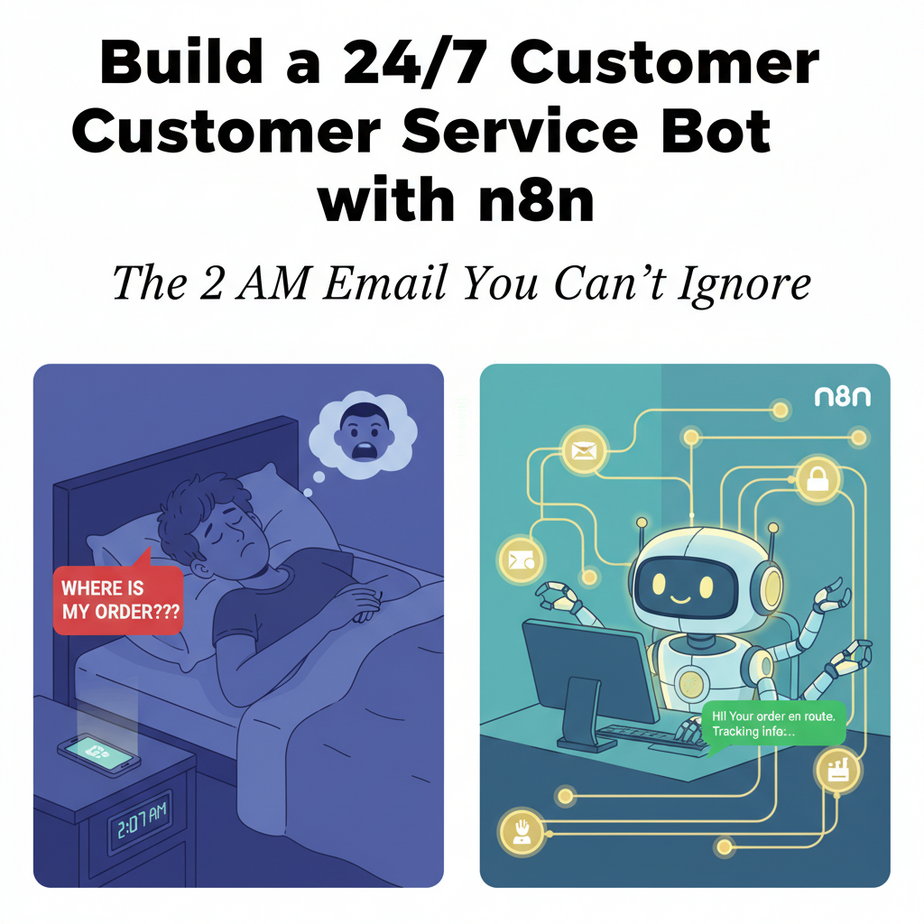
The 2 AM Email You Can’t Ignore
Your phone buzzes at 2:07 AM. It’s a customer email: “WHERE IS MY ORDER??” Panic. You were asleep. But your business wasn’t. While you slept, this customer’s frustration grew. Maybe they canceled. Maybe they left a bad review. You lost money because you’re human and humans need sleep.
But what if you had a tireless intern who never slept, never got cranky, and could answer 1000 customer questions simultaneously? That’s what we’re building today: a 24/7 AI customer service agent.
Why This Matters
This isn’t just about convenience. It’s about revenue and retention.
- Scale: One bot can handle as many conversations as your traffic demands.
- Speed: Instant replies = happier customers = fewer cancellations.
- Sanity: Your team focuses on complex issues, not “what’s my order status?” for the 100th time.
- Money: Each unanswered email is a potential lost sale. This bot prevents that loss.
In essence, you’re replacing a reactive, human customer service model with a proactive, AI-assisted system.
What This Tool / Workflow Actually Is
We’re using n8n, a visual workflow automation tool. Think of it as a LEGO kit for building software connections without writing code.
What it does:
- Monitors your support email inbox or website chat.
- Uses an AI (like OpenAI’s GPT) to understand the customer’s question.
- Checks its knowledge base for answers.
- Replies automatically if it knows the answer.
- Escalates to a human if it’s stumped.
What it does NOT do:
- It won’t handle emotional, nuanced complaints well (that’s still human work).
- It won’t magically process refunds (it can, however, trigger a refund request workflow).
- It doesn’t replace human empathy. It augments it.
Prerequisites
Zero coding experience needed. You will need:
- A free n8n account (sign up at n8n.io).
- An OpenAI API key (we’ll explain how to get one).
- An email inbox you can automate (like Gmail or Outlook).
If you can set up an email account, you can build this. We’ll go slow.
Step-by-Step Tutorial: Building Your First Support Bot
Let’s build a bot that replies to a simple email: “What are your business hours?”
Step 1: Set Up Your n8n Workflow
- Log into n8n. Click “New workflow.”
- Click the “+” node. Search for “Email Read IMAP.” This node checks your inbox.
- Configure the Email Read IMAP node with your email credentials. (Note: Use App Passwords for Gmail, not your main password.)
- Set the “Criteria” to read emails with the subject containing “Question” or leave blank to process all emails.
Step 2: Filter the Message
We only want to reply to real customer inquiries, not newsletters.
- Add an “IF” node after the Email Read IMAP node.
- Set the condition:
if messages[0].from does NOT contain your own domain. This prevents the bot from replying to itself. - Another IF node can check if the email body is long enough (not just a “Hi”).
Step 3: Send the Email to AI
- Add an “OpenAI” node. Connect it to the TRUE output of your last IF node.
- Choose the model:
gpt-4o-mini(cheap and fast). - In the prompt, give it clear instructions. This is the most important part.
You are a helpful customer support agent for "Online Widgets Co."

Your knowledge base:
- Business Hours: Mon-Fri, 9 AM - 5 PM EST
- Order status: Customers must be logged into their account.
- Refunds: Processed within 3 business days.

If the customer's question is not in this knowledge base, DO NOT MAKE UP AN ANSWER. Instead, write: "That's a great question. I've escalated this to our specialist team, and they'll email you within 24 hours."

Reply politely and professionally.
Step 4: Send the AI’s Reply
- Add a “Send Email” node.
- Connect it to the OpenAI node’s output.
- Set the “To” field to the customer’s email address (from the original email).
- Set the “Subject” to:
Re: [Original Email Subject] - Set the “HTML/Text Body” to the AI’s generated response.
Step 5: Archive and Test
- Add an “Email Move” node after sending the reply. This moves the original email to a folder like “Bot-Processed.”
- Click “Execute Workflow.”
- Send a test email to your support address: “What are your business hours?” Watch the workflow run. Check your inbox for a reply.
Complete Automation Example: Order Status Bot
Let’s build a more powerful bot that checks an order status using a fake API (we’ll simulate it).
Workflow: Email → AI Triage → API Call → Send Reply
// Example n8n JSON workflow snippet (visual nodes, not code, but here's the logic)
[
  {"name": "Email Trigger", "action": "Read IMAP"},
  {"name": "AI Triage", "action": "OpenAI", "prompt": "Is this email asking for an order status? Answer YES or NO."},
  {"name": "IF Order Status", "action": "IF", "condition": "[[ $json.aiTriage.response == 'YES' ]]"},
  {"name": "Extract Order ID", "action": "Edit Fields", "expression": "orderId = extracted from email body"},
  {"name": "API Call", "action": "HTTP Request", "url": "https://api.yourstore.com/orders/{{orderId}}"},
  {"name": "Format Reply", "action": "Edit Fields", "expression": "message = 'Your order status is: ' + apiCall.data.status"},
  {"name": "Send Email", "action": "Send Email", "to": "customer@example.com"}
]
What it does: When a customer emails “Where’s order #12345?”, the bot recognizes it, calls your order API, gets the status (e.g., “Shipped”), and sends a personalized reply instantly.
Real Business Use Cases
- E-commerce Store: Automates 90% of “where’s my order?” and “what’s your return policy?” emails.
- Freelancer: Auto-replies to inquiry emails with a link to your booking calendar and portfolio, filtering serious clients from tire-kickers.
- Real Estate Agent: Processes property inquiry emails, schedules viewings via Calendly, and sends property details automatically.
- SAAS Startup: Handles free trial sign-up support, technical “how-to” questions, and escalates billing issues.
- Restaurant: Manages reservation inquiries via email, checks table availability via a simple API, and confirms bookings.
Common Mistakes & Gotchas
- The “Hallucination” Mistake: Telling the AI to “always give an answer.” Instead, instruct it to escalate when unsure. This prevents fake information.
- Looping with Itself: Forgetting to filter out your own domain, causing infinite email loops that crash your inbox.
- API Rate Limits: Your store API might get slammed by the bot. Use n8n’s built-in throttling to pace requests.
- Grammar & Tone: Always test prompts with a few sample emails. The AI might sound too robotic.
- Privacy Laws (GDPR/CCPA):** Never let the bot send personal data to external AI services. Keep data within your encrypted workflow.
How This Fits Into a Bigger Automation System
Your support bot is a single module. Plug it into a larger system:
- CRM Integration: If the bot can’t answer, create a ticket in HubSpot/Salesforce via n8n’s CRM nodes.
- Multi-Agent Handoff: Use two bots: First bot handles simple FAQs. If escalated, a second bot (or human) takes over.
- Voice Agent Bridge: Feed the email text into a voice AI (like ElevenLabs) for phone support, then email the transcribed answer back.
- RAG System Upgrade: Replace the simple knowledge base prompt with a vector database (like Pinecone) to search your entire documentation in seconds.
What to Learn Next
You’ve just automated the front door of your customer support. Next, we’ll connect this bot to your internal knowledge base using RAG (Retrieval-Augmented Generation), so it can answer even more complex questions.
Imagine a bot that has read every manual, FAQ, and past email thread. That’s where we’re headed. This is Lesson 7 in the Underground AI Automation Academy—stick around for Lesson 8, where we build the knowledge brain.
Now go build your first bot. Your future self will thank you at 2 AM.
“,
“seo_tags”: “ai automation, n8n, customer support automation, chatbot tutorial, business automation, no-code ai, email automation, workflow automation”,
“suggested_category”: “AI Automation Courses