
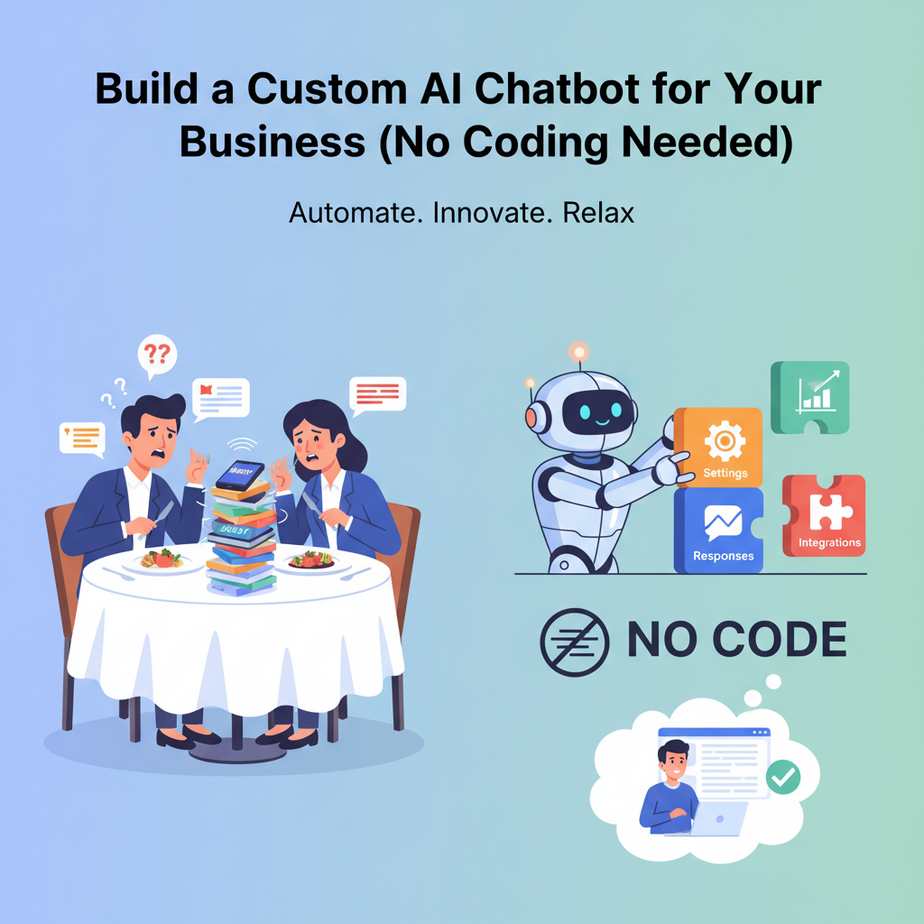
The Dinner Party Interruption
Picture this: It’s a Friday night, you’re at a nice restaurant, enjoying your favorite meal. Your phone buzzes. Then it buzzes again. And again. It’s your business email. A potential client has a question about your services. Another asks for pricing. Your biggest customer has an urgent issue.
You have two choices: Ignore it and lose business, or whip out your laptop and become the world’s most boring dinner guest. Again.
This is the intern you desperately need—the one who never sleeps, never complains, and answers the same question for the 1000th time with a smile. That intern is a custom AI chatbot.
Why This Replaces Your 24/7 Customer Service Intern
A custom AI chatbot isn’t just a fancy widget. It’s a business automation system that:
- Answers repetitive questions instantly: “What’s your return policy?” “What are your hours?” “Do you ship internationally?”
- Qualifies leads while you sleep: Asks questions, collects contact info, scores interest
- Supports your team internally: New hires can ask “How do I reset my VPN?” without bothering HR
- Multiplies your reach: Handles 100 conversations simultaneously. You can only handle 3.
The math is simple: If you spend 2 hours a day answering basic questions, that’s 10 hours a week. That’s 25% of a 40-hour workweek. A $50/hour business owner is paying $2,000/month for that intern work. A chatbot costs less than the coffee you buy to power those hours.
What It Is (And Isn’t)
It IS: A smart assistant trained on your business information (FAQs, product specs, policies) that can hold a natural conversation and perform tasks.
It is NOT: A magic box that instantly understands every customer’s emotional nuance or solves complex, unique problems without human help.
Prerequisites: The Bare Minimum
You need:
- 15 minutes of focus (seriously, that’s it)
- A Google account (for Google Sheets)
- Your business FAQ or common questions (I’ll help you get this)
- The patience of someone building their first Lego set
No coding. No servers. No complex setup. We’re using a tool that’s designed for business owners, not just developers.
Step-by-Step Tutorial: Build Your First Chatbot
We’re going to use a popular, beginner-friendly platform. I’ll focus on the principles so you can adapt to any tool.
Step 1: Gather Your Knowledge Base
Your chatbot needs something to talk about. Open a Google Doc and list your top 20 questions. It might look like this:
1. What are your business hours?
2. Where is your location?
3. How much does [Product X] cost?
4. What is your return policy?
5. How long does shipping take?
6. Do you offer discounts for bulk orders?
7. How do I track my order?
8. Can I customize this product?
9. What payment methods do you accept?
10. How do I contact support?
Now, write a simple answer for each. Be specific. For “What are your hours?”, don’t say “We’re open.” Say: “We’re open Monday-Friday, 9 AM to 6 PM EST. Closed weekends. Chat with us 24/7!”
Step 2: Choose Your Platform & Create Your Bot
We’ll use Botpress (free tier) or Landbot (visual builder). For this walkthrough, we’ll use Botpress’s visual flow builder.
- Go to botpress.com and sign up for a free account.
- Click “Create New Bot.” Choose a template: “Customer Service.”
- Name your bot (e.g., “MyBiz-Assistant”).
- You’ll see a visual flow editor. It’s like connecting puzzle pieces.
Step 3: Build the Conversation Flow (The Magic)
In the flow editor, we’ll create a simple loop.
- Start Node: Drag this from the left panel. This is the entry point.
- Message Node: Drag it below the Start. Type your welcome message: “Hi! I’m your business assistant. How can I help today?”
- Intent & Question Recognition:
- Click “Add a Node.” Choose “Intent.”
- We’ll create an intent called “#hours”. Add examples: “What are your hours?”, “When are you open?”, “Are you open on weekends?”
- Do this for your top 5 intents: #hours, #location, #returns, #pricing, #shipping.
- Connect the Dots:
- Drag an arrow from your Intent Node to a new “Say” node.
- In the “Say” node, put the answer for that intent. Example for #hours: “We’re open Monday-Friday, 9 AM to 6 PM EST!”
- Add a Fallback: Add an “Else” path from the Intent node to a “Say” node: “I’m still learning! Can you rephrase or type ‘human’ to talk to a person?”
Why this works: You’re not programming logic. You’re training the bot on *intent* (what the user wants) and then scripting the response. It’s like a choose-your-own-adventure book.
Step 4: Add a Lead Capture & Human Handoff
A chatbot should know when to pass the baton.
- Add a new Intent called “#talk_to_human”. Examples: “talk to a person”, “I want to speak to a manager”, “customer service”, “human”.
- Connect this intent to a “Collect Data” node.
- Configure it to ask: “Sure! To connect you, what’s your email?” and store it in a variable (e.g., `email`).
- Follow with a “Say” node: “Thanks! I’ve logged your request. We’ll email you within 1 hour. In the meantime, is there anything else I can help with?”
- Finally, use a “Webhook” node to send this email to a Google Sheet or your CRM (we’ll cover this in the next lesson).
Step 5: Deploy to Your Website
- Go to your bot’s “Channels” menu.
- Enable “Website” channel.
- Copy the provided embed code (it’s a simple JavaScript snippet).
- Paste this code into your website’s HTML, just before the closing