
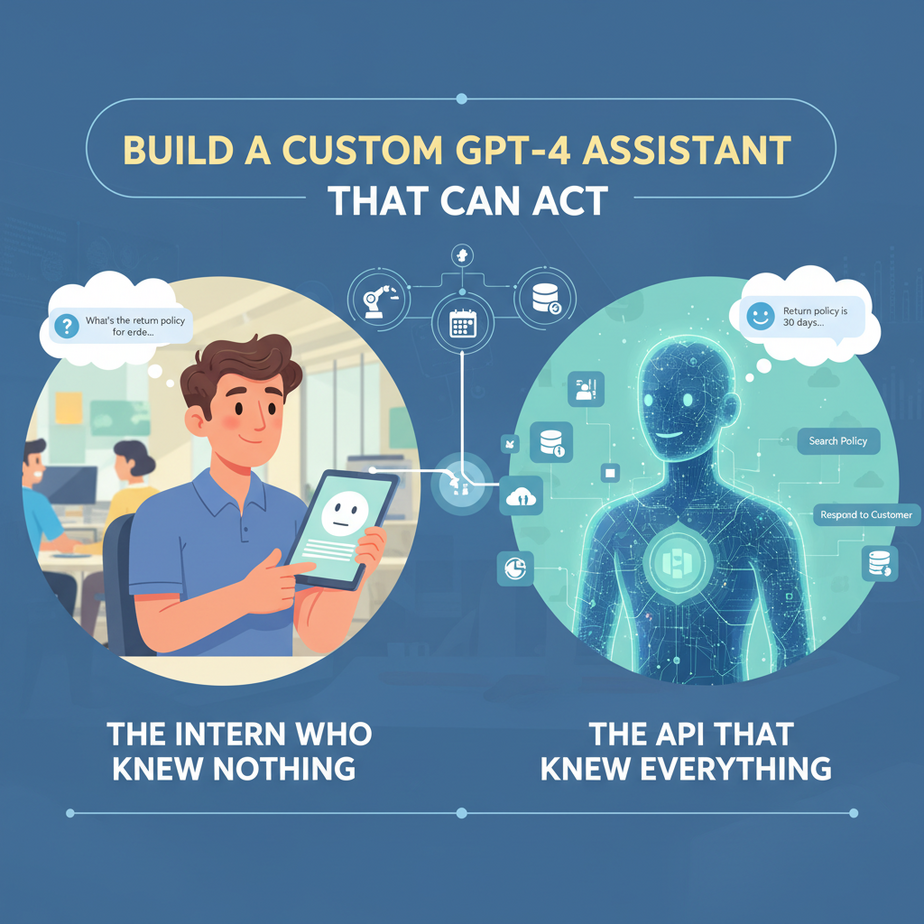
The Intern Who Knew Nothing, and The API That Knew Everything
Imagine you’ve just hired a new support intern, Alex. On Alex’s first day, a customer asks, “What’s the return policy for orders to Canada?” Alex freezes. He doesn’t know. He frantically searches through a 300-page PDF called `policies_v4_final_FINAL.pdf`. Ten minutes later, he gives the customer a half-correct answer. Later, another customer asks, “Can you check the status of my order, #12345?” Alex freezes again. He doesn’t have access to the order system. He has to ask a senior engineer, who sighs, types something into a terminal, and gives him the answer.
Alex isn’t a bad intern; he’s just a blank slate. He has no memory and no hands. A standard chatbot is the same. It can talk, but it doesn’t *know* your business, and it can’t *do* anything. Today, we’re going to build the perfect intern. One that has read and perfectly memorized every document you’ve ever written, and has been given a secure set of keys to your other systems to get real work done.
Why This Matters: From Chatbot to Co-Worker
Building an AI with the OpenAI Assistants API is a fundamental leap from a simple Q&A bot to a genuine AI agent. This is not just a parlor trick; it’s a new class of employee for your business.
Corporate Brain: You can upload your company’s entire knowledge base—product specs, HR policies, marketing guides, legal documents. The AI becomes an instant expert, providing consistent, accurate answers to your team and your customers, eliminating the “I don’t know, let me find out” delay.
Action-Oriented Automation: By giving the assistant ‘tools,’ you allow it to interact with the world. It can check inventory in your database, book a meeting in your calendar, or create a ticket in your helpdesk. It moves from passively answering questions to actively solving problems.
Persistent Memory: Unlike a one-off API call, an Assistant can hold a conversation. It remembers what you talked about five minutes ago, allowing for complex, multi-step interactions, just like a real human.
What This Tool Actually Is: The AI Agent Construction Kit
We’re using the OpenAI Assistants API. It’s important to understand this isn’t just another way to talk to GPT-4. It’s a framework for building stateful, tool-using agents. Think of it like a kit with three main parts:
- The Assistant: This is the blueprint for your AI. You define its personality (the prompt), its intelligence (the model, e.g., `gpt-4-turbo`), and its capabilities (the tools it can use).
- The Knowledge Base (Retrieval): This is the assistant’s library. You upload your files (PDFs, TXT, etc.), and the assistant will automatically read and reference them to answer questions. This is a simple form of Retrieval-Augmented Generation (RAG).
- The Tools (Actions): These are the assistant’s hands. You define custom functions, like `getOrderStatus` or `checkServerHealth`. When the assistant decides it needs to use one, the API call will pause, tell you which tool to run, and wait for you to provide the result.
You assemble these parts to create a specialist AI tailored to your exact business needs.
Prerequisites: A Little Bit of Code, A Lot of Power
Alright, this lesson moves beyond point-and-click. We’re writing some code. But don’t panic. If you can copy, paste, and think logically, you will succeed. Here’s what you need:
- An OpenAI Account: You need an API key and a positive credit balance. Go to `platform.openai.com`.
- Node.js: This is the engine that will run our code. If you don’t have it, go to nodejs.org and download the LTS version.
- A Code Editor: I recommend VS Code. It’s free and fantastic.
- A Terminal/Command Prompt: The black box where we’ll run our scripts.
- A Sample Document: Create a simple text file named `knowledge.txt`. In it, write a few facts, like: “Our company, Stellar Solutions, was founded in 2021. Our Pro Plan costs $99/month and includes priority support.”
Step-by-Step Tutorial: Building a Knowledgeable Assistant
Let’s build a simple assistant that knows the contents of our `knowledge.txt` file.
Step 1: Project Setup
Open your terminal, create a new folder for our project, and navigate into it.
mkdir ai-assistant
cd ai-assistant
Now, initialize a new Node.js project and install the OpenAI library.
npm init -y
npm install openai
Finally, create a file named `run.js` in your code editor. Place your `knowledge.txt` file in this same folder.
Step 2: The Code – Your Assistant’s DNA
Copy this entire block of code and paste it into your `run.js` file. Read the comments to understand what each part does. You’ll need to replace `’YOUR_OPENAI_API_KEY’` with your actual key.
// Import necessary libraries
const OpenAI = require('openai');
const fs = require('fs');

// 1. Authenticate with OpenAI
const openai = new OpenAI({
  apiKey: 'YOUR_OPENAI_API_KEY', // IMPORTANT: Replace with your actual key
});

// A helper function to wait for a bit
const sleep = (ms) => new Promise(resolve => setTimeout(resolve, ms));

// The main function where all the magic happens
async function main() {
  console.log('Starting our AI Assistant...');

  // 2. Upload our knowledge file to OpenAI
  const knowledgeFile = await openai.files.create({
    file: fs.createReadStream('knowledge.txt'),
    purpose: 'assistants',
  });
  console.log('Uploaded knowledge file:', knowledgeFile.id);

  // 3. Create the Assistant
  const assistant = await openai.beta.assistants.create({
    name: 'Stellar Solutions Support Bot',
    instructions: 'You are a helpful support agent for a company called Stellar Solutions. Answer questions based on the knowledge file provided.',
    model: 'gpt-4-turbo-preview',
    tools: [{ type: 'retrieval' }], // Enable the 'retrieval' tool for knowledge lookup
    file_ids: [knowledgeFile.id],
  });
  console.log('Created assistant:', assistant.id);

  // 4. Create a conversation thread
  const thread = await openai.beta.threads.create();
  console.log('Created thread:', thread.id);

  // 5. Add a user's message to the thread
  const userMessage = 'How much does the Pro Plan cost?';
  await openai.beta.threads.messages.create(thread.id, {
    role: 'user',
    content: userMessage,
  });
  console.log(`Added message to thread: "${userMessage}"`);

  // 6. Run the Assistant on the thread
  let run = await openai.beta.threads.runs.create(thread.id, {
    assistant_id: assistant.id,
  });
  console.log('Created run:', run.id);

  // 7. Poll the run status until it's complete
  while (run.status === 'queued' || run.status === 'in_progress') {
    await sleep(1000); // Wait for 1 second
    run = await openai.beta.threads.runs.retrieve(thread.id, run.id);
    console.log('Run status:', run.status);
  }

  if (run.status === 'completed') {
    // 8. Retrieve and display the messages
    const messages = await openai.beta.threads.messages.list(thread.id);
    const assistantResponse = messages.data[0].content[0].text.value;
    console.log('----------------------------------------------------');
    console.log('Assistant says:', assistantResponse);
    console.log('----------------------------------------------------');
  } else {
    console.error('The run did not complete successfully. Status:', run.status);
  }
}

// Run the main function
main();
Step 3: Run Your Assistant!
Save the `run.js` file. Go back to your terminal and run the script:
node run.jsWatch the console. It will create the assistant, upload the file, create a thread, and then poll the status. In the end, it should print the assistant’s correct answer, which it pulled directly from your `knowledge.txt` file!
Adding Tools: The Complete Automation Example
A knowledgeable assistant is great, but an assistant that can *act* is a game-changer. Let’s give our assistant a new tool: `getOrderStatus`. We’ll simulate this by just creating a dummy function in our code.
The process is: the user asks for an order status. The model sees this and pauses, saying `requires_action`. It tells us it wants to run the `getOrderStatus` tool with the argument `orderId: “12345”`. Our code then runs our *actual* function and submits the result back to the assistant, which then formulates a final answer.
This is a more advanced script, but the logic is crucial. This is how you connect an LLM to the real world.
// ... (keep the top part of the previous script: openai, sleep, etc.)

// A dummy function to simulate getting an order status
function getOrderStatus(orderId) {
  console.log(`TOOLBOX: Checking status for order ${orderId}...`);
  if (orderId === '12345') {
    return JSON.stringify({ status: 'Shipped', estimated_delivery: '2024-05-30' });
  } else {
    return JSON.stringify({ status: 'Not Found' });
  }
}

async function main() {
  console.log('Starting our ACTION-ENABLED AI Assistant...');

  // 1. Create the Assistant with a tool definition
  const assistant = await openai.beta.assistants.create({
    name: 'Stellar Solutions Order Bot',
    instructions: 'You are a helpful order support agent. Use the available tools to check order statuses.',
    model: 'gpt-4-turbo-preview',
    tools: [
      {
        type: 'function',
        function: {
          name: 'getOrderStatus',
          description: 'Get the status of a customer\\'s order',
          parameters: {
            type: 'object',
            properties: {
              orderId: { type: 'string', description: 'The ID of the order.' },
            },
            required: ['orderId'],
          },
        },
      },
    ],
  });

  // 2. Create thread, add message
  const thread = await openai.beta.threads.create();
  const userMessage = 'Can you please check the status for order #12345?';
  await openai.beta.threads.messages.create(thread.id, { role: 'user', content: userMessage });

  // 3. Create the run
  let run = await openai.beta.threads.runs.create(thread.id, { assistant_id: assistant.id });

  // 4. Poll the status, but now we also check for 'requires_action'
  while (['queued', 'in_progress'].includes(run.status)) {
    await sleep(1000);
    run = await openai.beta.threads.runs.retrieve(thread.id, run.id);
    console.log('Run status:', run.status);
  }

  // 5. Check if the run requires an action (i.e., a tool call)
  if (run.status === 'requires_action') {
    console.log('Run requires action!');
    const toolCall = run.required_action.submit_tool_outputs.tool_calls[0];
    const toolName = toolCall.function.name;
    const toolArgs = JSON.parse(toolCall.function.arguments);

    let toolOutput = '';
    if (toolName === 'getOrderStatus') {
      toolOutput = getOrderStatus(toolArgs.orderId);
    }

    // 6. Submit the tool's output back to the Assistant
    run = await openai.beta.threads.runs.submit_tool_outputs(thread.id, run.id, {
      tool_outputs: [{ tool_call_id: toolCall.id, output: toolOutput }],
    });
    console.log('Submitted tool output, continuing run...');

    // 7. Poll again until the run is complete
    while (['queued', 'in_progress'].includes(run.status)) {
      await sleep(1000);
      run = await openai.beta.threads.runs.retrieve(thread.id, run.id);
      console.log('Run status:', run.status);
    }
  }

  // 8. Display the final response
  if (run.status === 'completed') {
    const messages = await openai.beta.threads.messages.list(thread.id);
    const assistantResponse = messages.data[0].content[0].text.value;
    console.log('----------------------------------------------------');
    console.log('Assistant says:', assistantResponse);
    console.log('----------------------------------------------------');
  } else {
    console.error('The run ended with status:', run.status);
  }
}

main();
Real Business Use Cases (Every Tool is a Superpower)
- E-commerce Bot: Knowledge: Product FAQs. Tools: `checkInventory(productId)`, `initiateReturn(orderId)`. Connects to a Shopify or Magento API.
- Internal IT Helpdesk: Knowledge: Troubleshooting guides. Tools: `resetPassword(employeeId)`, `createSupportTicket(issueDescription)`. Connects to Active Directory and Jira/Zendesk.
- Sales Assistant: Knowledge: Case studies and battle cards. Tools: `getLeadInfo(email)`, `scheduleMeeting(attendeeEmail, time)`. Connects to HubSpot/Salesforce and Google Calendar.
- Travel Agent Bot: Knowledge: City guides. Tools: `searchFlights(origin, destination, date)`, `bookHotel(city, checkInDate, nights)`. Connects to Skyscanner or Expedia APIs.
- DevOps Assistant: Knowledge: Infrastructure documentation. Tools: `checkServerHealth(serverId)`, `deployCode(branchName)`. Connects to AWS/GCP APIs and CI/CD pipelines.
Common Mistakes & Gotchas (Read This or Suffer)
- Forgetting to Poll: The `run` command is not instant. You *must* implement a loop to check the status, or you’ll never get a result.
- Vague Function Descriptions: The `description` field in your tool definition is critical. The AI uses this to decide *when* to use your tool. Be specific and clear. `”Checks an order”` is bad. `”Gets the current shipping status and estimated delivery date for a specific order ID”` is good.
- Handling `requires_action` Incorrectly: This is the most complex part. You must get the `tool_call_id` from the run object and submit it back with your output. If you don’t, the assistant will be stuck waiting forever.
- Mixing Up Threads: A `thread` is a single, continuous conversation. To talk to the same user again, you must save and reuse their `thread_id`. Don’t create a new thread for every message.
How This Fits Into a Bigger Automation System
An Assistant is a powerful, specialist brain. But a brain in a jar is useless. It needs a body. The code we wrote today is the ‘spinal cord,’ but it needs to connect to the outside world. You can wrap this logic inside:
– An Inbound Voice Agent (like Vapi): When a user calls, Vapi handles the voice-to-text. It sends the text to your Assistant. Your code runs the logic, calls tools if needed, and sends the text response back to Vapi to be spoken aloud. The Assistant is the brain, Vapi is the mouth and ears.
– A Slack Bot: Create a bot that listens for messages in a channel. Each message can be added to an ongoing thread with the Assistant, allowing your team to query your company’s knowledge base from Slack.
– A Make.com Workflow: Use a webhook to trigger a Make scenario, which then runs your Node.js code (hosted on a server) to get an intelligent answer before proceeding with the rest of the automation.
What to Learn Next
We’ve built an incredible AI co-worker that can access knowledge and use tools. But right now, it only lives in our terminal. It’s a powerful engine with no car around it. To make it useful for our team or our customers, we need to make it accessible.
In the next lesson, we will put a face on our creation. We’ll take the Node.js code we wrote today and wrap it in a simple web server, creating an API endpoint. Then, we’ll build a dead-simple HTML and JavaScript frontend to create a web-based chat interface for our assistant. We’re taking our AI out of the lab and into the real world.
“,
“seo_tags”: “OpenAI Assistants API, GPT-4 tutorial, custom AI assistant, AI actions, knowledge retrieval, RAG, function calling, Node.js AI”,
“suggested_category”: “AI Automation Courses