
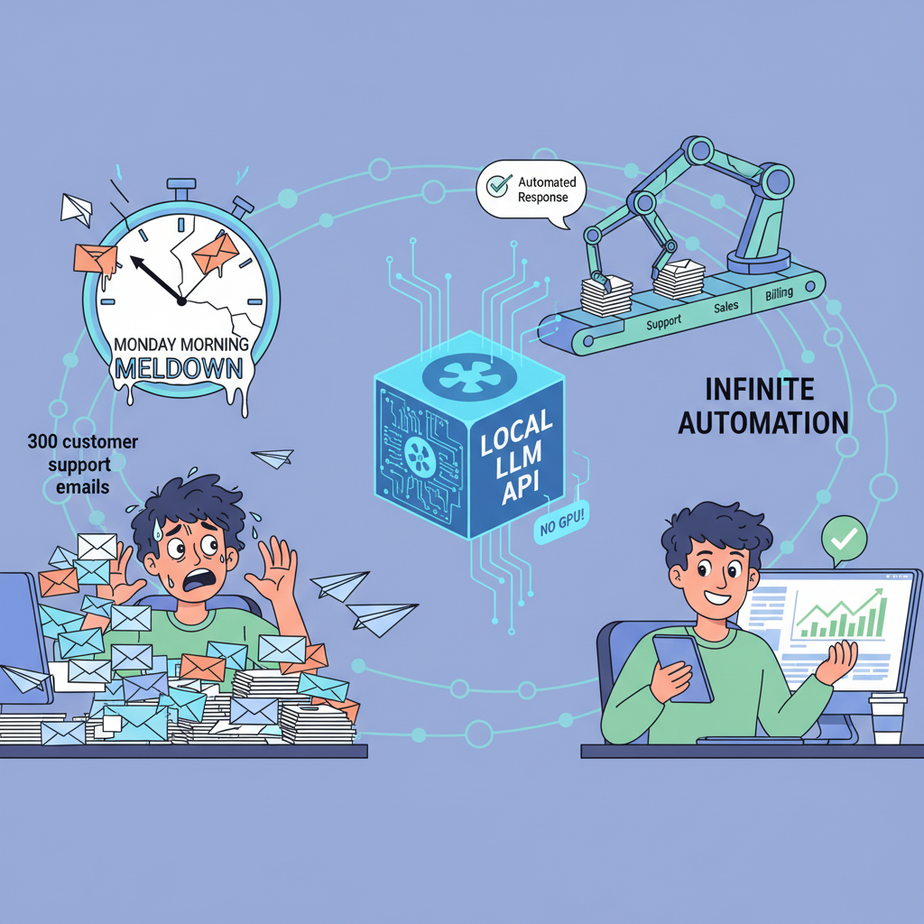
The Intern, The Inbox, and The Meltdown
Picture this. It’s Monday morning. You’ve hired a new intern, bless their heart. Their job is simple: read through the 300 customer support emails that came in over the weekend, figure out what each one is about, and manually enter the details into a spreadsheet. Name, email, problem type, urgency.
By 10 AM, you hear a quiet sob. By noon, the intern is just staring blankly at the screen, twitching. They’ve categorized 47 emails. The inbox count is now 350.
This isn’t a people problem; it’s a systems problem. That intern is a human text-parser, doing a job a machine was born to do. You could use a cloud service like OpenAI, but you’d be paying for every single email, sending your customer data to a third party, and waiting for their API to respond. There’s a better way. A free, private, and ridiculously fast way.
Today, we’re firing that manual process (not the intern, we’ll give them a better job) and building our own private AI brain that lives right on your computer.
Why This Matters
Running an AI model locally is a superpower. It’s the difference between renting a car and owning one. Here’s what it gets you:
- Cost: $0. You read that right. Once you download the model, you can make a million, a billion, a trillion API calls. It costs you nothing but electricity. Compare that to paying per word with commercial APIs.
- Privacy: 100%. The data—your customer emails, your secret business plans, your weird late-night thoughts—never leaves your computer. It’s never sent to Google, OpenAI, or any other tech giant to train their next world-conquering model.
- Speed: Ludicrous. API calls happen over your local network. There’s no internet latency. It’s nearly instantaneous. This is critical for real-time applications where a 2-second delay is unacceptable.
- Control: Absolute. No rate limits. No content filters telling you what you can and can’t do. No surprise API changes that break your entire workflow. It’s your model, on your machine. You’re the boss.
This workflow replaces the expensive, slow, and privacy-invading part of many AI automation systems. It’s the foundation for building truly independent and robust business automation.
What This Tool / Workflow Actually Is
We’re going to use a tool called Ollama. Don’t let the name intimidate you. It’s brilliant.
Think of Ollama as Docker, but for Large Language Models. It’s a simple command-line tool that lets you download, manage, and run powerful open-source models (like Meta’s Llama 3) on your own machine. Even a modern laptop.
What it does: It downloads a pre-packaged model and instantly wraps it in a simple, standardized API server. This means you can talk to a powerful AI model just by sending a message to an address on your own computer (http://localhost:11434).
What it does NOT do: It’s not a fancy user interface. It’s not a full development platform. It’s a simple, rugged engine. It gives you the raw power of the model through an API, and it’s up to us to connect that API to our other systems. Which is exactly what this academy is all about.
Prerequisites
I know the words “command-line” and “API server” can make some of you break out in a cold sweat. Relax. I’m serious. If you can copy and paste, you can do this. Here’s all you need:
- A decent computer. A Mac, Windows, or Linux machine made in the last 4-5 years will work. The key is having at least 8GB of RAM, but 16GB is better. You do NOT need a fancy gaming GPU.
- The ability to open a terminal. On Mac, it’s called Terminal. On Windows, it’s PowerShell or Command Prompt. We are literally just typing or pasting one-line commands. That’s it.
- Internet connection (just for the download). You need it once to download Ollama and the model. After that, you can run it completely offline.
That’s it. No coding experience needed to get the API running. I promise.
Step-by-Step Tutorial
Let’s build our private AI brain. This will take less than 10 minutes.
Step 1: Download and Install Ollama
Go to the Ollama website (ollama.com) and download the installer for your operating system. Run it. It’s a standard installation, just click “Next” until it’s done. This will install the background service that manages the models.
Step 2: Open Your Terminal and Pull a Model
Open Terminal (Mac/Linux) or PowerShell (Windows). We need to download a model to work with. We’ll use Llama 3’s 8-billion parameter version. It’s powerful enough for most business tasks and fast enough to run on a laptop. Type this command and press Enter:
ollama run llama3:8b-instructWhy this step exists: This command tells Ollama to go to its online library, find the model named llama3:8b-instruct, download it to your computer, and start a chat session. The first time you run this, it will download a file that’s a few gigabytes. Be patient. Once it’s done, you’ll see a message like “Send a message (/? for help)”. You can close this chat now by typing /bye. The model is now installed locally.
Step 3: Confirm the API Server is Running
The magic of Ollama is that as soon as you run a model, it starts a server in the background. You don’t have to do anything else. It’s already running, waiting for instructions at its designated address. You don’t need to see anything for this to be true; it just works.
Step 4: Send Your First API Request with cURL
Now for the fun part. Let’s talk to our local AI using its API. We’ll use a simple, universal command-line tool called cURL. It’s pre-installed on Mac, Linux, and modern Windows. Stay in your terminal and copy-paste this entire block of code, then press Enter.
curl http://localhost:11434/api/generate -d '{
  "model": "llama3:8b-instruct",
  "prompt": "Why is the sky blue?",
  "stream": false
}'
Why this step exists: This command tells your computer to send a POST request to the Ollama server. Let’s break it down:
curl http://localhost:11434/api/generate: This is the tool and the address of our local AI brain.-d '{...}': This is the data we’re sending. It’s a JSON payload."model": "llama3:8b-instruct": We’re specifying which model to use."prompt": "Why is the sky blue?": This is our question."stream": false: This tells the server to wait until the entire answer is ready before sending it back. Much cleaner for automation.
You should get a JSON response back that contains the model’s answer. Congratulations. You just ran a powerful AI model on your own computer and communicated with it like a pro. You have a local LLM API.
Complete Automation Example
Okay, asking about the sky is cute. Let’s solve our intern’s problem. We want to take a messy customer email and turn it into clean, structured JSON data that a machine can understand.
The Goal: Parse this email into a structured format.
The Input (a messy email):
“Hi there, my name is Karen from Accounting and I’m pretty upset. My order #G-4822-X never arrived, I ordered it last Tuesday!! The tracking number you gave me doesnt work and my boss is getting mad. I need this fixed ASAP. Thanks, Karen P.”
Here’s the API call we will send to our local model. Notice the prompt is now much more specific. We’re telling the AI exactly what we want and what format to use.
Copy-paste this entire command into your terminal:
curl http://localhost:11434/api/chat -d '{
  "model": "llama3:8b-instruct",
  "messages": [
    {
      "role": "system",
      "content": "You are an expert at parsing customer support emails. Your only job is to extract information into a structured JSON format. Your response MUST be ONLY the valid JSON object, with no extra text or explanations."
    },
    {
      "role": "user",
      "content": "Please parse the following email and provide a JSON response with the fields: customer_name, order_number, issue_type, sentiment, and urgency_level (1-5). Email: Hi there, my name is Karen from Accounting and I\\'m pretty upset. My order #G-4822-X never arrived, I ordered it last Tuesday!! The tracking number you gave me doesnt work and my boss is getting mad. I need this fixed ASAP. Thanks, Karen P."
    }
  ],
  "format": "json",
  "stream": false
}'
The Magic: Notice two crucial additions: "format": "json", which is an Ollama-specific feature that forces the model to output valid JSON, and a structured `messages` array where we provide a `system` prompt to set the context. This is much more reliable than just a simple prompt.
The Expected Output (from your local AI):
{
  "customer_name": "Karen P.",
  "order_number": "G-4822-X",
  "issue_type": "Delivery/Shipment",
  "sentiment": "Negative",
  "urgency_level": 5
}
Look at that. Beautiful, structured data. You can now send this to your CRM, a database, a Slack channel… anywhere. And you just did it for free, in less than a second, with total privacy.
Real Business Use Cases (MINIMUM 5)
This isn’t just for support tickets. This exact same local API workflow can be used across any business:
- E-commerce Store: Automate processing of return requests. An email saying “I want to return my blue sweater, order 12345” is automatically parsed into JSON:
{"order_id": "12345", "action": "return", "item": "blue sweater"}which can then trigger the returns process in Shopify. - Real Estate Agency: Scrape property listings from websites. Feed the unstructured text description into the local API to extract
{"bedrooms": 3, "bathrooms": 2, "sqft": 1800, "features": ["hardwood floors", "updated kitchen"]}for your database. - Recruiting Firm: Drag-and-drop a resume (as a text file) into a folder. An automation reads the file, sends the text to your local Llama 3 API, and gets back structured JSON with
{"name": "...", "email": "...", "skills": ["Python", "SQL", "AWS"], "years_of_experience": 7}. - Marketing Agency: Take a client’s 500-word blog post and ask the API to generate 5 different tweet variations, a LinkedIn post, and a short email summary, all returned in a single JSON object.
- Legal Tech Company: Classify legal documents. Feed the first page of a document to the API and ask it to identify the document type. It returns
{"document_type": "Motion to Dismiss", "case_number": "CV-2024-1987"}for automatic filing and routing.
Common Mistakes & Gotchas
- Forgetting
"format": "json". If you forget this, the model might give you a friendly sentence like “Sure, here is the JSON you requested:” followed by the code. This will break any downstream automation. The `format` flag is your best friend. - Using a model that’s too big. It’s tempting to download the 70-billion parameter model. Don’t. It will be incredibly slow without a massive GPU. Stick with the 8B models (or smaller) for speed on normal hardware.
- Weak Prompting. If you just say “Summarize this email,” you’ll get a paragraph. You need to be explicit: “Extract these specific fields into this exact JSON structure.” Give it an example if you have to.
- Expecting it to know current events. These models are frozen in time. They don’t know who won last night’s game or what your company’s stock price is. They are language processing engines, not search engines.
- Firewall/Network Issues. Very rarely, security software or a corporate firewall might block connections to `localhost`. If `cURL` gives you a “Connection refused” error, this is the first thing to check.
How This Fits Into a Bigger Automation System
What we’ve built is a single, powerful brain cell. By itself, it’s a cool party trick. But when you connect it to a nervous system, it becomes the core of a powerful automated business.
Imagine this:
- Input: A script (which we’ll learn to build) automatically checks an email inbox every 60 seconds.
- Processing: When a new email arrives, its text is sent to our local Ollama API endpoint, just like we did with cURL.
- Output: The clean JSON response is received.
- Action: The script then reads the JSON. If
urgency_levelis 5, it sends a message to a manager’s Slack channel. For all emails, it creates a new ticket in your CRM (like HubSpot or a Google Sheet) with all the structured data pre-filled.
This local API is the component that does the “thinking.” It’s the replacement for the manual human step. It can be a router in a multi-agent system (deciding which specialist bot to send a task to) or the core of a RAG system that answers questions about your internal company documents, all with complete privacy.
What to Learn Next
You have an API. You’ve proven it works. You have a powerful AI model sitting on your computer, waiting for instructions, costing you nothing to run. So what’s next?
An API is useless if nothing calls it.
In the next lesson in our course, we’re going to graduate from the command line. We’ll write a simple Python script that acts as the hands and feet for our new brain. This script will automatically read an email inbox, call our local API for every new message, and neatly save the structured JSON output into a CSV file—the universal language of spreadsheets.
We’re building our autonomous intern, piece by piece. Today was the brain. Next is the nervous system.
Stay sharp. It’s about to get really powerful.
“,
“seo_tags”: “AI Automation, Local LLM, Ollama, Llama 3, Business Automation, OpenAI Alternative, Private AI, API Tutorial, Free AI”,
“suggested_category”: “AI Automation Courses