
Hook: The Eternal Scheduling Struggle
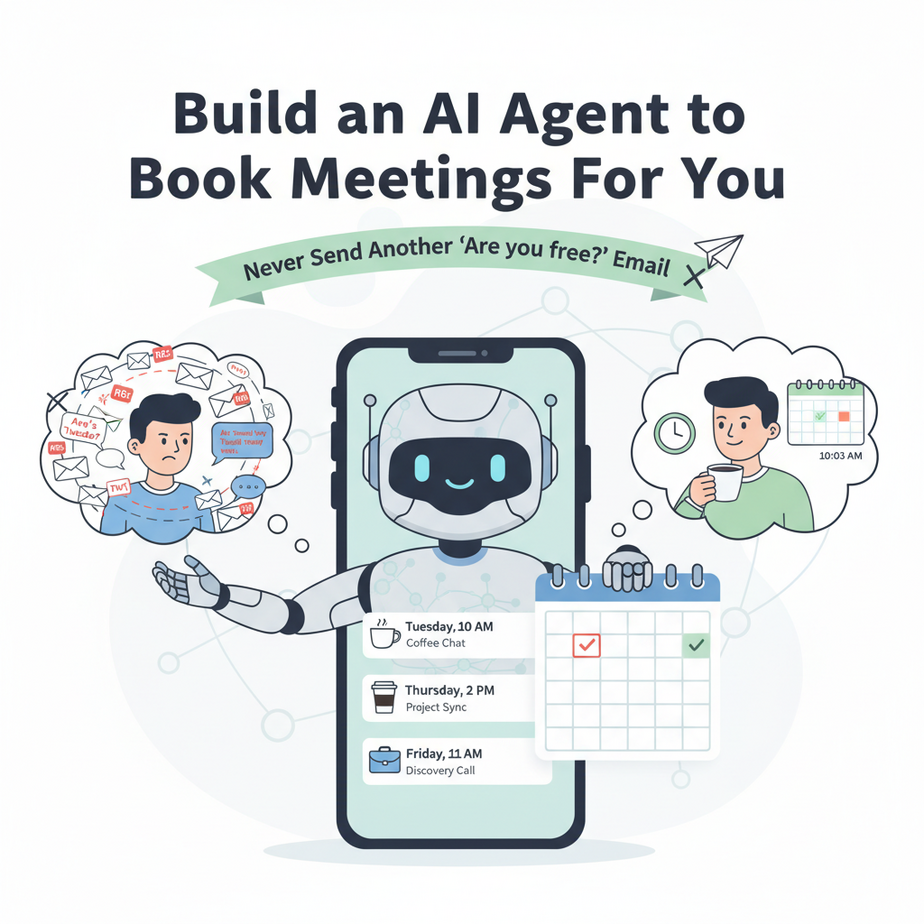
It’s 10:03 AM. You get an email: “Hey, are you free next week for a chat?” You reply: “Sure, how’s Tuesday or Thursday?” They email back: “Tuesday works. Morning or afternoon?” You check your calendar. “How about 10 AM on Tuesday?” They respond: “I have a conflict at 10, how about 11?” You check again… This dance goes on for 4-5 email exchanges just to lock in 30 minutes. That’s not a conversation; it’s a digital autopsy of time slots. And you’re doing it for every single meeting. What if you had an agent that simply understood your availability and booked it automatically? An agent that doesn’t need coffee breaks and never double-books your calendar. That’s not science fiction—it’s today’s automation, and we’re building it right now.
Why This Matters: From Chaos to Clockwork
Think of scheduling as the gatekeeper to your business. Every delay in booking a meeting delays revenue, delays collaboration, delays progress. Most professionals spend 1-2 hours *per day* just managing calendar logistics. That’s a 20-25% productivity tax on every business day. This automation replaces the intern who only books meetings with a robotic concierge that does it faster, more accurately, and with zero fatigue. The business impact is immediate: more time for deep work, faster deal cycles, and clients who are impressed by your responsiveness. You’re not just saving time; you’re removing friction from the most valuable conversations you have.
What This Tool / Workflow Actually Is
This is a multi-agent automation pipeline. We’ll combine a trigger (an incoming meeting request) with an AI that understands your calendar and finds a slot, then uses your scheduling software to book it. We’ll use Zapier (or Make.com) as our glue, Google Calendar as our schedule, and OpenAI’s GPT-4o as our scheduling brain.
It will does:
- Scan incoming meeting requests (from email or a form).
- Read your real-time calendar availability.
- Propose the optimal meeting time (first available slot, morning preference, etc.).
- Send a calendar invitation directly to the guest.
- Send a confirmation to you and the guest.
It does NOT:
- Negotiate complex meeting agendas.
- Handle last-minute cancellations (requires a human touch).
- Understand special time zone requests without explicit formatting.
- Integrate with every single calendar system (we’ll use Google Calendar as the standard).
Prerequisites
Brutally honest checklist. You need:
- A Google Account with Calendar: This is your schedule’s source of truth.
- A Zapier or Make.com account: The automation hub. Start with free plans.
- OpenAI Account & API Key: A few cents to process each request. Budget $2-3 for testing.
- 5 minutes of calm: The interface will feel new. That’s normal. Focus on the logic, not the clicks.
If this is your first automation, don’t worry. This is a three-step process: Receive Request → Find Slot → Book It. We’ll build it piece by piece.
Step-by-Step Tutorial: Build Your Scheduling Agent
We’ll build this in Zapier. The logic is transferable to Make.com or any workflow tool.
Step 1: Trigger – The “Meeting Request” Signal
We need a way to tell our agent, “Hey, someone wants to meet!” We’ll use a simple form as a trigger.
- Click “Create Zap.” Search for “Google Forms.”
- Choose trigger: “New Form Response.”
- Connect your Google account and create a simple form (or use an existing one). Your form should ask for: Name, Email, Desired Duration, Any Preferences (e.g., ‘morning preferred’).
- Test the trigger by submitting a dummy response. Zapier will now see this data as inputData.
Why a form? It’s controlled and avoids messy parsing of email bodies. Later, you can add an email trigger too.
Step 2: Action – Check Your Calendar Availability
Now, we need to ask Google Calendar, “What am I free next Tuesday?”
- Add a Google Calendar action: “Find Time.”
- Connect your Google Calendar account.
- Set up the query:
- Duration: Pull from the form response (e.g., 30 minutes).
- Time Range: Set a window (e.g., “Next 7 days”).
- Buffer Time: Optional, but add 15 mins before/after to avoid back-to-back slams.
- Test this step. Zapier will return the first available time slot from your calendar.
Step 3: Action – AI Time Selection (The Decision Engine)
Sometimes the first slot isn’t ideal (it’s right before a deadline). Let’s use AI to make a smart choice. This is a Code step.
// Code for Zapier's Code by Zapier (JavaScript)

// Get data from the previous steps
const formResponse = inputData.formResponse;
const availableSlot = inputData.availableSlot; // Format: '2024-05-15T10:00:00'
const userPreferences = (formResponse.preferences || '').toLowerCase();

// Parse the slot into a Date object for analysis
const slotDate = new Date(availableSlot);
const hour = slotDate.getHours(); // e.g., 10 for 10 AM

// Define our business rules
let chosenSlot = availableSlot;
let confirmationMessage = "I've booked it!";

// Rule 1: Avoid late afternoon if user prefers morning
if (userPreferences.includes('morning') && hour >= 12) {
  // Try to find a morning slot - for simplicity, we'll stick to the first one
  // but add a note. In a full system, you'd query calendar again.
  confirmationMessage = "I've booked the first available slot. It's in the afternoon. If mornings are better, let me know.";
}

// Rule 2: Ensure it's not during lunch hour (12-1 PM)
if (hour >= 12 && hour < 13) {
  chosenSlot = availableSlot; // For this example, we keep it. In reality, query again.
  confirmationMessage = "I've booked it, though it's during a typical lunch hour. If that's an issue, let's reschedule.";
}

// Return structured data for the next steps
return {
  confirmedSlot: chosenSlot,
  message: confirmationMessage,
  guestEmail: formResponse.email,
  guestName: formResponse.name,
  duration: formResponse.duration
};
Step 4: Action - Create the Calendar Event
Now, make it real. Add a Google Calendar action: "Create Event."
- Set the "Event Title": e.g., "Meeting with {Guest Name}" (pull from Step 3).
- Set the "Start Date/Time": Use the `confirmedSlot` variable from your Code step.
- Set the "End Date/Time": Calculate by adding the `duration` (e.g., 30 mins) to the `confirmedSlot`.
- Set the "Guest List": Add the `guestEmail` variable.
- Set the "Description": You can include the original request details from the form.
Step 5: Action - Send Confirmation Emails
Two final actions:
- Send Email to You: Use Zapier's Email by Zapier or Gmail. "Subject: Meeting Booked. Body: You have a meeting with {guestName} at {confirmedSlot}. The guest said: '{message}'"
- Send Email to Guest: Same platform. "Subject: Meeting Confirmed for {guestName}. Body: Great! We're meeting on {confirmedSlot}. I'll send a calendar invite shortly."
Complete Automation Example: The "Client Onboarding" Workflow
Let's tie it all together with a real business flow:
- Trigger: A "Contact Us" form on your website is submitted. Fields: Name, Email, "I'd like a sales demo."
- Action 1 (CRM Update): Add the contact to HubSpot/Salesforce as a "Lead."
- Action 2 (Scheduler): The workflow above runs automatically. It checks your calendar and books a 30-minute demo slot.
- Action 3 (Task Creation): A task is created in Asana/Trello: "Prepare demo for {clientName} on {date}."
- Action 4 (Automated Follow-up): 24 hours before the meeting, an email is sent with a pre-meeting questionnaire link.
From form fill to booked demo to task creation—all without you lifting a finger.
Real Business Use Cases
- Sales Teams: Automatically book demos from lead magnets. Eliminate the SDR's scheduling calls, letting them focus on actual discovery.
- Consultants: A public booking link is fed directly to your calendar AI. Clients book without email tag. The agent handles buffer time, so you're never back-to-back.
- Freelancers: Offer a "free 15-minute chat" service. The AI books it, blocks the time, and prevents overbooking. No more "Sorry, I'm booked!" emails.
- Recruiters: Schedule screening interviews automatically. Integrate with your ATS (Applicant Tracking System) to pull candidate info and create the event with resume links.
- Workshop Hosts: Let attendees book their preferred session time from a form. The AI checks instructor availability and workshop size, then assigns them to the right slot.
Common Mistakes & Gotchas
- Over-Booking:\strong> If two requests come in simultaneously, you could book the same slot twice. To prevent this, use a "Buffer Time" in your calendar query and update your calendar availability *immediately* after booking.
- Time Zone Hell: Always specify time zones. Store guest time zone in the form data. Use Zapier's built-in time zone conversion or set a fixed zone for your calendar (e.g., "All meetings are in EST").
- AI Misinterpretation: "Morning" can mean different things. Be very specific in your prompt: "Morning is 8 AM to 11 AM local time." Test edge cases: "Could you meet at 3 AM?" The AI should know that's unreasonable.
- Cost Scaling: Every form submission runs the AI code. If you're getting 100+ leads/day, costs will add up. Consider only running the AI on high-priority leads or using a simpler rule-based system for lower-value requests.
How This Fits Into a Bigger Automation System
This scheduler is the hub that connects your marketing to your operations. Imagine this chain:
Website Form (Lead Capture) → CRM Tagging (Lead Score) → Scheduling Agent (Book Meeting) → Pre-Meeting Prep (AI generates briefing notes) → Post-Meeting Follow-up (AI writes summary email) → Project Management (Auto-create project in Asana) → Invoice Generation (if it's a paid meeting).
Your scheduling agent isn't just booking time; it's the trigger that sets off an entire project lifecycle. It's the first domino in your automated revenue engine.
What to Learn Next: From Scheduling to Selling
Now you've built an agent that can manage your calendar. But what happens *after* the meeting? In our next lesson, we'll build an AI assistant that *attends* the meeting for you, takes perfect notes, identifies action items, and drafts the follow-up email—all while you're on the call. Imagine never having to write another meeting summary again.
You've just automated one of the most common daily frustrations. Your calendar is now a collaborative space you manage, not a prison you're sentenced to. Keep building.
",
"seo_tags": "AI scheduling agent, Zapier automation, Google Calendar automation, business meeting booking, AI workflow, productivity automation",
"suggested_category": "AI Automation Courses