
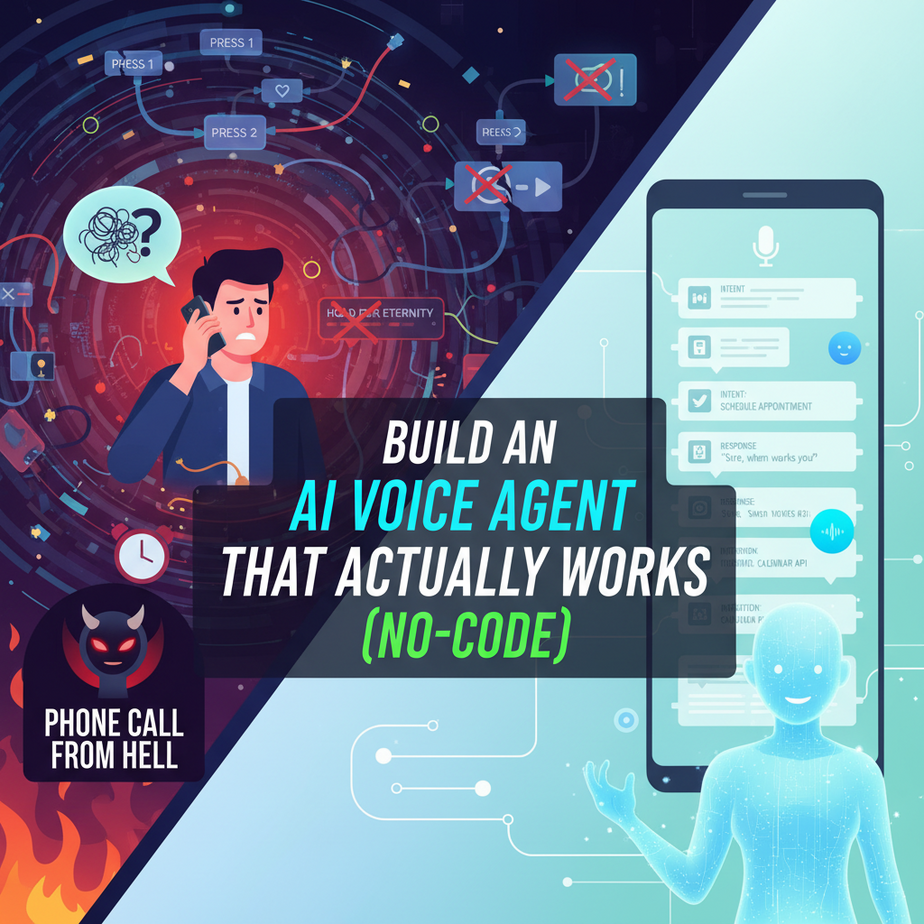
Our Story Begins with a Phone Call from Hell
I once had to call my internet provider. The journey began with a 10-minute tango through a phone menu that felt designed by a demon who feeds on human frustration. “Press 1 for Sales. Press 2 for suffering. Press 3 to question all your life choices.”
When I finally reached a human, they had no idea who I was or why I’d spent the last decade of my life navigating their robotic labyrinth. They transferred me. Twice.
We’ve all been there. It’s slow, it’s infuriating, and it’s a colossal waste of everyone’s time. Now, imagine if your business runs on that same broken model. Every missed call is a missed opportunity. Every frustrated caller is a lost customer.
Today, we’re ending that. We’re not just building a better phone menu; we’re building a smart, conversational AI that can handle real work. We’re building the receptionist you wish you had — one that never sleeps, never gets grumpy, and costs less than your daily coffee budget.
Why This Matters
Let’s be blunt. Answering the phone is often a low-value, repetitive task. It’s the perfect job for a robot. By automating your inbound calls, you’re not just saving time; you’re building a scalable business machine.
This workflow replaces:
- The overwhelmed founder: Stop dropping everything to answer “What time do you close?”
- The expensive human receptionist: Free up your team for tasks that require a human brain and empathy.
- The frustrating “Press 1” menu: Let customers just… talk. Like normal people.
Think of this as your first robot employee. Its job is Tier 1 support, lead qualification, and appointment scheduling. It works 24/7, handles a thousand calls at once, and never asks for a raise. The result? You capture more leads, serve customers faster, and free your human team to focus on growing the business.
What This Tool / Workflow Actually Is
We are building an AI Voice Agent. It’s a simple but powerful system with three parts:
- The Ears (Twilio): Twilio provides a phone number. It’s the piece that connects to the global telephone network. When someone calls your number, Twilio answers and says, “I’ve got a live one! What should I do?” It also converts the caller’s speech into text for us.
- The Brain (Make.com + OpenAI): Make.com is our visual automation factory. It receives the call information from Twilio. We then pass the caller’s transcribed speech to an AI model like OpenAI’s GPT. The AI decides on the correct response.
- The Mouth (Twilio, again): Make.com tells Twilio what to say back. Twilio converts our text response into natural-sounding speech and plays it for the caller.
What it is NOT: This is not a sentient being from a sci-fi movie. It won’t understand deep emotional nuance or complex, multi-turn conversations without a lot more work. It’s a tool designed to handle specific, predictable tasks incredibly well.
Prerequisites
I know this sounds complex, but it’s mostly just clicking and copying. I’m being brutally honest here. You need:
- A Twilio Account: They have a free trial that gives you a test number and some starting credits. Perfect for this project.
- A Make.com Account: The free plan is more than enough to build and test this.
- An OpenAI API Key: You’ll need to add a credit card, but the cost for testing this is literally pennies. We’re talking less than a cent per call.
- 45 minutes of focus. That’s it. No coding, no servers, no tears.
If you can follow a recipe to bake a cake, you can do this. I promise.
Step-by-Step Tutorial
Alright, let’s build our robot. Follow these steps exactly.
Step 1: Get Your Phone Number from Twilio
- Sign up or log in to Twilio.
- In your dashboard, navigate to “Phone Numbers” -> “Manage” -> “Buy a number.”
- Find a number you like (make sure it has “Voice” capability) and buy it. It’s usually about $1/month.
- Click on your new number to go to its configuration page. We’ll come back here in a minute.
Step 2: Create the Brain in Make.com
- Log in to Make.com and click “Create a new scenario.”
- Click the big purple plus sign and search for “Webhooks.” Select it.
- Choose the trigger “Custom webhook.” Click “Add,” give your webhook a name (like “AI Voice Bot”), and click “Save.”
- A unique URL will appear. This is critical. Click “Copy address to clipboard.” This is the address Twilio will send calls to. Leave this window open for now.
Step 3: Connect Twilio to Your Make.com Brain
- Go back to your Twilio number’s configuration page.
- Scroll down to the “Voice & Fax” section.
- Under “A CALL COMES IN,” select “Webhook.”
- Paste the webhook URL you copied from Make.com into the text box.
- Make sure the method is set to `HTTP POST`.
- Click “Save.” Now, when someone calls your number, Twilio will notify your Make.com scenario.
Step 4: Design the Conversation Flow
Now for the fun part. Go back to your Make.com scenario. We need to make a test call to give it some data to work with.
- In Make.com, click the “Run once” button. Your scenario is now listening.
- Using your real phone, call the Twilio number you bought. Say something simple like, “Hello, what are your hours?” and hang up.
- Go back to Make.com. You should see a “1” appear on the webhook module, meaning it received the data from Twilio. Hooray!
- Now, add another module. Click the plus sign next to your webhook. Search for and select “OpenAI (DALL-E, GPT-3, GPT-4).”
- Choose the action “Create a Completion.” Connect your OpenAI account if you haven’t already.
- Configure the OpenAI module:
- Method: Create a Chat Completion
- Model: `gpt-4o` or `gpt-3.5-turbo` (cheaper)
- Messages: Add one item.
- Role: `System`
- Content: `You are a friendly and concise AI receptionist for a bakery called ‘The Flour Pot’. Your hours are 8 AM to 5 PM, Tuesday through Sunday. Only answer questions based on this information.`
- Add a second message item.
- Role: `User`
- Content: Here, we map the data from Twilio. Click into the field and select the `SpeechResult` variable from the Webhook module. It might be nested under `Body` or another field. This dynamically inserts the caller’s speech.
- Finally, we need to send the AI’s response back to Twilio. Add a final module: “Webhooks” -> “Webhook response.”
- In the “Body” field, we must provide a special format called TwiML. This is non-negotiable. Twilio needs it to understand what to do. Copy and paste this exactly:
<Response>
  <Say>{{2.choices[].message.content}}</Say>
</Response>
Explanation: The `{{2.choices[].message.content}}` part is a variable from Make.com. You’ll click into the TwiML and select the text response from the OpenAI module (it will be under `Choices` -> `Message` -> `Content`). This dynamically inserts the AI’s generated text into the TwiML.
That’s it! Turn your scenario ON. You now have a functioning AI voice agent.
Complete Automation Example
Let’s walk through a full call to our bakery bot.
- The Call: A customer dials your Twilio number.
- Customer: “Hi there, are you open on Mondays?”
- Twilio -> Make.com: Twilio answers, converts the speech to text (“Hi there are you open on Mondays?”), and sends it to your Make.com webhook URL.
- Make.com -> OpenAI: The webhook triggers. The OpenAI module is called with the system prompt (“You are a receptionist for The Flour Pot…”) and the user’s speech.
- OpenAI’s Brain: The AI processes the request. It knows the bakery is closed on Mondays based on the system prompt. It generates a response: “No, we are closed on Mondays. Our hours are Tuesday through Sunday, 8 AM to 5 PM.”
- Make.com -> Twilio: The Webhook Response module takes that text and wraps it in TwiML: `
No, we are closed on Mondays. Our hours are Tuesday through Sunday, 8 AM to 5 PM. - The Response: Twilio’s text-to-speech engine speaks that sentence back to the customer on the phone.
The entire exchange takes about 3-4 seconds. The customer gets an instant, accurate answer, and you didn’t have to lift a finger.
Real Business Use Cases
This exact pattern can be adapted for almost any business that gets repetitive phone calls.
- E-commerce Store: The AI prompts for an order number, looks it up in a Shopify/WooCommerce database (a future lesson!), and tells the customer their order status.
- Real Estate Agency: The agent pre-qualifies callers (“Are you looking to buy or sell? What’s your budget?”) and logs the info directly into a CRM.
- Medical Clinic: The AI handles appointment confirmations. “Hi, this is a reminder of your appointment with Dr. Smith on Tuesday at 3 PM. Please say ‘confirm’ or ‘reschedule’.”
- Local Plumber: The AI acts as a 24/7 dispatcher, gathering the caller’s name, address, and problem description, then sending an emergency alert to the on-call plumber.
- SaaS Company: The AI answers basic Tier 1 support questions by checking a knowledge base. “How do I reset my password?” or “Is the service currently down?”
Common Mistakes & Gotchas
- Forgetting the TwiML: If you send plain text in the Webhook Response, Twilio will throw an error. It *must* be wrapped in `
… - Poor AI Prompts: Your AI is only as good as its instructions. If your system prompt is vague, you’ll get rambling, useless answers. Be specific. Give it a name, a personality, and clear constraints.
- Ignoring Latency: An AI needs a second or two to think. This can feel like awkward silence on a call. A good trick is to have the first TwiML response be `
One moment while I look that up for you. ` and then use another verb, ``, to call a second webhook that does the heavy lifting. More advanced, but a great trick. - No Fallback: What happens if the caller says something your AI doesn’t understand? You should program a fallback. In your OpenAI prompt, add a rule: “If you cannot answer the question, say ‘I can’t help with that, please hold to be connected to a human’ and then use the `
` verb in your TwiML to forward the call to a real number.
How This Fits Into a Bigger Automation System
This voice agent isn’t an island. It’s the front door to a much larger automation factory.
- CRM Integration: After a call, your Make.com scenario can automatically create a new lead in HubSpot or Salesforce, complete with the call transcript.
- Email & SMS: If a caller books an appointment, the agent can trigger an email confirmation via Gmail and an SMS reminder via Twilio.
- RAG Systems: Instead of just a short prompt, the AI could query your entire company knowledge base (a RAG system) to answer thousands of potential customer questions with perfect accuracy.
- Multi-Agent Workflows: Our simple voice agent could be the first step. It qualifies a lead, and if the lead is “hot,” it transfers the call to a human salesperson’s phone while simultaneously popping up the lead’s info on their screen.
This is a foundational building block. Once you’ve mastered this, you can connect it to anything.
What to Learn Next
Congratulations. You just built a 24/7 robot employee. It can listen and it can talk. That’s already more productive than some interns I’ve had.
But what if it could *do* things? Right now, it’s just an answering machine with a PhD. In our next lesson, we’re giving it hands. We’ll teach our voice agent to connect to Google Calendar, find open slots, and book an appointment for the caller in real-time. Then, it will automatically send a calendar invite and a confirmation text.
You’re moving from a simple information provider to a true, action-oriented automated assistant. This is where the magic really begins.
Stay tuned for the next lesson in the AI Automation Academy.
“,
“seo_tags”: “ai voice agent, twilio tutorial, no-code automation, make.com, business automation, openai, automated receptionist”,
“suggested_category”: “AI Automation Courses