
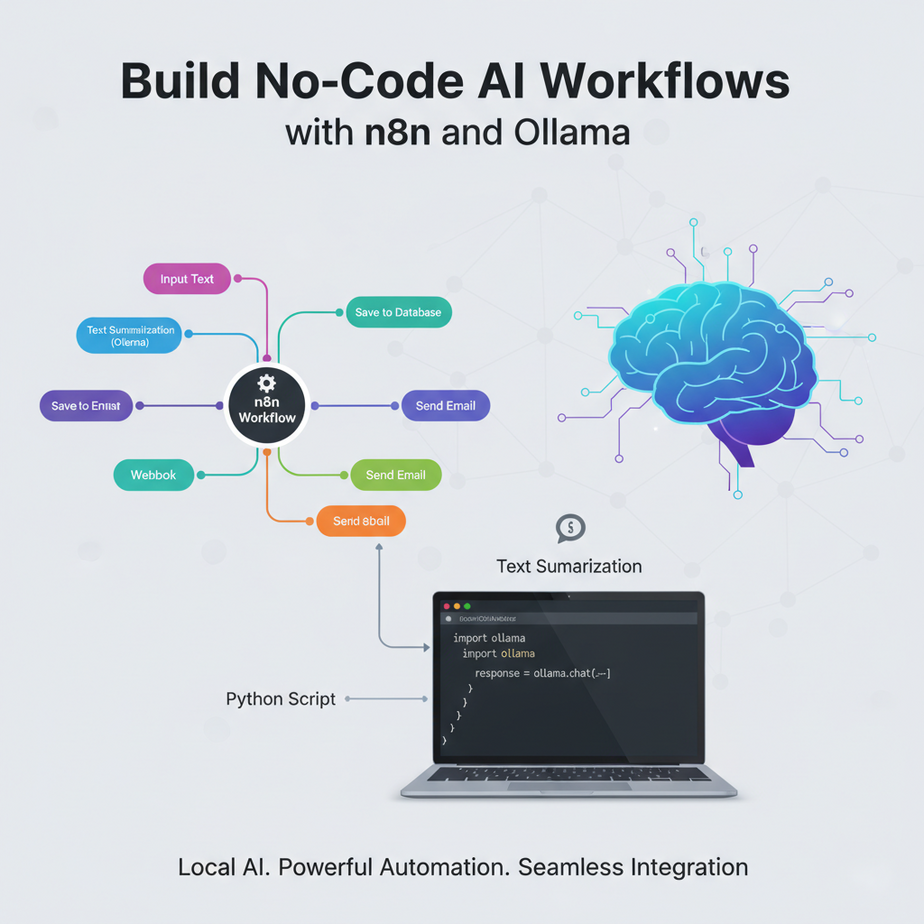
The Python Script in the Corner
Last time, we did something amazing. We installed a powerful AI on your laptop using Ollama and wrote a small Python script to make it summarize text. It worked! High fives all around. You felt like a genius.
But then… what? The script just sat there in a folder on your desktop. To use it, you had to copy-paste new text into the code, open a terminal, and run a command. How do you connect it to the actual customer feedback email that just arrived in Gmail? How do you put the summary into your Slack channel automatically?
Suddenly, our brilliant AI engine felt less like a futuristic robot assistant and more like a clever kitchen gadget you have to assemble and clean every time you want to make a smoothie. It’s powerful, but it’s an island. To make it truly useful, we need to build bridges from that island to the rest of your digital world.
Why This Matters
If Ollama is your private AI engine, a tool like n8n is the factory floor. It’s the system of conveyor belts, robotic arms, and assembly lines that connects your powerful engine to every other machine in your business.
This isn’t just about avoiding code. It’s about building systems visually, like drawing a flowchart. This matters because:
- It’s Accessible: You don’t need to be a developer to automate your business. If you can connect dots on a screen, you can build a workflow that saves you hours of work. This empowers your entire team, not just the engineers.
- It’s Integrated: n8n has hundreds of pre-built connectors for apps like Google Sheets, Slack, HubSpot, Stripe, and more. You can finally make your apps talk to each other, with your private AI acting as the brain in the middle.
- It’s Fast: Building and testing a visual workflow is dramatically faster than writing, debugging, and deploying code. You can go from idea to working automation in minutes, not days.
This workflow replaces the isolated, hard-to-use script with a dynamic, interconnected automation hub that anyone can understand and manage.
What This Tool / Workflow Actually Is
n8n (pronounced “n-eight-n”) is an open-source workflow automation tool. Think of it as LEGOs for your business processes. Each block is an action (“Read from a spreadsheet,” “Send an email,” “Talk to our AI”), and you connect them to build a chain of events.
We’ll be using the self-hosted version of n8n, which means, just like Ollama, it will run on your own computer. This keeps the entire automation pipeline private and free.
What it does:
- Lets you build workflows by connecting nodes in a visual editor.
- Has built-in integrations for hundreds of popular apps.
- Provides a generic “HTTP Request” node that can talk to any API—including our local Ollama server.
What it does NOT do:
- It’s not a database or a place to store your data long-term.
- It’s not designed for building user-facing applications like a website or a mobile app.
- While it can run on a server, we’re starting by running it on your laptop for learning purposes.
Prerequisites
We’re building on the last lesson. You’ve got this.
- Ollama is Running: You must have completed the previous lesson. Ollama should be installed, and you should have a model like
llama3:8bready to go. - Docker Desktop Installed: This is the one new piece of software. Docker is a tool that lets you run applications in neat, self-contained packages called “containers.” It’s the easiest, cleanest way to run n8n locally. Go to the official Docker website, download, and install it. It’s free.
Don’t be intimidated by Docker. For our purposes, you just need it installed and running. We will only use one single copy-paste command.
Step-by-Step Tutorial
Let’s build our automation factory floor.
Step 1: Start n8n with Docker
Make sure Docker Desktop is open and running on your computer. Then, open your terminal (the same one we used for Ollama) and run this exact command:
docker run -it --rm --name n8n -p 5678:5678 -v ~/.n8n:/home/node/.n8n n8nio/n8nWhat’s happening here? You’re telling Docker to download the n8n application, run it in a container, and make the n8n interface available on your computer at port 5678. The `-v` part creates a persistent volume, so your workflows are saved even if you restart the container. It might take a minute to download the first time. Once it’s done, you’ll see a bunch of log messages in your terminal. Leave this terminal window running!
Step 2: Open n8n in Your Browser
Open your web browser (Chrome, Firefox, etc.) and go to this address:
http://localhost:5678You’ll be greeted by the n8n interface. It will ask you to set up an owner account. Go ahead and do that. You are now looking at your personal, private automation platform. Click the “Add workflow” button to get to a blank canvas.
Step 3: Talk to Ollama with the HTTP Request Node
This is the magic step. We’ll recreate the `curl` command from the last lesson, but visually.
- On your blank workflow, click the + button to add a node.
- Search for “HTTP Request” and select it.
- Configure the node with the following settings. This is CRITICAL.
- Method:
POST - URL:
http://host.docker.internal:11434/api/generate
Hold on, why not `localhost`? This is the #1 gotcha. Your n8n is running inside a Docker container. From its perspective, `localhost` is itself, not your main computer where Ollama is running. `host.docker.internal` is a special address that Docker provides to let containers talk back to the host machine. (For Linux users, this might be `172.17.0.1` instead).
- Body Content Type:
JSON - JSON/RAW Parameters: Click this on.
- Body: Paste in this JSON. This is the same request we sent before.
{
  "model": "llama3:8b",
  "prompt": "Why is the sky blue?",
  "stream": false
}
Step 4: Test it!
Click the “Execute Node” button (it looks like a play button) in the top right of the node’s panel. After a few seconds, you should see a green success message and the output data on the right side of the screen. You’ve successfully connected your visual automation tool to your private AI!
Complete Automation Example
Let’s rebuild our customer feedback summarizer, no-code style.
The Goal: A visual workflow that takes a long customer email and uses our local LLM to create a clean summary.
Start with a new, blank workflow.
Node 1: Set the Input Text
The default “Start” node is just a manual trigger. Let’s add a node to hold our email.
- Click the + after the Start node and add a “Set” node.
- In the “Set” node’s panel, create a new value. Name the value `customerEmail` (make sure it’s a String type).
- Paste the long customer email from our last lesson into the value field.
Node 2: Configure the AI Request (HTTP Request)
This is the brain. Add an “HTTP Request” node after the “Set” node.
- Set the Method to `POST` and the URL to `http://host.docker.internal:11434/api/generate` as before.
- Set Body Content Type to `JSON` and turn on JSON/RAW Parameters.
- In the Body, we’ll use a special n8n expression to dynamically insert our email. This is how nodes talk to each other.
Paste this into the Body field:
{
  "model": "llama3:8b",
  "prompt": "Please summarize the following customer feedback into three clear bullet points. Focus on actionable insights for the product and logistics teams. Do not add any extra commentary.\
\
Feedback:\
{{ $('Set').item.json.customerEmail }}\
\
Summary:",
  "stream": false
}
That `{{ … }}` part is an n8n expression. It tells the node: “Go back to the node named ‘Set’, look at the data it produced, and grab the value of `customerEmail`.”
Node 3: Execute and See the Result
Click the “Execute Workflow” button in the bottom left. The workflow will run. Click on the HTTP Request node, and you’ll see the JSON output from Ollama on the right. You’ll find the clean summary inside the `response` field. You have officially rebuilt your Python script without writing any code.
Real Business Use Cases
Now you can connect this AI brain to anything.
- Social Media Manager: Create a workflow that triggers every day, reads your company’s blog RSS feed, sends the latest article to Ollama to draft a promotional tweet, and adds that draft tweet to a Google Sheet for review.
- Sales Development Rep: When a new lead is added to your CRM (like HubSpot), trigger a workflow. It takes the lead’s company website, scrapes the text, and sends it to Ollama with the prompt “Based on this website, what is this company’s main product? Write a one-sentence icebreaker about it.” The result is then added as a note to the lead’s record in the CRM.
- Project Manager: Connect n8n to your Trello or Asana. When a task with the label “Needs Breakdown” is created, the workflow sends the task title and description to Ollama, asking it to “Break this project into 5 actionable sub-tasks.” The workflow then adds those sub-tasks back to the original card as a checklist.
- HR Coordinator: Create a workflow connected to a Typeform where you collect job applications. When a new application is submitted, the workflow takes the cover letter text, sends it to Ollama to “Score this cover letter from 1-10 based on enthusiasm and mention of our core values,” and puts the score in a private notes field.
- Podcast Producer: After you upload a new podcast transcript to a folder, a workflow can be triggered to read the text, send it to Ollama to “Generate 10 engaging, timestamped show notes for this podcast episode,” and email the result to you for approval.
Common Mistakes & Gotchas
- The `localhost` Trap: I’m saying it again because it’s that important. If your HTTP Request node fails, the first thing to check is the URL. It MUST be `http://host.docker.internal:11434` (for Mac/Windows Docker) to escape the container and find Ollama.
- Messy Output Handling: The Ollama node gives you a big JSON object, but you only care about one tiny part: the `response` field. In the next node, you’ll almost always need to use an expression like `{{ $(‘HTTP Request’).item.json.response }}` to grab just the clean text and pass it along.
- Forgetting `”stream”: false`:** If you forget this in your JSON body, Ollama will send back a stream of tiny JSON packets instead of one clean response. n8n won’t know how to handle it, and your workflow will fail or produce garbage.
- Not Saving Your Work: Remember to save your workflow! By default, it’s unsaved. Give it a name and hit the save button in the top right.
How This Fits Into a Bigger Automation System
You are now the master of a private, no-code automation platform. This n8n workflow is the central nervous system of your business. From here, the possibilities explode.
- Triggers: We used a manual trigger today, but you can start workflows on a schedule (Cron), when a webhook is received (from Stripe after a sale, from GitHub after a code push), or when an event happens in a connected app.
- Credentials: n8n has a secure vault to store your API keys for services like Google, Slack, OpenAI, etc. This allows your workflows to authenticate and perform actions on your behalf securely.
- Databases: You can connect n8n to databases like Postgres or MySQL to create automations with long-term memory, like logging every summary you generate or building a private knowledge base.
- Branching and Logic: n8n has IF nodes, Switch nodes, and Merge nodes. You can build complex logic, like “IF the customer email contains the word ‘refund’, send the summary to the #billing channel in Slack, OTHERWISE send it to the #feedback channel.”
What to Learn Next
We’ve successfully built a bridge from our AI brain to a visual workflow tool. But it’s still a bit theoretical. We’re manually pasting the input text, and the output just sits there in the n8n interface.
How do we make this fully automatic? How do we make it read and write from the tools we use every single day?
In the next lesson, we’re going to connect the final dots. We will build a complete, end-to-end automation that reads a list of topics from a Google Sheet, uses our private Ollama instance to generate a blog title for each one, and writes the results right back into the spreadsheet. No more copy-pasting. No more manual triggers. Just pure, unattended automation.
You’ve built the engine and the factory. Next, we connect it to the outside world.
“,
“seo_tags”: “n8n, Ollama, no-code AI, workflow automation, business automation, self-hosted AI, n8n tutorial, local LLM, HTTP Request”,
“suggested_category”: “AI Automation Courses