
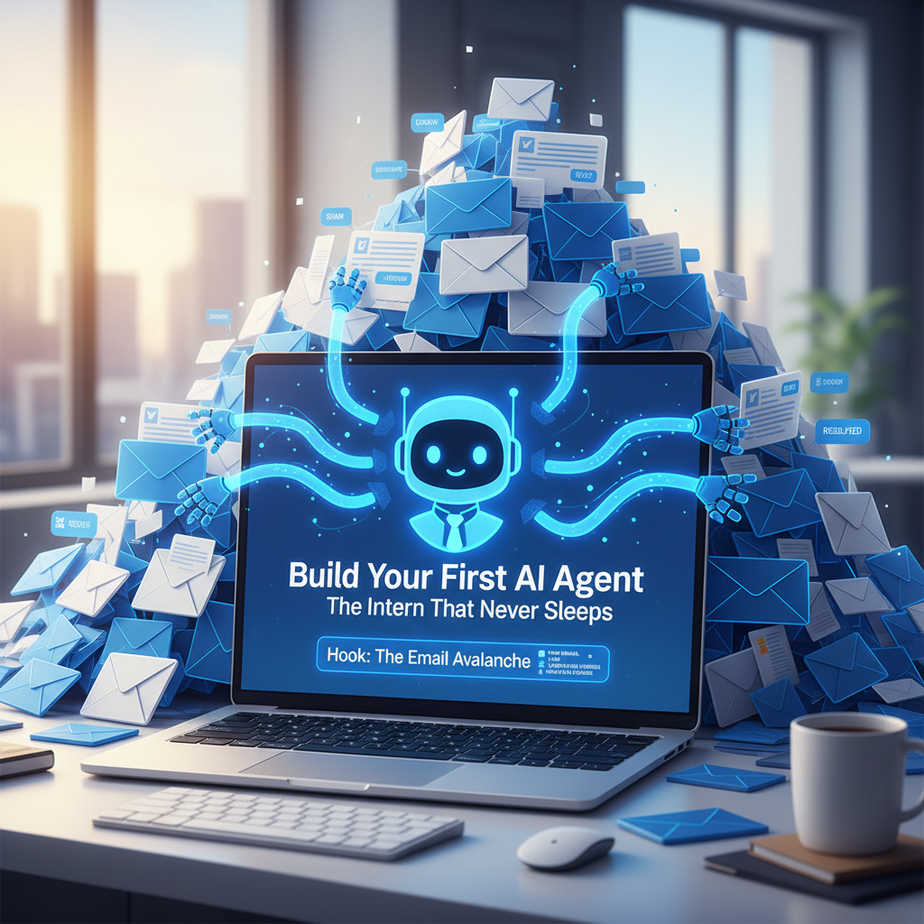
Hook: The Email Avalanche
Let me paint you a picture. It’s 9 AM. You open your inbox. There are 47 new emails. Three are spam. Four are “quick questions.” Two are “when you get a chance” requests. One is a meeting invite for 2:30 PM with no context. And five are from your team asking for status updates you just sent yesterday. By 9:15 AM, you’re just playing email whack-a-mole, and your actual work is still sitting untouched. Your productivity is evaporating before you even have coffee.
This is where most people live: drowning in noise. What if I told you there’s a way to build your own internal system? A tireless, logical assistant that pre-filters, organizes, and handles the grunt work? Not some distant sci-fi fantasy. I’m talking about a simple, practical AI agent you can build this afternoon.
Why This Matters: The $10,000 Intern
Every business owner I know spends at least 5-10 hours a week on manual, repetitive tasks. Answering FAQs. Scheduling meetings. Pulling data from one system to another. Copy-pasting information. If you paid an intern $20/hour to do this, you’d be spending $1,000-$2,000 a month on chaos management. And interns make mistakes. They have sick days. They quit.
An AI agent is different. It’s an intern that costs $20/month in API credits, never gets tired, and follows instructions to the letter. It replaces the part of your brain that’s worried about where the information is, not the part that makes strategic decisions. This isn’t about replacing humans; it’s about upgrading your human team to focus on high-impact work instead of digital janitorial duty.
What This Tool / Workflow Actually Is
An AI agent is a simple program that uses a large language model (like GPT-4) to perform tasks by following a set of rules. Think of it as a chatbot with a job description. You give it a role (e.g., “You are a scheduling assistant”), some tools (like a calendar and email), and a goal (e.g., “Manage my meeting requests”). It reads inputs, makes decisions, and takes actions.
What it does NOT do: It doesn’t have a brain. It doesn’t learn on its own (unless you build a feedback loop). It’s not magic. It’s just very good pattern matching and following instructions at superhuman speed. It’s a predictable robot, not a sentient colleague.
Prerequisites: You Can Do This
If you can send an email and use a spreadsheet, you have all the foundational skills. You do NOT need to know how to code. We will use tools that let you build this through a visual interface. All you need is:
- An account with a platform like Zapier, Make, or n8n (we’ll use n8n for this lesson as it’s powerful and free to start).
- API access to an AI provider (OpenAI, Anthropic, etc.). This costs a few cents per use. We’ll start with a free trial if you need one.
- A clear, simple task you want to automate. Start with ONE thing.
Read this with a coffee. Follow along. Build your first agent by the end of the lesson. You’ve got this.
Step-by-Step Tutorial: Building Your First Scheduling Assistant
We’ll build an agent that monitors your inbox for new meeting requests, checks your calendar for availability, and proposes meeting times automatically.
Step 1: Set Up Your Environment
- Sign up for n8n (n8n.io). It’s a workflow automation tool. Start with the free tier.
- Get your OpenAI API key. Go to OpenAI’s platform, create an account, and generate a new secret key. This is your agent’s “brain.”
- Connect your email (Gmail works great) and your calendar (Google Calendar) to n8n using their built-in connectors. You’ll just click to log in and authorize.
Step 2: Create the Workflow Trigger
In n8n, you create a “workflow.” It starts with a trigger. We want this to run when a new email arrives.
In your n8n dashboard:
1. Click "New Workflow."
2. Click the big "+" to add a node.
3. Search for and select "Gmail."
4. Choose the trigger: "On New Email."
5. Configure it to watch your primary inbox. Use a filter if you only want specific emails (e.g., subject contains "meeting" or "call").
Step 3: Feed the Email to the AI Agent
Now, we need to process the email content. Drag a new node and connect it to the Gmail trigger.
Add a new node: "Function."
Why? This node lets us format the email data for the AI.

In the Function node, add this code to extract the key details:
const email = items[0].json;

const aiPrompt = `
You are a scheduling assistant. Analyze this email:

From: ${email.from}
Subject: ${email.subject}
Body: ${email.text}

If this is a meeting request, reply with:
- "YES" + a proposed time.
- If not a meeting request, reply with "NO".

Today's date is: ${new Date().toISOString()}
`;

return [{ json: { prompt: aiPrompt, originalEmail: email } }];
Step 4: Send the Prompt to the AI
Add the “OpenAI” node. Connect it after the Function node.
In the OpenAI node:
1. Authentication: Use your saved API key.
2. Model: Select "gpt-4o-mini" (it's cheap and smart).
3. Operation: "Chat Completion."
4. Prompt: Use the expression from the previous node: {{$('Function').item().json.prompt}}
5. This node will output the AI's decision.
Step 5: Handle the AI’s Response
Add an “If” node after the OpenAI node. We’ll route based on the AI’s answer.
If node condition:
Condition Type: "String"
Operation: "Contains"
Value: "YES"

If true -> We'll schedule.
If false -> We'll ignore (or log for review).
Step 6: Check Calendar & Propose Time (The Smart Part)
If the AI said “YES”, we need to be smart. For simplicity, we’ll hardcode a proposal. In a full system, you’d connect to a FreeBusy API. For now:
Add a "Google Calendar" node after the "If" node (the YES path).
- Action: "Create Event"
- Event Title: "Meeting with " + {{$('Function').item().json.originalEmail.from}}
- Start Time: Choose a free slot (e.g., tomorrow 10 AM).

Add an "Email" node to send a reply:
- To: {{$('Function').item().json.originalEmail.from}}
- Subject: Re: {{$('Function').item().json.originalEmail.subject}}
- Body: "Hi, I've tentatively scheduled us for [TIME]. Please confirm."
Step 7: Activate Your Agent
Click the “Active” toggle at the top of your workflow. Your first AI agent is now live! It will monitor your inbox and automate scheduling tasks.
Complete Automation Example: The Content Pipeline Agent
Let’s build a more complex, end-to-end example. This agent turns a video idea into a published social media post.
- Trigger: A new note in your Google Doc (you jot down “Make video about AI scheduling”).
- AI Scriptwriting: The agent sends the note to an LLM with the prompt: “You are a scriptwriter. Turn this idea into a 60-second video script.”
- AI Image Prompt: The agent takes the script and asks another LLM: “Generate an image prompt for this script.”
- Create Image: Use a tool like DALL-E or Stable Diffusion (via an API) to generate the image from the prompt.
- Format Post: The agent combines the script and image into a formatted post for LinkedIn/Twitter.
- Post to Buffer or Hootsuite: The agent schedules the post for the optimal time.
- Log & Notify: It updates a Google Sheet with the post details and sends you a Slack message: “Your content for tomorrow is ready!”
What used to take 2 hours (ideation, writing, image creation, formatting, scheduling) now takes 5 minutes of your time to kick off, with your AI intern doing the rest.
Real Business Use Cases (Minimum 5)
- Freelance Graphic Designer: The agent monitors email for project briefs, extracts key requirements (color, style, deliverables), and creates a project in Asana with a draft timeline based on your past project data.
- Real Estate Agent: An agent connects to your listing database. When a new lead fills out a contact form, the agent does a quick web search for the property, auto-generates a personalized email with key features and a link to a scheduled video tour.
- E-commerce Store Owner: Agent monitors customer service inbox. It categorizes emails: “Billing Issue,” “Shipping Question,” “Return Request.” For simple FAQs, it drafts a reply with the correct policy link. It flags complex issues for human review.
- Recruitment Agency: Agent scans new job postings from client websites. It parses the job description, matches it against a candidate database in your CRM, and generates a shortlist with personalized outreach emails for the top 5 matches.
- Solopreneur Consultant: After every client call, you dictate notes into a voice memo. The agent transcribes the memo, summarizes action items and deadlines, creates a draft invoice in QuickBooks, and schedules a follow-up task in your project management tool.
Common Mistakes & Gotchas
- Mistake 1: No Kill Switch. Always test with a dummy email first. Build in a manual “pause” node so you can stop the workflow if it goes rogue.
- Mistake 2: Too Complex, Too Fast. Your first agent should have ONE job. Don’t try to build the content pipeline as your first attempt. Master the simple inbox sorter first.
- Mistake 3: Ignoring Context Windows. AI models have limits. If you feed a 50-page PDF into the prompt, it might truncate. For large documents, summarize first.
- Mistake 4: No Human Oversight. Never let an AI agent spend money or send external emails without a human-in-the-loop review step, especially when starting out.
How This Fits Into a Bigger Automation System
Your scheduling agent is a single cog in a massive machine. Here’s how it scales:
- CRM Integration: Instead of just adding a calendar event, the agent can update the contact’s status in your CRM (HubSpot, Salesforce) to “Meeting Scheduled.”
- Multi-Agent Workflow: Your scheduling agent can pass the meeting details to a “Prep Agent” that researches the attendee and generates a briefing document for you.
- Voice Integration: Use a voice AI platform like Vapi or Retell. A customer calls, your voice agent schedules a meeting directly with the AI calendar agent we built today.
- RAG System: For better context, connect the agent to a vector database. Now, when it sees an email about a project, it can pull in all past notes on that project before drafting a response.
This first agent is your foothold. It proves the concept. From here, you connect the dots and build a symphony of automation.
What to Learn Next: The Feedback Loop
Great! You’ve built an intern. But what if it makes a mistake? Or needs to get smarter? In our next lesson, we’re building the “Feedback Loop.” We’ll create an agent that doesn’t just act—it learns. It will track its decisions, ask for clarification when stuck, and improve its prompts over time based on your corrections. This is the difference between a dumb bot and a truly intelligent system.
You’ve taken the first step. The hardest one. Now, go activate that workflow and watch your first AI agent come to life. Your future self, free from email avalanche, will thank you.
“,
“seo_tags”: “AI automation, build AI agent, business automation, n8n tutorial, workflow automation, email automation, scheduling assistant, beginner AI”,
“suggested_category”: “AI Automation Courses