
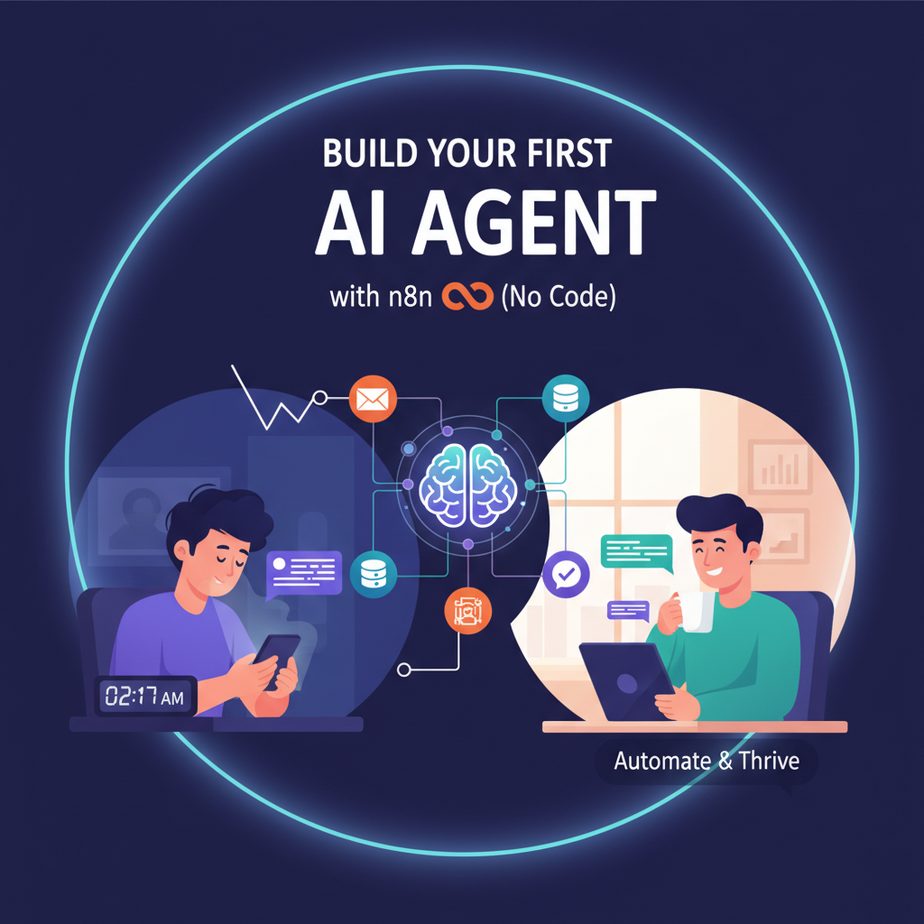
The 2 AM Email That Broke Me
It was 2:17 AM. My phone buzzed. A lead from a potential client in another time zone—someone who just downloaded my pricing guide—was asking questions I’d answered a thousand times before. “What’s the difference between Basic and Pro?” “Can you integrate with X?” “What’s your timeline?”
I was tired. I was rewriting the same emails every night, like some digital groundhog day. I didn’t need a consultant; I needed a clone. Or better yet, an intern who never slept, never complained, and always knew the right answer.
If you’ve ever felt like you’re drowning in repetitive tasks—customer inquiries, lead qualification, data entry—you’re not alone. You’re running a business, not a robot factory. It’s time to hire some robots.
Why This Matters: Your First Digital Employee
Building an AI agent isn’t about tech for tech’s sake. It’s about leverage. This is about replacing a part-time employee’s worth of manual work with a workflow that runs 24/7, costs pennies, and never needs coffee breaks.
The Impact:
- Time: Reclaim 5-10 hours/week you spend answering the same questions.
- Money: Stop losing leads because you were too slow to respond.
- Scale: Handle 10x the inquiries without hiring a support team.
- Sanity: Sleep through the night knowing your business is running.
We’re building a system that replaces the intern who’s great at sorting emails but costs you $15/hour.
What This Tool / Workflow Actually Is
n8n is a visual workflow builder. Imagine a whiteboard where you draw boxes (“triggers” and “actions”) and connect them with lines. When a trigger happens—like a new email or form submission—the boxes execute in order, passing data along the pipeline.
An AI Agent is just a smart box in your workflow. Instead of just moving data, it uses an LLM (like GPT-4) to think, reason, and generate responses. It’s the decision-maker in your assembly line.
What This Workflow Will Do:
It will listen for new leads (e.g., from a contact form), analyze the inquiry, craft a personalized response based on your business context, and either send the email or save it to a Google Sheet for review.
What It Will NOT Do:
It won’t replace your entire business overnight. It won’t magically handle angry customers without human oversight. It’s a tool, not a magic wand—yet.
Prerequisites: You Don’t Need to Be a Coder
Brutally honest checklist:
- A free n8n.cloud account (or you can run it locally with Docker if you’re brave).
- A free OpenAI API key (or another LLM provider).
- A Google account for Google Sheets.
- Basic understanding of what an email is.
If you can fill out a web form and copy-paste a key, you’re qualified. This is no-code; the only thing we’ll write is a tiny snippet to map our data, and I’ll give it to you.
Step-by-Step Tutorial: Building the Lead-Responder Agent
Let’s build it. Open your n8n dashboard. It looks intimidating, like a spaceship cockpit. Ignore the buttons. We’re only touching the essentials.
Step 1: Create a Workflow
Click the big “+” button to start a new workflow. Name it: “Lead Responder Agent”.
Step 2: Set Up the Trigger (The Intern’s Ear)
We need to listen for new leads. For this example, we’ll use a Webhook because it’s universal. Any form tool can send data here.
- Click “+” to add a node. Search for Webhook.
- Click it. In the “HTTP Method” dropdown, select POST.
- Copy the “Webhook URL”. You’ll paste this into your contact form settings later.
Step 3: Add the AI Brain (The Decision Maker)
This is the magic. We’ll use the OpenAI Chat Model node.
- Click “+” after the Webhook node. Search for OpenAI Chat Model.
- Connect it.
- Add your API Key in the credentials section.
- We’ll configure this in the next step when we connect it to the AI Agent node.
Step 4: Create the Agent (The Worker)
Now we need an AI Agent node to orchestrate the thinking.
- Click “+”. Search for AI Agent.
- Connect the “OpenAI Chat Model” node to the “Model” input of the Agent.
- Connect the “Webhook” node to the “Trigger” input of the Agent.
Step 5: Give the Agent a Brain & a Job (System Prompt)
Inside the AI Agent node, look for the “System Message” or “Prompt” field. This is where you teach your intern what to do. Paste this:
You are a helpful assistant for a digital marketing agency. A lead has just contacted you with their name, email, and message.

Your job is to:
1. Analyze their message.
2. Write a concise, friendly, and professional response.
3. Reference their specific question if they asked one.
4. Sign off as "The Team at [Your Business Name]".

Keep the response under 100 words. Do not make up pricing. Suggest a follow-up call if the lead seems qualified.
Step 6: Connect to the Real World (Email Output)
The agent now has a response. We need to send it. Let’s use the Email Send node (using a generic SMTP server like Gmail or Outlook). OR, for ultimate safety while testing, we’ll log it to Google Sheets.
- Click “+”. Search for Google Sheets. Select “Append Row”.
- Connect the “Agent” output to this node.
- Authenticate your Google account.
- Select your spreadsheet and worksheet.
- In the “Columns to Append”, map the data. This is the one code-like step. Click the magic “Map” button or enter it manually. You want to grab the Agent’s generated response and the original lead data.
Step 7: Activate
Click the big blue “Active” toggle at the top. Your workflow is now live. Copy the Webhook URL from Step 2 and paste it into your website’s contact form. Test it.
Complete Automation Example: The E-commerce Store Owner
Meet Sarah. She sells artisanal coffee beans online. She gets 20-30 emails a day: “Is this bean organic?” “Do you ship to Canada?” “My order is late!”
The Old Sarah:
She checked email every 3 hours, copied-pasted answers, and lost sales because she couldn’t respond fast enough.
The New Sarah:
She sets up our n8n workflow. She tweaks the System Prompt:
You are the customer service agent for "Bean There, Roasted That". A customer is asking about shipping to [Country].

Your knowledge base:
- USA/Canada: Free shipping over $50. Flat rate $10 under.
- International: Calculated at checkout.

If they ask about order status, ask for their Order ID and say you'll investigate.

Keep it friendly. Use coffee puns if appropriate.
Result: Her lead response time drops from 4 hours to 30 seconds. Her conversion rate goes up 15% because customers feel heard instantly. She now spends her time roasting beans, not replying to emails.
Real Business Use Cases (Beyond the Obvious)
- Consultants: An agent that qualifies inbound leads by asking them 3 strategic questions via email, then ranks them as “Hot,” “Warm,” or “Cold” in a spreadsheet.
- Real Estate Agents: An agent that reads incoming property inquiries, matches the buyer’s budget/location to listings from an MLS feed, and sends a personalized list with 3 options.
- Recruiters: An agent that parses incoming resumes, checks them against a job description, and flags top candidates in an Applicant Tracking System.
- Educators: An agent that answers FAQ from students about course deadlines, module content, or technical issues, escalating only the complex problems.
- Freelance Developers: An agent that analyzes project briefs, estimates complexity based on past projects, and auto-generates a proposal draft in a Google Doc.
Common Mistakes & Gotchas
- The “Loose Cannon” Agent: Your prompt is too vague, and the AI starts offering discounts or making promises you can’t keep. Fix: Be explicit about what NOT to do in the System Prompt.
- Forgetting to Test: You activate the workflow and forget about it. Fix: Always test with dummy data first. Use n8n’s “Execute Once” button.
- Over-Automating: Letting the AI reply directly to angry customers. Fix: Use the Google Sheets step as a “human-in-the-loop” buffer. Review before sending.
- API Limits: Getting bills from OpenAI that surprise you. Fix: Set spending limits in your OpenAI account and monitor usage.
How This Fits Into a Bigger Automation System
This lead responder is the entry point of a massive automation pipeline.
- CRM Integration: Instead of Google Sheets, the last step could be “Create/Update Contact” in HubSpot or Salesforce.
- Multi-Agent Workflow: This Agent could pass the qualified lead to a second agent that schedules a meeting in Calendly.
- Voice Agents: Imagine a customer calls. Your voice agent (like Vapi or Retell AI) transcribes the call, feeds it to this same logic, and gives the agent a response to read.
- RAG Systems: Give your agent access to your full knowledge base (PDFs, Notion docs) via vector databases so it answers even more specific questions.
Today’s lesson is the foundation. It’s the first domino.
What to Learn Next
You just built a smart intern. But what if you could build a whole department?
In our next lesson, we’re going to take this agent and give it a memory. We’ll connect it to a database so it remembers every conversation, learns from past interactions, and never asks a customer for information they’ve already given you.
That’s the difference between a dumb bot and a truly intelligent system.
Until then, go activate that workflow. Let the robots handle the 2 AM emails.