
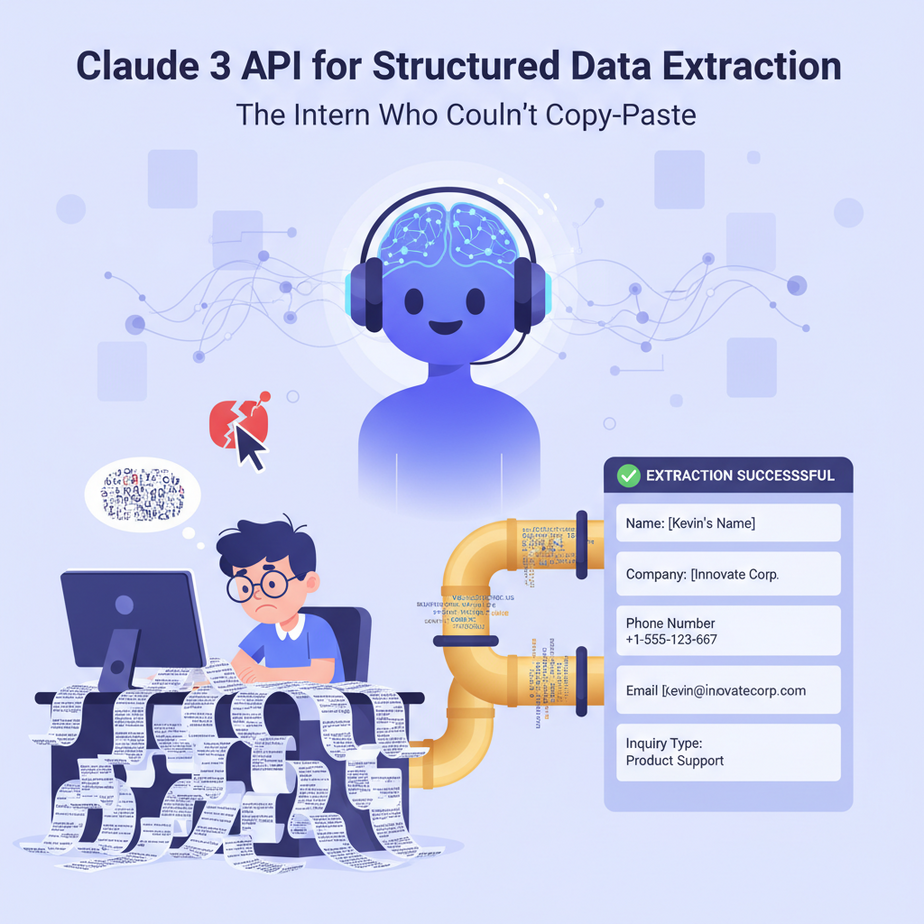
The Intern Who Couldn’t Copy-Paste
Let me tell you about Kevin. We hired Kevin as an intern. His one job was to read customer inquiry emails and copy the details—name, company, phone number, what they wanted—into a spreadsheet. Simple, right? A trained monkey could do it.
Kevin was not a trained monkey.
On day one, he put phone numbers in the ‘company’ column. On day two, he summarized a 500-word email as “some guy wants stuff.” By day three, the spreadsheet looked like a toddler’s abstract art project. We were losing leads because Kevin couldn’t reliably move text from a box on the left to a box on the right.
We all have a “Kevin.” It might be a real person, or it might be the three hours *you* spend every Friday cleaning up data. It’s the soul-crushing, mind-numbing work that is both critical and a complete waste of human brainpower.
Today, we fire Kevin. We’re replacing him with an AI robot that costs pennies, works 24/7, never gets tired, and actually does the job correctly. Every single time.
Why This Matters
This isn’t just about avoiding typos. This workflow—extracting structured data from unstructured text—is one of the most fundamental building blocks of business automation. It’s the digital equivalent of turning a messy pile of paperwork into a neatly organized filing cabinet, instantly.
- Time & Money: You are literally automating the work of a data entry clerk. Instead of paying someone (or yourself) to copy-paste for 10 hours a week, you run a script that does it in 10 seconds. The ROI is vertical.
- Scale: A human can process maybe 30-40 of these emails an hour. This system can process thousands. It doesn’t matter if you get 10 leads a day or 10,000. The robot just works.
- Accuracy: Humans make mistakes when they’re bored. Robots don’t get bored. The data quality is radically higher, meaning your sales team, your CRM, and your reports are all working with clean, reliable information.
- Sanity: You get to free up your team’s brainpower for things that actually require a pulse, like closing deals or talking to customers.
We are building a machine that eats chaos and spits out order. That’s it. And it’s one of the highest-leverage skills you can learn.
What This Tool / Workflow Actually Is
We’re using the Anthropic API to access their new Claude 3 Sonnet model. Think of it as a direct phone line to a very smart, very obedient brain-for-hire.
What it does: We give it a block of messy text (an email, a PDF transcript, a customer review) and a very specific set of instructions. The main instruction is: “Read this text, find these specific pieces of information, and give them back to me in this exact format.” The format we’ll be using is called JSON, which is just a clean, predictable way for computers to organize data.
What it does NOT do: This is not magic. It can’t read your mind. It won’t automatically organize your entire business. It’s a powerful tool that follows instructions with terrifying precision. If you give it lazy instructions, you’ll get lazy results. Your job is to be a good manager for your new robot intern.
Prerequisites
I know some of you are allergic to code. Relax. If you can copy and paste, you can do this. I promise.
- An Anthropic API Key: Go to the Anthropic website, sign up, and find your API key in the dashboard settings. They give you some free credits to start. After that, it’s ridiculously cheap. This entire tutorial will cost you less than a tenth of a cent. Keep this key secret, like your bank password.
- A Place to Run Python: We’re not installing anything complicated on your computer. We’ll use Google Colab. It’s a free tool from Google that’s like a Google Doc, but it can run code. It’s the perfect sandbox for this.
- 15 Minutes of Focus: Close Twitter. Mute Slack. Give me 15 minutes.
Step-by-Step Tutorial
Let’s build this thing. Open a new notebook in Google Colab and follow along.
Step 1: Install the Anthropic Library
In the first cell of your Colab notebook, type this and press the little play button (or Shift+Enter). This downloads the tools we need.
!pip install anthropicStep 2: Import the Library and Set Up Your API Key
In the next cell, we’ll write the basic setup code. This is where you tell the code who you are by providing your secret key.
import anthropic
import os

# Best practice: Don't paste your key directly in the code.
# In Colab, click the 'Key' icon on the left, add a new secret called ANTHROPIC_API_KEY, and paste your key there.
from google.colab import userdata

client = anthropic.Anthropic(
    api_key=userdata.get('ANTHROPIC_API_KEY'),
)
Why do we do it this way? Pasting your key directly into code is a security risk. Colab’s ‘Secrets’ manager is a much safer way to handle it.
Step 3: Define the Unstructured Text
This is the messy data we want to process. For our example, we’ll use a classic lead inquiry email.
unstructured_text = """
Hi there,

My name is Maria Garcia and I'm the operations manager at Apex Logistics. We're looking to overhaul our entire shipping software and your company came highly recommended.

We have a budget of around $75,000 for this project. You can reach me at maria.garcia@apexlogistics.com or on my direct line, which is (555) 123-4567.

Looking forward to hearing from you.

Best,
Maria
"""
Step 4: Create the Prompt – The Magic Instruction
This is the most important step. We need to tell the AI *exactly* what to do. We’re going to give it a role (you are an expert data extractor) and a very specific output format (a JSON object).
# This is the instruction for our AI.
# We are telling it to find specific pieces of information and return them in a specific JSON format.
# If a piece of info isn't found, it should return null.
prompt = f"""
Extract the following information from the text provided below.

Return the information as a clean JSON object with these exact keys:
- name (string)
- company (string)
- email (string)
- phone (string)
- budget (integer, just the number)
- summary (string, a one-sentence summary of the request)

If any piece of information is not found, the value should be null.

Here is the text:


{unstructured_text}

"""
Why this works: We’ve clearly defined the ‘schema’—the exact keys and data types we expect. This leaves no room for the AI to get creative. It has to follow the rules.
Step 5: Make the API Call and Get the Result
Now we send the instruction and the text to Claude and wait for our clean data to come back.
message = client.messages.create(
    model="claude-3-sonnet-20240229",
    max_tokens=1024,
    messages=[
        {
            "role": "user",
            "content": prompt
        }
    ]
)

# The AI's response is inside a content block. Let's grab it.
response_text = message.content[0].text

print(response_text)
When you run this cell, you should see a perfectly formatted JSON object printed below. Magic.
Complete Automation Example
Putting it all together, here is the full, copy-paste-ready script. You can replace the `unstructured_text` with any email or document, and it will just work.
import anthropic
import json
from google.colab import userdata

# --- 1. SETUP ---
# Make sure you have your ANTHROPIC_API_KEY saved in Colab secrets
client = anthropic.Anthropic(
    api_key=userdata.get('ANTHROPIC_API_KEY'),
)

# --- 2. INPUT: The messy text ---
unstructured_text = """
Hi there,

My name is Maria Garcia and I'm the operations manager at Apex Logistics. We're looking to overhaul our entire shipping software and your company came highly recommended.

We have a budget of around $75,000 for this project. You can reach me at maria.garcia@apexlogistics.com or on my direct line, which is (555) 123-4567.

Looking forward to hearing from you.

Best,
Maria
"""

# --- 3. THE PROMPT: Your clear instructions ---
prompt = f"""
Extract the following information from the text provided below.

Return the information as a clean JSON object with these exact keys: name, company, email, phone, budget (as an integer), and summary. If any piece of information is not found, the value should be null.

Here is the text:


{unstructured_text}

"""

# --- 4. THE EXECUTION: Call the API ---
message = client.messages.create(
    model="claude-3-sonnet-20240229",
    max_tokens=1024,
    messages=[
        {
            "role": "user",
            "content": prompt
        }
    ]
)

# --- 5. THE OUTPUT: Clean, structured data ---
response_text = message.content[0].text

# Let's parse the JSON string into a Python dictionary for easier use
structured_data = json.loads(response_text)

# Now you can work with the data easily!
print(f"New Lead: {structured_data['name']} from {structured_data['company']}")
print(f"Budget: ${structured_data['budget']}")
print("---")
print("Full Extracted Data:")
print(json.dumps(structured_data, indent=2))
The output of this script will be:
New Lead: Maria Garcia from Apex Logistics
Budget: $75000
---
Full Extracted Data:
{
  "name": "Maria Garcia",
  "company": "Apex Logistics",
  "email": "maria.garcia@apexlogistics.com",
  "phone": "(555) 123-4567",
  "budget": 75000,
  "summary": "The operations manager at Apex Logistics is looking to overhaul their shipping software."
}
Look at that. Perfect. Every time. Goodbye, Kevin.
Real Business Use Cases (MINIMUM 5)
This one pattern can be applied across almost any industry.
- Recruiting Agency:
- Problem: You get hundreds of resumes as PDFs. Manually entering candidate info (name, email, phone, skills, years of experience) into your Applicant Tracking System (ATS) is a full-time job.
- Solution: Use this script. The input is the text from the resume, the output is a JSON object that can be directly fed into your ATS API to create a new candidate profile.
- E-commerce Store:
- Problem: Customers email you with complaints or return requests. The emails are long stories about their experience.
- Solution: Feed the customer support email into the script. Extract `order_number`, `product_sku`, `customer_name`, and `issue_category` (e.g., ‘shipping’, ‘defective’, ‘wrong_size’). Use this JSON to automatically create a support ticket in Zendesk or Gorgias.
- Real Estate Investment Firm:
- Problem: You scrape thousands of property listings from websites, but the data is buried in messy paragraphs of text.
- Solution: Process each listing’s description. Extract `address`, `price`, `square_footage`, `bedrooms`, `bathrooms`, and `year_built` into a clean JSON format to load into your analysis database.
- Law Firm:
- Problem: You need to quickly review dozens of contracts to find key information.
- Solution: Convert the contract to text and use the script to extract `party_names`, `effective_date`, `termination_clause`, and `renewal_terms`. This doesn’t replace a lawyer, but it creates a summary dashboard in seconds.
- Marketing Agency:
- Problem: You monitor social media for mentions of your clients. You need to understand what people are saying at a glance.
- Solution: Feed social media comments or posts into the script. Extract `sentiment` (‘positive’, ‘negative’, ‘neutral’), `product_mentioned`, and `key_feedback_point`. This turns a firehose of comments into a structured report.
Common Mistakes & Gotchas
- Lazy Prompting: If you just say “find the important stuff,” you’ll get a different result every time. The magic is in defining a strict JSON schema in your prompt. Be explicit about keys and data types (`integer`, `string`, `boolean`).
- Not Handling Variations: Sometimes the output from the AI might have a tiny bit of extra text around the JSON, like “Here is the JSON you requested: …”. Your real-world code will need to be smart enough to find and parse just the JSON part of the response.
- Cost Mismanagement: Sonnet is cheap, but it’s not free. If you’re processing 1 million documents, you need to calculate the cost. The good news is, for most business automation tasks, the cost is trivial compared to the human labor it replaces.
- Ignoring Model Choice: We used Sonnet because it’s fast and cheap, perfect for this task. For more complex reasoning, you might need the more powerful (and more expensive) Opus model. Always use the cheapest, fastest model that gets the job done reliably.
How This Fits Into a Bigger Automation System
This script is not an island. It’s a single, powerful machine in a much larger factory.
- Input Trigger: Where does the text come from? It could be an automation from a tool like Make or Zapier that triggers on a “New Email in Gmail.” Or it could be from a web scraper that pulls down new articles every hour.
- Processing Core: Our Claude script runs, taking the messy input and creating the clean JSON output.
- Output Action: The clean JSON is the payload. What do we do with it? We can use another API call to:
- Create a new deal in HubSpot.
- Add a row to a Google Sheet or Airtable base.
- Send a Slack notification to the sales team.
- Pass it to another AI agent to draft a personalized email reply.
Think of this as the ‘receptionist’ in your automated business. It takes all the incoming messy information and organizes it perfectly before handing it off to the right department.
What to Learn Next
You did it. You built a powerful data extraction robot. You now have a skill that can save a business thousands of dollars and hundreds of hours. But running a script in a Colab notebook is one thing… turning it into a 24/7, hands-off business system is another.
In our next lesson, we’re taking this to the next level. We’re going to throw away our manual copy-paste Colab script and build a true, event-driven workflow. We’ll use a tool called Make.com to watch an email inbox. The moment a new lead email arrives, it will automatically trigger our Claude data extractor and pipe the clean JSON directly into a CRM like HubSpot, creating a new sales deal without a single human click.
We’re going from a tool to a system. Get ready.
“,
“seo_tags”: “claude 3, anthropic api, structured data extraction, json output, python, business automation, ai automation, natural language processing, nlp”,
“suggested_category”: “AI Automation Courses