
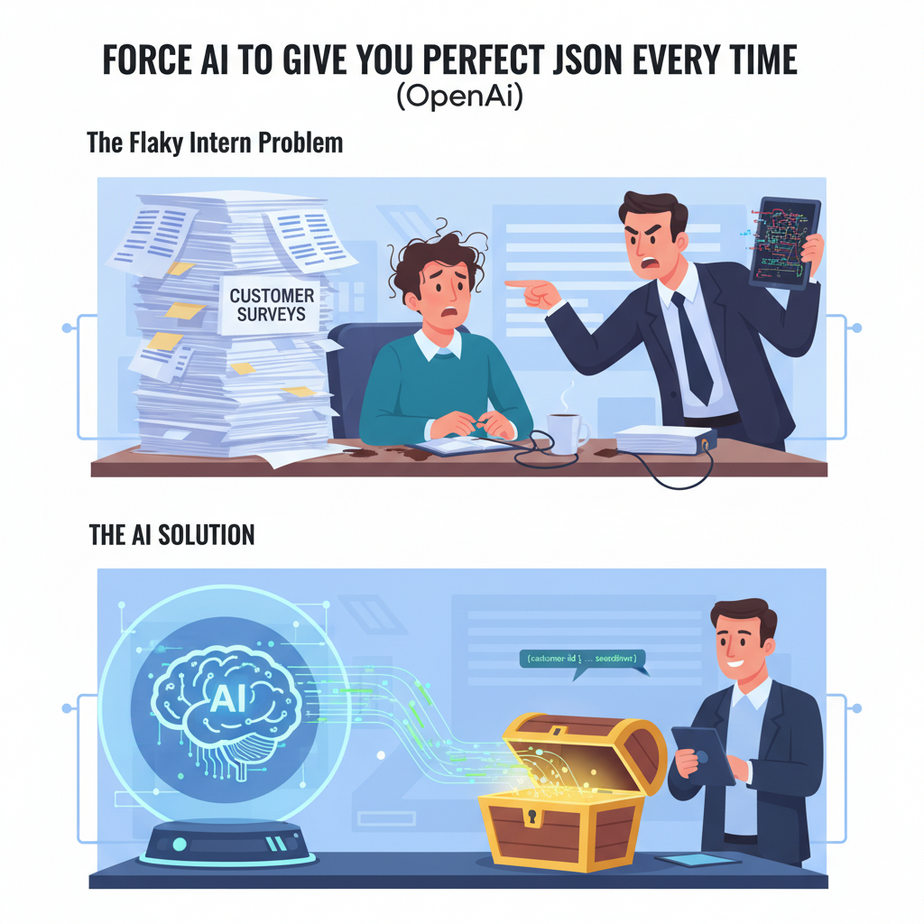
The Flaky Intern Problem
Picture this. You hire a new intern. They’re brilliant. Super creative, lightning fast, knows a little bit about everything. You hand them a stack of 100 customer emails and say, “Put the name, email, and company of each person into this spreadsheet.”
Simple, right?
An hour later, the intern comes back. Instead of a spreadsheet, they’ve written a haiku about customer service. For email #2, they summarized the customer’s life story. For email #3, they just wrote “Looks like a sale!” and drew a smiley face.
This is what it feels like working with a Large Language Model (LLM) like GPT without proper controls. You ask for structured data, and you get a creative, unpredictable, and utterly useless mess. Your automation pipeline, which was expecting a neat spreadsheet row, chokes, sputters, and dies.
Today, we fix this. We’re going to teach our brilliant-but-flaky intern how to fill out a form perfectly, every single time. No poems, no smiley faces. Just clean, reliable data.
Why This Matters
In the world of automation, structure is everything. Your CRM, your database, your email marketing tool—they don’t speak English. They speak the cold, hard language of data fields. They need a value for first_name, a value for email_address, and so on.
When an AI gives you a blob of text, a human has to manually read it and copy-paste the details into the right boxes. This is the opposite of automation. It’s just creating a new, expensive, manual job: “AI Output Cleaner.”
By forcing the AI to output structured JSON (JavaScript Object Notation), we build a perfect, unbreakable bridge between the AI’s “brain” and your business systems. The AI does the reading and understanding, and it hands the data over in a format that your other software can instantly use.
This workflow replaces: Manual data entry, expensive data-cleaning services, and fragile automations that break if the AI adds an extra comma.
This is the difference between a rickety wooden bridge and a steel-reinforced concrete overpass. One is a cute weekend project; the other lets you run a trucking company.
What This Tool / Workflow Actually Is
We’ll be using a specific feature in the OpenAI API called JSON Mode.
It’s exactly what it sounds like. It’s a setting that forces the model to output a string that is guaranteed to be a syntactically correct JSON object. You switch it on, and the model literally cannot output anything else. No more “Sure, here is the JSON you requested:” or any other friendly chatter. Just the raw, pure data you asked for.
What it does:
- Guarantees the AI’s output is valid JSON that won’t crash your code.
- Makes data extraction from unstructured text (like emails, articles, or support tickets) incredibly reliable.
- Acts as a set of guardrails for the AI, keeping it focused on the task.
What it does NOT do:
- Guarantee the *information inside* the JSON is 100% accurate. The model can still misinterpret the source text or hallucinate a value. Garbage in, garbage out still applies.
- Read your mind. You still need to tell the model *what* JSON structure you want in your prompt. JSON mode just ensures it follows that format.
Prerequisites
Don’t be nervous. If you can follow a recipe, you can do this. Here’s what you need:
- An OpenAI API Key. If you don’t have one, go to platform.openai.com, create an account, and add a payment method (it costs pennies to run these examples). Go to the “API Keys” section and create a new secret key. Copy it and save it somewhere safe.
- A way to talk to the API. For a complete beginner, I recommend a tool like Postman. For those comfortable with a tiny bit of code, we’ll use Python. I’ll provide the code, you just copy-paste.
- A 30-second understanding of JSON. It’s just a way to organize information with labels. Think of a business card:
"name": "John Doe"
"title": "CEO"
That’s it. A key (like “name”) and a value (like “John Doe”). You already get it.
Step-by-Step Tutorial
Let’s get our hands dirty. We’re going to turn a messy sentence into clean, structured data.
Step 1: The Prompt is Your Blueprint
The magic starts with your prompt. You must do two things: tell the AI its job and describe the JSON structure you want. Most importantly, you must include the word “JSON” in your instructions to the model. This is critical for activating the right behavior.
Here is our system prompt. This is the instruction manual we give to the AI.
You are a highly efficient assistant. Your only job is to extract specific information from the user's text and output it as a valid JSON object. Do not add any commentary or introductory text. Just the JSON.Step 2: Define the User’s Request and Schema
Now, let’s give it the messy text and tell it what fields we want to pull out. This is the user prompt.
Extract the name, company, and job title from the following text.

Text: "Hi, I'm Sarah Miller, the new Director of Marketing over at Innovate Corp. I'd love to connect."
Step 3: The API Call with the Magic Setting
This is where we flip the switch. When we call the OpenAI API, we will add a special parameter: response_format={ "type": "json_object" }. This is us telling OpenAI, “Don’t let this thing off the leash. It MUST return JSON.”
We also need to use a model that supports this feature. As of now, that means models like gpt-4-turbo or gpt-3.5-turbo-1106 and newer.
Here’s the full Python code to do this. Don’t panic. Just copy it.
# You'll need to install the openai library first:
# pip install openai

import os
from openai import OpenAI

# Best practice: set your key as an environment variable
# Or just replace "YOUR_API_KEY" with your actual key for this test
client = OpenAI(api_key="YOUR_API_KEY")

response = client.chat.completions.create(
  model="gpt-4-turbo",
  response_format={ "type": "json_object" }, # This is the magic line!
  messages=[
    {"role": "system", "content": "You are a helpful assistant designed to output JSON. Extract key details from the user's text."},
    {"role": "user", "content": "Extract the name, company, and job title from this text: Hi, I'm Sarah Miller, the new Director of Marketing over at Innovate Corp."}
  ]
)

print(response.choices[0].message.content)
Step 4: Admire Your Perfect Output
When you run that code, you won’t get a friendly sentence. You’ll get this:
{
  "name": "Sarah Miller",
  "company": "Innovate Corp",
  "title": "Director of Marketing"
}
Beautiful. Perfect. Machine-readable. You can now take this output and use it in any other program without fear of it breaking. Your intern has finally learned to fill out the form.
Complete Automation Example: Processing Inbound Leads from Email
Let’s make this real. Imagine you get an inquiry on your website’s contact form. It gets emailed to you. The email body is a mess of text. Our goal is to automatically create a new lead in our CRM from this email.
The Trigger: A new email arrives in your inbox with the subject “New Website Inquiry”.
The Messy Data (Email Body):
Hello, my name is David Chen and I'm the operations manager at a company called "Global Logistics Solutions". We are very interested in your services. My phone number is (555) 876-5432 and you can reach me at d.chen@gls.com. We have about 250 employees. Thanks.The Automation Workflow:
- An automation tool (like Zapier, Make.com, or a simple script) detects the new email.
- It grabs the body of the email.
- It sends that body to the OpenAI API using our JSON Mode script. The user prompt will be a bit more detailed this time:
# The user prompt we send to the model

user_prompt = f"""
Extract the following information from the text below:
- Full Name
- Company Name
- Email Address
- Phone Number
- Company Size (as an integer)

If any information is missing, use null for its value.

Text: """{email_body}"""
"""
The AI’s Perfect JSON Output:
{
  "full_name": "David Chen",
  "company_name": "Global Logistics Solutions",
  "email_address": "d.chen@gls.com",
  "phone_number": "(555) 876-5432",
  "company_size": 250
}
The Final Step:
Your automation tool now has clean, structured data. It takes this JSON and makes a final API call to your CRM (like HubSpot, Salesforce, etc.) to create a new lead. The full_name value goes into the ‘Name’ field, the email_address goes into the ‘Email’ field, and so on.
Zero humans involved. A lead came in and was in your CRM, perfectly formatted, within seconds.
Real Business Use Cases (MINIMUM 5)
- Recruiting Agency: A recruiter gets dozens of resumes in PDF format. The automation extracts the text, sends it to the LLM with a JSON schema for
{"name": "...", "years_of_experience": ..., "skills": ["...", "..."]}. The output is used to populate an Applicant Tracking System (ATS) automatically. - E-commerce Store: The owner wants to add new products from a supplier’s messy catalog descriptions. The automation scrapes the description and uses JSON mode to extract
{"product_name": "...", "SKU": "...", "price": ..., "color_options": ["..."]}, which is then used to create a new product in Shopify. - Financial Analyst: An analyst needs to process company earnings reports. The automation feeds the report text to an LLM and extracts key figures like
{"revenue": ..., "net_income": ..., "EPS": ...}for a given quarter, saving hours of manual reading. - Social Media Manager: They want to track brand sentiment. An automation pulls in all mentions of their brand on Twitter. The LLM processes each tweet, outputting JSON like
{"sentiment": "positive", "keywords": ["fast delivery", "love it"], "is_support_request": false}for easy dashboarding and analysis. - Law Firm: A paralegal needs to summarize deposition transcripts. The automation uses the LLM to process the text and extract key entities and events into a structured JSON object:
{"case_name": "...", "deponent_name": "...", "key_dates_mentioned": ["...", "..."]}.
Common Mistakes & Gotchas
- Forgetting to specify JSON in the prompt. The
response_formatparameter is a powerful enforcer, but giving the model a heads-up in the prompt (e.g., “Your output must be JSON”) produces more consistent results. - Using an old model. If you try this with a model like
gpt-3.5-turbo-0613, it will fail. You MUST use a model that explicitly supports JSON Mode. Check the OpenAI documentation for the latest list. - Overly complex schemas. Don’t ask for a deeply nested, 50-field JSON object from a simple paragraph. The model can get confused. If you need complex data, break it down into multiple, simpler calls.
- Trusting the output blindly. The JSON *format* will be perfect, but the *data* inside can still be wrong. For mission-critical applications, always have a review step or build checks to validate the data’s accuracy.
How This Fits Into a Bigger Automation System
This JSON extraction workflow is a fundamental building block. It’s the universal adapter for the AI world. Think of it as the ‘Input Processing Unit’ in your automation factory.
- Connects to your CRM: As we saw, this is the perfect way to get unstructured lead data into a structured system like Salesforce or HubSpot.
- Feeds your Email System: Extract a person’s name and recent purchase, then use that JSON to populate a personalized email template in a tool like Mailchimp.
- Powers Multi-Agent Workflows: This is a big one. One AI agent can do a task (e.g., research a topic) and pass its findings as a clean JSON object to a *second* agent, whose job is to write a report based on that structured data. Without JSON, the agents can’t communicate reliably.
- Populates RAG Systems: When you’re building a Retrieval-Augmented Generation system, you need to process and chunk documents. Using JSON mode to extract metadata, summaries, and keywords from each document makes your data far more searchable and useful for the RAG pipeline.
What to Learn Next
Congratulations. You’ve just built one of the most reliable and powerful tools in the AI automation toolkit. You’ve taught the intern to be a world-class data entry clerk.
But what happens *after* you have the clean data? Just having JSON is great, but it’s not the end of the story. The real magic happens when you use that data to trigger other actions.
In our next lesson in the Academy, we’re going to take the JSON object we created today and use it to build a real, end-to-end workflow. We’ll show you how to connect our AI directly to a live CRM and a live email client. We’re moving from *extracting* data to *acting* on it.
Stay tuned. The factory is just getting started.
“,
“seo_tags”: “AI Automation, OpenAI API, JSON Mode, Structured Data Extraction, Business Process Automation, GPT, LLM”,
“suggested_category”: “AI Automation Courses