
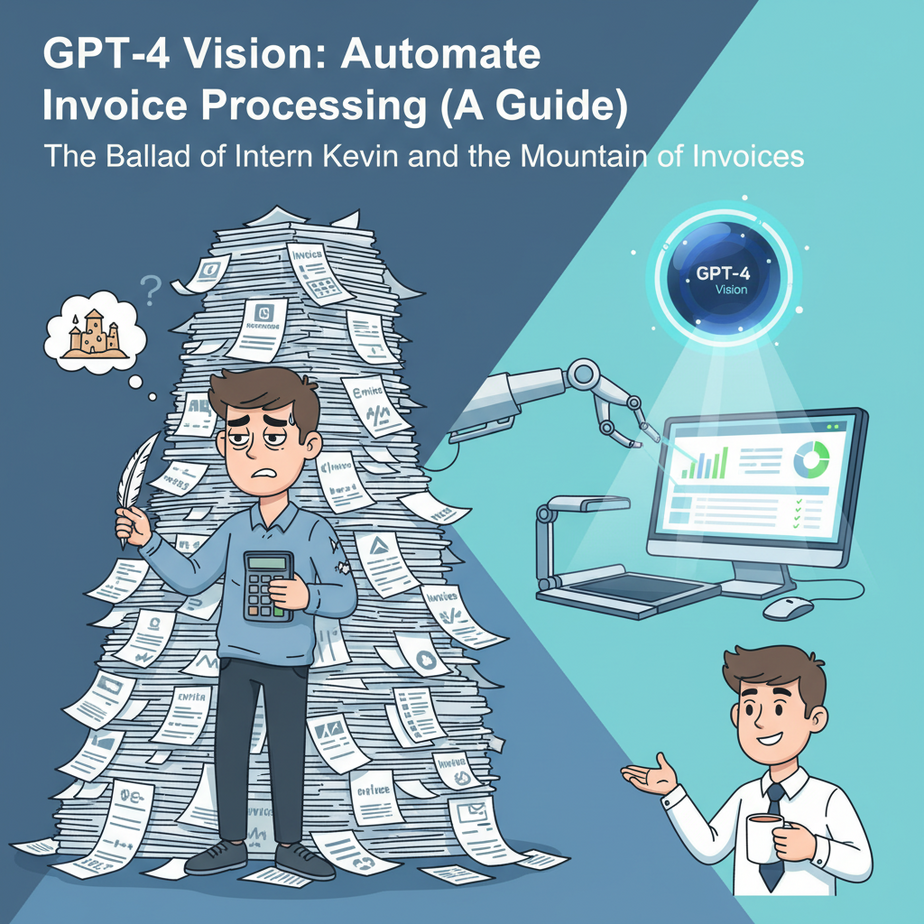
The Ballad of Intern Kevin and the Mountain of Invoices
Let me tell you a story. Every company has an “Intern Kevin.” Fresh-faced, optimistic, thinks they’re going to change the world. But their first task isn’t strategy or marketing. No. Their first task is The Pile.
The Pile sits in a sad, beige filing cabinet. It’s a teetering stack of invoices, receipts, and vendor forms—some scanned, some photographed with a shaky hand, some probably faxed over from the 90s. Kevin’s job is to stare into the soul of each document and manually type the details into a spreadsheet. The vendor name. The invoice number. The total amount. The due date.
His soul withers with every keystroke. This, my friends, is a crime against human potential. It’s slow, expensive, and about as error-prone as letting a toddler do your taxes. We can do better. Today, we’re going to build the machine that makes Intern Kevin’s job obsolete. We’re going to teach a computer to see.
Why This Matters (Besides Saving Kevin’s Sanity)
Look, this isn’t just about being fancy with AI. This is about plugging a major leak in your business operations. Manual data entry is a tax on your efficiency.
- It costs a fortune: You’re paying someone’s hourly wage for a task a machine can do for fractions of a penny. That money could be spent on sales, marketing, or a decent coffee machine.
- It’s painfully slow: An invoice comes in, sits in an inbox, waits for Kevin, gets typed, and maybe, just maybe, gets paid on time. An automated system processes it in seconds. This means better cash flow management and happier vendors.
- Humans make mistakes: Was that total $5,800 or $5,080? A misplaced decimal can be a catastrophic error. While no system is perfect, a well-instructed AI is far more consistent than a bored human on their fourth cup of coffee.
- It doesn’t scale: What happens when you double your clients? You can’t just hire another Kevin instantly. But you can send 1,000 API calls as easily as you can send one.
We’re not just building a script; we’re building a pipeline that turns chaotic, unstructured images into clean, actionable data. This is a foundational skill for anyone serious about automation.
What This Workflow Actually Is
Forget everything you know about old-school OCR (Optical Character Recognition). OCR was like a dumb assistant that could read letters but had no idea what they meant. It would give you a giant wall of text from an invoice, leaving you to pick out the important bits.
GPT-4 Vision is different. It’s like giving your computer a pair of eyes and a brain. It doesn’t just read the text; it understands the layout and context. It knows that the number next to the words “Invoice Total” is, in fact, the total amount. It sees the table of line items and understands they are a group of related things.
Our workflow is simple: we take an image of a document (like an invoice), send it to the GPT-4 Vision API, and give it a very specific command: “Read this, understand it, and give me back the key information in a perfectly structured format called JSON.” The result is data you can immediately feed into a database, spreadsheet, or accounting software.
Prerequisites (The Honest, No-Fluff List)
I don’t sell snake oil. This isn’t a magic button, but it’s close. Here’s what you actually need.
- An OpenAI API Key. This is your ticket to the show. Go to the OpenAI platform, sign up, and create an API key. Yes, it costs money to use, but we’re talking pennies or less per document. The ROI is absurdly high compared to paying for manual labor.
- A Way to Run Python. If you’re a developer, you’re set. If you’re not, don’t panic. Python is the language of AI, and you can run these scripts easily using free tools like Google Colab or Replit right in your browser. Think of the code I provide as a recipe—you just need a kitchen (the tool) to cook in.
- An Image of a Document. For this tutorial, we’ll use a sample invoice. You can save any invoice as a PNG or JPG file to your computer.
That’s it. You don’t need a PhD in machine learning. You just need to be able to follow instructions.
Step-by-Step Tutorial: From Invoice Photo to Structured Data
Alright, class is in session. Let’s build our automated document processor.
Step 1: Set Up Your Python Environment
First, we need the official OpenAI library. It’s the toolbox that lets our script talk to the AI. If you have Python on your machine, open your terminal and run this command.
pip install openaiWhy this step? This command downloads and installs the necessary code from OpenAI so we can call their API without having to write all the complicated networking stuff ourselves. It’s like buying a pre-made toolkit instead of forging your own wrenches.
Step 2: Prepare Your Image and API Key
To send an image to the AI, we need to convert it into a format that can be sent over the internet: a Base64 string. It sounds complex, but it’s just a way of encoding the image into text. This also means you don’t need to upload your image to a public URL.
Save this Python script as `process_invoice.py`. Find an invoice image and save it as `invoice.jpg` in the same folder.
import base64
import openai

# --- CONFIGURATION ---
# IMPORTANT: Replace "YOUR_API_KEY" with your actual OpenAI API key
# For production, use environment variables. For this lesson, we'll hardcode it.
api_key = "YOUR_API_KEY"
image_path = "invoice.jpg"
# --- END CONFIGURATION ---

# Function to encode the image
def encode_image(image_path):
    with open(image_path, "rb") as image_file:
        return base64.b64encode(image_file.read()).decode('utf-8')

# Get the base64 string
base64_image = encode_image(image_path)

# Initialize the OpenAI client
client = openai.OpenAI(api_key=api_key)
Why this step? We’ve created a reusable function `encode_image` that handles the conversion. We then call it and store the result. We also set up our `client` object, which is how we’ll communicate with OpenAI. Don’t forget to paste your API key!
Step 3: Craft the Master Prompt
This is where the magic happens. A good prompt is the difference between getting a structured masterpiece and a jumbled mess. We need to be firm and incredibly specific with the AI. We’re not asking it; we’re commanding it.
Add this prompt to your Python script:
# The master prompt that tells the AI exactly what to do
prompt_text = """
You are an expert accountant and data entry clerk. Your task is to analyze this invoice image and extract the key information in a structured JSON format.

The JSON object must have the following schema:
{
  "vendor_name": "string",
  "invoice_number": "string",
  "invoice_date": "YYYY-MM-DD",
  "due_date": "YYYY-MM-DD",
  "total_amount": float,
  "tax_amount": float,
  "line_items": [
    {
      "description": "string",
      "quantity": integer,
      "unit_price": float,
      "line_total": float
    }
  ]
}

If any field is not present in the invoice, use a value of null. Do not add any extra text or explanations outside of the JSON object.
"""
Why this step? We’re giving the AI a role (“expert accountant”), a clear task (“extract key information”), and most importantly, a *template* for the output. By defining the exact JSON structure, we guarantee the output will be consistent and machine-readable every single time.
Step 4: Make the API Call and Get the Results
Now we assemble everything and send it to OpenAI. We’ll use the `gpt-4-vision-preview` model. Add the final piece of code to your script:
response = client.chat.completions.create(
    model="gpt-4-vision-preview",
    messages=[
        {
            "role": "user",
            "content": [
                {"type": "text", "text": prompt_text},
                {
                    "type": "image_url",
                    "image_url": {
                        "url": f"data:image/jpeg;base64,{base64_image}"
                    }
                }
            ]
        }
    ],
    max_tokens=1024 # Adjust as needed for more complex documents
)

# Print the extracted data
print(response.choices[0].message.content)
Now, run the script from your terminal:
python process_invoice.pyStep 5: Celebrate Your Structured Data
If all went well, your console will print a beautiful, clean JSON object like this:
{
  "vendor_name": "Office Supplies Co.",
  "invoice_number": "INV-12345",
  "invoice_date": "2023-10-26",
  "due_date": "2023-11-25",
  "total_amount": 165.00,
  "tax_amount": 15.00,
  "line_items": [
    {
      "description": "Wireless Keyboard",
      "quantity": 2,
      "unit_price": 50.00,
      "line_total": 100.00
    },
    {
      "description": "Ergonomic Mouse",
      "quantity": 1,
      "unit_price": 50.00,
      "line_total": 50.00
    }
  ]
}
Why this matters: This isn’t just text. This is data. You can now load this directly into a database, a Google Sheet, or another program. You’ve successfully built an automated data entry clerk.
Real Business Use Cases
This isn’t just a party trick. Here’s how you can use this exact workflow to make or save real money:
- Automated Accounts Payable: Set up an automation (using a tool like Zapier or Make.com) that triggers this script whenever an email with an attachment arrives at `invoices@yourcompany.com`. The extracted JSON can then be used to create a draft bill in QuickBooks or Xero, waiting for a human to give the final click of approval.
- Employee Expense Reporting: Build a simple mobile app or a Slack bot where employees can upload photos of their receipts. This script runs in the background, extracts the vendor, date, and total, and automatically populates their expense report. No more lost receipts or manual entry.
- Customer Onboarding & KYC: Need to verify a new customer’s identity? Have them upload a picture of their driver’s license or a utility bill. The Vision API can extract their name, address, and date of birth, cross-referencing it with the data they entered in your sign-up form to flag discrepancies.
Common Mistakes & Gotchas (How Not to Mess This Up)
- Vague Prompts: A prompt like “What’s on this invoice?” will get you a paragraph of text. Garbage. You MUST provide the desired JSON structure in your prompt. Be a dictator, not a suggester.
- Low-Quality Images: If you give the AI a blurry, dark, crumpled picture taken from across the room, it’s going to struggle. Garbage in, garbage out. Ensure your scans or photos are clear and well-lit.
- Expecting 100% Perfection: This technology is incredible, but it’s not infallible. For critical workflows (like paying a $100,000 invoice), always have a human-in-the-loop. The AI’s job is to do 99% of the work and create a draft; a human’s job is the 1-minute final check.
- Ignoring the Cost at Scale: While cheap per document, processing 100,000 documents will show up on your bill. Always be aware of OpenAI’s pricing and set up budget alerts.
How This Fits Into a Bigger Automation System
Our Python script is a powerful gear, but it’s most effective when it’s part of a larger machine. Think of it as an assembly line:
The Factory Pipeline:
- Receiving Dock (Input): An email arrives in a dedicated inbox, or a file is dropped into a specific Dropbox folder.
- The Trigger: A workflow tool like Make.com/Zapier is constantly watching. It sees the new file and springs into action.
- The Vision Processor (Our Script): The tool sends the file to our Python script (which could be hosted on a service like AWS Lambda or Google Cloud Functions for a robust setup).
- The Assembly Line (Action): The script returns the clean JSON data. The workflow tool catches it and then:
- Adds a row to a Google Sheet for logging.
- Creates a task in Asana for the finance team to approve.
- Pushes the data into your accounting software API.
- Sends a Slack notification saying, “Invoice [Number] from [Vendor] processed and ready for review.”
See? Our script isn’t an endpoint. It’s the engine in the middle of a fully automated business process.
What to Learn Next
Congratulations. You’ve just given a machine the ability to see and understand documents. You’ve turned unstructured chaos into structured, valuable data. This is a huge leap.
But what if the AI could do more than just *read* the data? What if it could *reason* about it?
In our next lesson, we’re going to upgrade our system. We’ll teach our AI to not just extract the invoice total, but to cross-reference it with an internal purchase order database. We’ll give it rules: “If the invoice amount matches the PO, approve it automatically. If it doesn’t, or if the vendor is new, flag it for human review.”
We’re moving from a simple data extractor to a truly autonomous financial agent. You won’t want to miss it.
“,
“seo_tags”: “gpt-4 vision, ai automation, invoice processing, python, openai api, document automation, data entry, business automation”,
“suggested_category”: “AI Automation Courses