
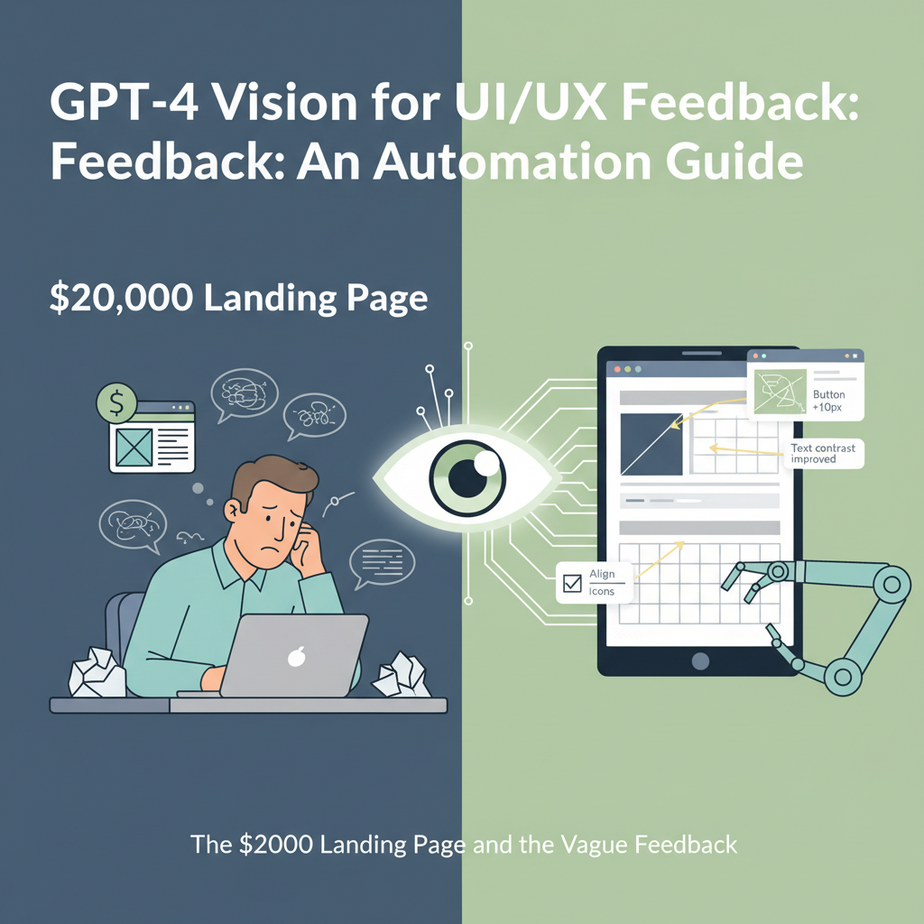
The $20,000 Landing Page and the Vague Feedback
I once had a client—let’s call him Dave—who was launching a new SaaS product. Dave was smart, but he did what most first-time founders do: he threw an obscene amount of money at a fancy design agency in San Francisco. You know the type. Their website has a black background, a single cryptic verb in the middle of the screen, and their team photos look like they were taken for a cologne ad.
Six weeks and $20,000 later, they delivered the landing page. It was… fine. It had gradients. It had rounded corners. It had an illustration of a gender-neutral person watering a plant that was also a bar chart.
Dave asked for feedback from his co-founder. “I dunno, the blue feels a bit… aggressive?”
He asked his mom. “It’s very nice, dear.”
He asked the agency. They sent back a two-page PDF full of words like “synergy,” “user-centric paradigm,” and “emotional resonance.” Useless.
Dave was stuck. He’d spent a fortune for feedback that was either subjective, polite, or corporate nonsense. He had no clear, actionable path to make the page better. This is the quiet, expensive hell of product design. Today, we’re building the escape hatch.
Why This Matters
What if you had a world-class design consultant on staff? Someone who could look at any design, anytime, and give you brutally honest, structured, and immediate feedback. 24/7. For about eight cents a pop.
That’s what this automation is. We are building a tireless robot intern that has studied millions of websites and can instantly tell you if your call-to-action is weak, if your color contrast is inaccessible, or if your layout is confusing on mobile.
This automation replaces:
- Endless back-and-forth design review meetings.
- Hiring expensive consultants for a “first look.”
- Guessing what users might find confusing.
- The awkward process of asking friends for feedback and getting polite lies in return.
This system gives you a repeatable, objective baseline for design quality. It doesn’t replace a great human designer, but it handles 80% of the initial grunt work, freeing up humans to focus on strategy and creativity.
What This Tool / Workflow Actually Is
At its core, this is an API call to OpenAI’s GPT-4 Vision model (sometimes called GPT-4V). That’s the one that can “see.”
What it does: You send it an image (like a screenshot of your website) and a text prompt. The prompt is a carefully crafted set of instructions, asking the AI to analyze the image from a UI/UX perspective and return its findings in a structured format.
What it does NOT do: This is not a magic design wizard. It doesn’t have “taste.” It hasn’t talked to your customers. It cannot tell you if your business idea is good. It is a powerful pattern-matching engine that has been trained on a massive chunk of the internet. It’s incredibly good at identifying common design principles, but it’s not a substitute for real user testing. Think of it as a ridiculously smart and fast pre-flight check, not the entire journey.
Prerequisites
I promise, this is easier than it sounds. Even if you’ve never written a line of code.
- An OpenAI API Key: This is your password to access the AI. You’ll get one from the OpenAI Platform website. You’ll need to put in a credit card, but a few test runs will cost you less than a cup of coffee.
- A Screenshot: Take a picture of any website you want to analyze. Your own, your competitor’s, whatever. Save it as a
.pngor.jpgfile. - A way to run a Python script: If you don’t have Python set up, don’t panic. You can use a free online tool like Replit. Just create a new project, copy-paste the code, and you’re good to go.
That’s it. If you can copy-paste and click a button, you can do this.
Step-by-Step Tutorial
Let’s build our design-critic-in-a-box. We’re going to use Python because it’s clean and easy to read.
Step 1: Get your API Key
Go to platform.openai.com, sign up, go to the “API Keys” section, and create a new secret key. Copy it and keep it somewhere safe. Do not share this key. It’s like a credit card for AI.
Step 2: Prepare your Image (Turn it into Text)
You can’t just attach an image to an API call like an email. You need to convert the image into a long string of text called a Base64 string. It sounds complicated, but it’s a one-liner in Python.
Save your screenshot in the same folder as your Python script. Let’s call it website.png.
Step 3: Craft the Master Prompt
This is the most important step. A lazy prompt like “review this site” will get you a lazy answer. We need to be specific and demanding. We’ll tell it *exactly* what to look for and *exactly* how to format the response. We’re asking for JSON, which is just a structured way to organize data with labels and values.
Step 4: Assemble and Run the Python Script
Create a new file called analyze_ui.py. This script will do three things:
- Convert your local image file into the Base64 text format.
- Send the image and our master prompt to the OpenAI API.
- Print the AI’s response.
Here is the full, copy-paste-ready code. Put your API key where it says "YOUR_OPENAI_API_KEY".
import base64
import requests
import os

# Your OpenAI API Key
api_key = "YOUR_OPENAI_API_KEY"

# Path to your image
image_path = "website.png"

# Function to encode the image
def encode_image(image_path):
    with open(image_path, "rb") as image_file:
        return base64.b64encode(image_file.read()).decode('utf-8')

# Check if image exists
if not os.path.exists(image_path):
    print(f"Error: Image file not found at {image_path}")
else:
    # Getting the base64 string
    base64_image = encode_image(image_path)

    headers = {
        "Content-Type": "application/json",
        "Authorization": f"Bearer {api_key}"
    }

    payload = {
        "model": "gpt-4-vision-preview",
        "messages": [
            {
                "role": "user",
                "content": [
                    {
                        "type": "text",
                        "text": """
                        You are an expert UI/UX designer. Analyze this screenshot of a webpage.
                        Provide a detailed critique based on the following principles:
                        1.  **Clarity & Simplicity**: Is the value proposition immediately obvious? Is the layout clean or cluttered?
                        2.  **Visual Hierarchy**: Is it clear what the most important element is? Are headings, subheadings, and body text distinct?
                        3.  **Call to Action (CTA)**: Is the primary CTA obvious, compelling, and easy to find?
                        4.  **Consistency**: Are design elements (buttons, fonts, colors) consistent across the page?
                        5.  **Accessibility**: Comment on color contrast and font readability.

                        Your response MUST be in a valid JSON format. Do not include any text outside of the JSON block.
                        The JSON should have a main key 'ui_ux_review' with nested objects for each principle.
                        For each principle, provide a 'score' from 1-10 and a 'feedback' string with 2-3 bullet points of actionable advice.
                        Example format:
                        { "ui_ux_review": { "clarity_and_simplicity": { "score": 7, "feedback": "- The headline is strong.\
- The subtext is a bit long." } } }
                        """
                    },
                    {
                        "type": "image_url",
                        "image_url": {
                            "url": f"data:image/png;base64,{base64_image}"
                        }
                    }
                ]
            }
        ],
        "max_tokens": 1000
    }

    response = requests.post("https://api.openai.com/v1/chat/completions", headers=headers, json=payload)

    print(response.json())
Save the file and run it from your terminal with python analyze_ui.py. Within seconds, you’ll get a beautifully structured JSON object with your feedback.
Complete Automation Example
Let’s use Dave’s fictional SaaS company, “SyncUp,” which sells a project management tool. Here’s a screenshot of their new landing page (just imagine a generic tech website).
We save the image as website.png and run the script above.
The AI’s Output (The good part):
{
  "id": "chatcmpl-xxxxx",
  "object": "chat.completion",
  "created": 1700000000,
  "model": "gpt-4-1106-vision-preview",
  "choices": [
    {
      "message": {
        "role": "assistant",
        "content": "\
{\
  \\"ui_ux_review\\": {\
    \\"clarity_and_simplicity\\": {\
      \\"score\\": 6,\
      \\"feedback\\": \\"- The main headline 'Revolutionize Your Workflow' is vague and doesn't explain what the product does.\\\
- Too many competing elements in the hero section; the illustration, text, and CTA are all fighting for attention.\\"\
    },\
    \\"visual_hierarchy\\": {\
      \\"score\\": 7,\
      \\"feedback\\": \\"- The heading structure is good, but the feature blocks below all have the same visual weight, making it hard to scan.\\\
- The logo in the navigation bar is too large compared to the menu items.\\"\
    },\
    \\"call_to_action\\": {\
      \\"score\\": 4,\
      \\"feedback\\": \\"- The 'Learn More' CTA is weak and has low color contrast against the background gradient.\\\
- There should be a primary CTA like 'Start Free Trial' that is visually distinct and appears above the fold.\\"\
    },\
    \\"consistency\\": {\
      \\"score\\": 8,\
      \\"feedback\\": \\"- Button styles and font usage are generally consistent.\\\
- The use of drop shadows is inconsistent; some elements have them, others do not.\\"\
    },\
    \\"accessibility\\": {\
      \\"score\\": 5,\
      \\"feedback\\": \\"- The light grey text on a white background in the feature descriptions fails WCAG AA contrast standards.\\\
- Font size for body copy might be too small for users with visual impairments.\\"\
    }\
  }\
}\
"
      }
    }
  ],
  "usage": { ... }
}
Look at that. In 10 seconds, Dave has more actionable feedback than he got from a $20,000 agency. He now knows he needs to: change the headline, simplify the hero section, fix the CTA button, and increase font contrast. No ambiguity. No vague feelings about the color blue.
Real Business Use Cases
- E-commerce Store: Before pushing a new product page live, automatically screenshot it on both desktop and mobile resolutions and run this analysis. The AI can check if the “Add to Cart” button is prominent and if the product images are clear.
- Marketing Agency: As a lead magnet, offer a “Free AI-Powered Landing Page Teardown.” A potential client submits their URL, an automation screenshots it, runs this script, formats the output into a nice PDF, and emails it to them. Instant value, minimal work.
- SaaS Company: Integrate this into your CI/CD pipeline. Every time a developer pushes a change to the user interface on a staging server, a screenshot is automatically taken and analyzed. If the accessibility score drops below 8, the build fails, preventing bad code from ever reaching production.
- Freelance Developer: When pitching a new client on a website redesign, run their *current* site through this analysis first. You can walk into the meeting with a data-driven report of exactly what’s wrong with their old site and how you’ll fix it.
- Product Management Team: Quickly evaluate competitor designs. Create a script that takes a list of competitor URLs, screenshots each one, and runs the UI/UX analysis. You’ll get a structured overview of the entire market’s design language in minutes.
Common Mistakes & Gotchas
- Lazy Prompting: If you just ask “is this good?”, you’ll get a garbage answer. The quality of your output is 100% dependent on the quality of your prompt. Be specific. Demand structure.
- Forgetting the Cost: Vision models are more expensive than text-only models. A single high-resolution image analysis can cost 5-10x more than a simple text completion. Use it strategically, not for every minor change.
- Treating AI as the Absolute Truth: The AI can be wrong. It might misinterpret an element or give feedback that doesn’t align with your brand’s unique style. This is a tool for generating *ideas and hypotheses*, not for making final decisions. Always use your human judgment.
- Not Forcing JSON Output: If you don’t explicitly demand a JSON response in your prompt, you’ll often get back a messy, unparsable wall of text. The `”Your response MUST be in a valid JSON format”` line is your best friend.
How This Fits Into a Bigger Automation System
This single workflow is a powerful building block. Now, let’s plug it into a real business machine.
- With a CRM (like HubSpot or Salesforce): Create a workflow where, as soon as a new company is added to your CRM, an automation finds their website, screenshots it, runs this analysis, and attaches the feedback as a note for the sales rep. The rep can then open their first call with, “I had my team run a quick analysis on your site, and we found a few key areas for improvement…”
- With Email Automation: Connect this to a Typeform or Tally form on your website. Someone enters their URL, which triggers a workflow in Make.com or Zapier. The workflow screenshots the site, calls the OpenAI API, parses the JSON, and uses the data to populate a beautiful email template that gets sent back to the user. Fully automated lead generation.
- With Multi-Agent Workflows: This becomes the “Research Agent.” Imagine an agent that finds a list of potential customers, passes each URL to our Vision Agent for analysis, which then passes the structured feedback to a “Copywriter Agent” that drafts a personalized cold email based on the specific UI/UX flaws it found.
This isn’t just a script; it’s a sensory organ—eyes—that you can give to any other automated system you build.
What to Learn Next
Okay, you’ve built an AI that can *see* and *critique*. You’ve automated the first 80% of design feedback. It’s a huge step. But the feedback is still just text sitting on your screen.
What if the AI could not only *see* the problem but also *explain* it? Out loud?
What if it could call a new lead, walk them through the AI-generated feedback on their own website, and then ask if they’d like to book a meeting with a human to fix it?
In the next lesson in this course, we’re doing exactly that. We’re taking this Vision API output and plugging it into a voice agent. We are building an automated Sales Development Rep that does its own research and makes its own calls. You just taught your robot how to see. Next, we teach it how to talk.
Master this lesson. The script we built today is the foundation for some of the most powerful client acquisition automations you can possibly build. See you in the next one.
“,
“seo_tags”: “GPT-4 Vision, AI Automation, UI UX Design, OpenAI API, Python Automation, Automated Testing, Product Design, SaaS”,
“suggested_category”: “AI Automation Courses