
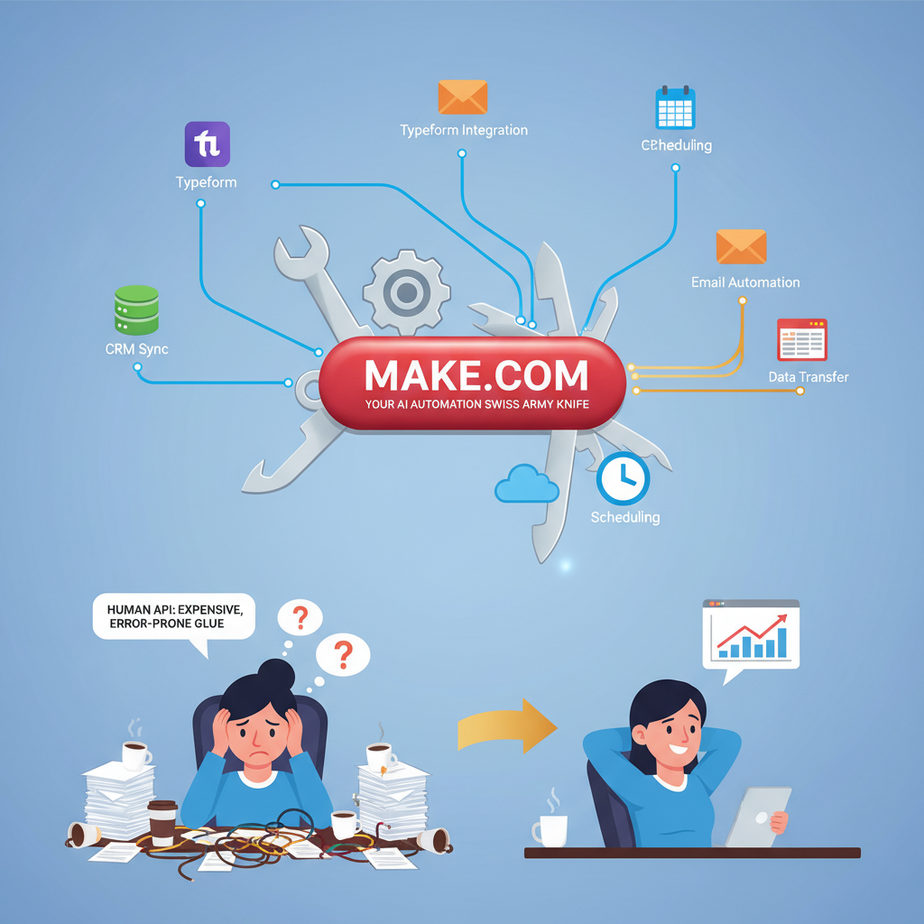
The Human API: The Most Expensive, Error-Prone Glue in Business
Meet Brenda. Brenda runs a thriving online coaching business. When a new client signs up via her Typeform, Brenda’s day transforms into a frantic ballet of clicks. First, she copies the client’s name and email into her Mailchimp list. Then, she manually creates a customer profile in HubSpot. After that, she creates a private Slack channel for the client. Finally, she sends a templated welcome email from Gmail. Brenda spends two hours a day being the human glue between her apps. She calls it ‘admin.’ I call it a cry for help.
Brenda *is* the API. Her brain is the server, her fingers are the data packets, and her patience is the rapidly depleting bandwidth. This manual ‘digital duct tape’ approach isn’t just slow; it’s a breeding ground for typos, missed steps, and client experiences that feel… cobbled together. It’s a system designed to break the moment Brenda wants to take a vacation.
Today, we fire Brenda from her job as a human API. We’re going to give her a promotion to CEO by building a silent, ruthlessly efficient robot that does it all for her in less than a second.
Why This Matters: You Are Not Paid to Copy-Paste
The time you spend moving data between tabs is the most expensive and least valuable time in your business. Automating these connections with a tool like Make.com is a foundational shift.
Speed to Lead: The difference between responding to a new lead in 5 minutes versus 5 hours is often the difference between a closed deal and a lost opportunity. Automation is instant.
Flawless Execution: A robot doesn’t get distracted by a new cat video on YouTube. It doesn’t make typos. It runs the same perfect process every single time, ensuring a consistent and professional experience for your customers.
Scalability: Brenda’s manual system breaks if she gets 10 clients in one day. An automated system doesn’t care if it gets 10 or 10,000. It just works. This is how you build a business that can grow without you becoming a bottleneck.
What This Tool Actually Is: Digital LEGOs for Your Business
We’re going to use a tool called Make.com (it used to be called Integromat, so don’t get confused if you see the old name). Forget abstract terms like ‘iPaaS’ or ‘integration platform.’ Think of it as a box of digital LEGOs.
Every app you use—Gmail, Slack, OpenAI, Stripe, Google Sheets—is a LEGO block. Make.com provides the giant board and all the little connector pieces. You visually drag these blocks onto the board and connect them to build… well, anything. It’s a visual programming language for business processes. You don’t write code; you connect bubbles.
It lets you build workflows that listen for a trigger (like a new email) and then perform a series of actions (like analyze the email with AI, add the details to a CRM, and alert your team). It is the central nervous system for your entire automation empire.
Prerequisites: Your Assembly Kit
This is powerful, but you don’t need a PhD to get started. Here’s your list:
- A Make.com Account: The free plan is incredibly generous and more than enough to build everything in this lesson.
- Accounts for 2-3 Other Apps: We’re going to connect things. So, you’ll need access to the things you want to connect. For our example, have a Google account (for Forms), a Slack account, and an OpenAI API key ready.
- A Process to Automate: This is the most important part. Think of a simple, repetitive task you hate doing. A great starting point is: “When X happens in App A, I always have to do Y in App B.”
Step-by-Step Tutorial: AI-Powered Lead Triage
Our mission: When a lead fills out a contact form, we will use AI to analyze their message, classify their intent, and post a rich summary to Slack for the sales team. No more manually reading every single submission.
Step 1: The Trigger (Set Up Your Starting Block)
- In your Make.com dashboard, click “Create a new scenario.”
- You’ll see a big purple plus sign. Click it and search for “Google Forms.” Select the “Watch Responses” module.
- Connect your Google account. Select the form you want to use as your trigger. Your form should have fields like `Name`, `Email`, and `Message`.
- When you’re done, you’ll have a single Google Forms bubble on your screen. This is the starting gun for our automation.
Step 2: The Brain (Add an OpenAI Module)
- Hover over the right side of the Google Forms module, and a small plus sign will appear. Click it to add the next module.
- Search for “OpenAI” and select the “Create a Chat Completion” module.
- Connect your OpenAI account by providing your API key.
- For the model, select `gpt-3.5-turbo` or `gpt-4` if you have access.
- Now, we’ll configure the message. Click “Add item” under Messages. The Role should be `User`. For the Message Content, we’ll write our prompt.
Step 3: The Prompt (Giving the AI Its Orders)
This is where we tell the AI what to do. In the `Message Content` box, we will combine static instructions with dynamic data from our form. You can map data from the previous module by clicking on the fields from the popup list.
Copy-paste this prompt, making sure to map the `Message` field from your form:
You are an expert sales assistant. A new lead has submitted a message from a contact form.

Here is their message: "{{2. Message}}"

Your task is to analyze this message and return a JSON object with two keys:
1. "intent": Classify the message into one of these categories: "Sales Inquiry", "Support Question", "Job Applicant", or "Spam".
2. "summary": Write a one-sentence summary of the user's request.

Only return the JSON object. Do not add any other text or explanation.
This prompt is clean, specific, and asks for a structured output (JSON), which is much easier for automations to handle later.
Step 4: The Alert (Send the Results to Slack)
- Click the plus sign again to add your final module. Search for “Slack” and choose the “Create a Message” module.
- Connect your Slack account and choose the channel where you want to post the alerts (e.g., `#leads`).
- Now we compose the message text, pulling data from BOTH previous steps. This is the magic of Make.
In the `Text` box, compose your message. Here’s an example:
🚨 New Lead Alert! 🚨

*Name:* {{1. Name}}
*Email:* {{1. Email}}
*Intent:* {{2. choices[].message.content.intent}}
*Summary:* {{2. choices[].message.content.summary}}

Go get 'em, team! 💪
IMPORTANT: The paths like `{{2. choices[].message.content.intent}}` look complex. Don’t type them manually! Just click in the text box, and Make will show you the data from OpenAI. Since we asked for JSON, you can navigate through the structure and click on `intent` and `summary` to insert the correct mapping.
Step 5: Test and Activate
- Click the “Run once” button in the bottom left. The scenario is now listening.
- Go fill out your Google Form with some test data.
- Watch the bubbles in Make light up as the data flows through the system. In a few seconds, a perfectly formatted message should appear in your Slack channel.
- If it all works, toggle the switch in the bottom left from “OFF” to “ON”. Your automation is now live.
Real Business Use Cases (Make is the Glue for Everything)
- Automated E-commerce Invoicing: When a sale is completed in Stripe, automatically generate a detailed invoice in QuickBooks and save a PDF copy to a customer-specific folder in Google Drive.
- Social Media Content Scheduler: Create content ideas in an Airtable base. When a record is marked “Approved,” have Make automatically schedule it to be posted to Twitter and LinkedIn at a specified time.
- Customer Feedback Loop: When a customer submits a Typeform survey, send the text to OpenAI to analyze the sentiment. If the sentiment is negative, create an urgent ticket in Zendesk. If positive, post the feedback to a `#customer-love` channel in Slack.
- Meeting Workflow Automation: When a new meeting is booked in Calendly, create an agenda document in Google Docs from a template, create a new record in your Notion CRM, and send a confirmation email to the attendee with the agenda link.
- Podcast Production System: When a new audio file is dropped into a specific Dropbox folder, trigger a Make scenario that sends the file to an audio transcription service (like AssemblyAI), takes the returned transcript, has OpenAI write show notes and a blog post, and finally creates a draft in your WordPress site.
Common Mistakes & Gotchas (How to Avoid a Rube Goldberg Machine)
- Ignoring the Scheduler: By default, your scenario runs every 15 minutes. This is great for many things, but for lead alerts, you want it to be instant. For triggers that support it (like Google Forms), you can use an “instant” webhook-based trigger. For others, adjust the schedule to fit your needs, but be mindful of your operations budget.
- Not Using a JSON Parser: We asked the AI for JSON, which Make can usually understand. But sometimes you need to explicitly add a “Parse JSON” module after the AI step to reliably access the data inside.
- Forgetting Error Handling: What happens if Slack is down? By default, the scenario stops. Make has powerful error handling tools. You can tell it to ignore the error, try again later, or even run a different set of steps (like sending you an email).
- Mapping the Wrong Data: A scenario with 10 modules has a LOT of data variables floating around. Be meticulous. Make sure the `Email` you’re using in step 8 came from the original trigger, not from some other lookup step.
How This Fits Into a Bigger Automation System
Think of your tools as cities. Clay is a specialized industrial city for producing enriched leads. Browse AI is a city of explorers, mapping the web. Make.com is not a city; it’s the entire **national highway system**. It connects every city to every other city. It’s the master orchestrator, the logistics layer that tells all your specialized tools what to do and when to do it. It can trigger Clay runs, start Browse AI scrapers, and take the output from both to update your CRM, send emails, and manage finances. It is the brain that commands the limbs.
What to Learn Next
Our current automation is smart, but it’s a one-track mind. It sends *every* lead to the same Slack channel. But we asked our AI to classify the intent for a reason. What if we wanted to send “Sales Inquiry” leads to the sales team, but “Support Question” leads directly into our helpdesk system?
In the next lesson, we’re diving into one of Make’s most powerful features: Routers. We’ll learn how to create branching paths in our automations, making decisions based on data and sending information to different destinations based on different rules. We’re about to turn our simple assembly line into a full-blown intelligent sorting facility.
“,
“seo_tags”: “Make.com tutorial, Integromat tutorial, AI automation, no code workflow, automate business process, connect apps with AI, OpenAI automation”,
“suggested_category”: “AI Automation Courses