
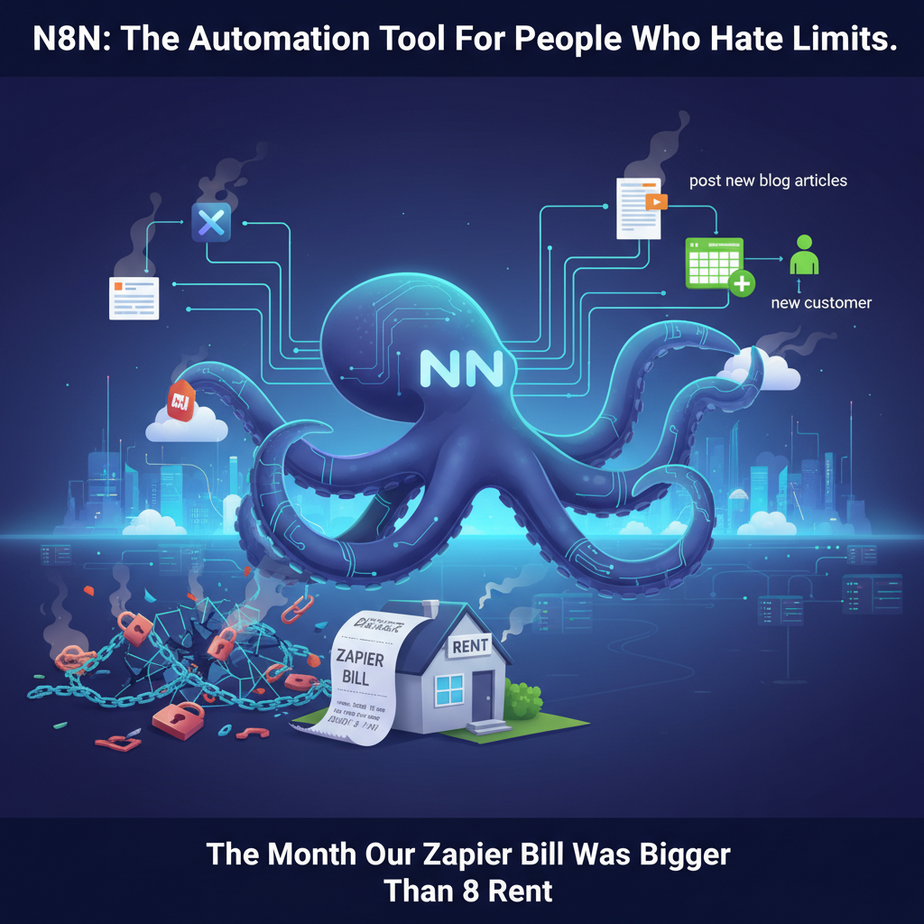
The Month Our Zapier Bill Was Bigger Than Our Rent
It started small. A little workflow to post new blog articles to Twitter. Then one to add new customers to a spreadsheet. Then another to notify Slack when a big sale came through. It was easy. It was magical. And then, it got expensive.
One month, we ran a big marketing campaign. Thousands of new signups, hundreds of support tickets, dozens of sales calls booked. Our automations were humming along, the digital factory was at full steam. And then I got the invoice. It was four figures. Our bill from Zapier—the “glue” holding our business together—cost more than our office space.
I felt trapped. Do I turn off the automations that are saving us hundreds of hours, or do I accept this new, enormous line item on our budget? It was like the power company charging you more per kilowatt-hour the more successful you become. It felt fundamentally wrong. That’s the day I started searching for something better, something that didn’t punish you for scaling. That’s the day I found N8N.
Why This Matters
Tools like Zapier and Make are fantastic. They’re like renting a beautiful, fully-furnished apartment. You can move in and start living on day one. But you can’t knock down a wall, you can’t change the plumbing, and your rent goes up every year.
N8N is different. It’s like being handed the keys to your own industrial workshop. You have to set up your tools, sure. But once you do, you can build *anything*. A skyscraper, a race car, a submarine. You’re only limited by your imagination, not by your subscription tier.
This matters because N8N gives you back:
- Control over Cost: Run tens of thousands of tasks, a million tasks. The cost is the same: the price of the server running it (which can be very cheap, or even free on your own computer).
- Control over Data: When you self-host N8N, your data—your customer lists, your API keys, your business logic—never leaves your own server. It’s the same privacy benefit we got with running a local AI.
- Control over Logic: You’re not stuck with the pre-built apps. N8N allows for complex branching, merging, custom code, and HTTP requests to *any* API in the world, not just the ones in their app store.
This workflow replaces the “duct tape” automations holding your business together with a proper, scalable, and affordable central nervous system.
What This Tool / Workflow Actually Is
N8N (pronounced “nodemation”) is a visual workflow automation tool. Let’s break that down.
Visual Workflow: Instead of writing code, you connect nodes on a canvas. One node might be “When I get a new email,” another might be “Read the attachment,” and a third is “Post the content to Slack.” You draw lines between them to show how the data flows. It’s like building with digital LEGOs.
What it does: It acts as a universal translator and delivery service for your apps. It lets your CRM talk to your email marketing tool, which talks to your accounting software, which talks to your project management board. It is the digital equivalent of a mailroom, a factory assembly line, and a switchboard operator all rolled into one.
What it does NOT do: It’s not a simple one-click tool for total beginners. It has a steeper learning curve than Zapier. It requires you to think a little more like an engineer, understanding that data moves in a specific format (usually JSON). But you do NOT need to be a coder to be a master at N8N.
Prerequisites
Here’s what you need to get started. No sugar-coating.
- A Place to Run N8N: You have options. I recommend starting with the free N8N Desktop App. It runs entirely on your local machine and is perfect for learning. You can also use their Cloud trial for a quick start. The ultimate goal for power users is self-hosting on a cheap cloud server, but let’s walk before we run.
- Logical Thinking: You need to be able to map out a process. “First, I want this to happen. IF the result is X, THEN do this. OTHERWISE, do that.” If you can write a recipe, you can build an N8N workflow.
- API Keys for Your Apps: N8N needs permission to access your other tools. You’ll need to know how to log in to your apps (like Slack, Google, Typeform) and find the “API Keys” or “Integrations” section. It’s usually a simple copy-paste job.
Step-by-Step Tutorial: Your First Workflow
Let’s build a simple but useful workflow: Every time you click a button, N8N will fetch a new programming joke from an API and post it to a Slack channel. This teaches the core concepts: a trigger, fetching data, and taking an action.
Step 1: Set Up Your Canvas
Open your N8N Desktop App or create a new workflow in the cloud version. You’ll see a blank canvas with a single “Start” node. This is your playground.
Step 2: Add a Manual Trigger
Click the + button. A menu of nodes will appear. Search for “Manual” and select it. This creates a simple “Execute Workflow” button. It’s our trigger. When we click it, the automation runs.
Step 3: Add an HTTP Request Node
Click the + on the Manual node. Search for “HTTP Request” and add it. This node can talk to any API on the internet. We’ll use a free joke API.
In the properties panel for the HTTP Request node on the right, set the following:
- URL:
https://official-joke-api.appspot.com/jokes/programming/random - Response Format:
JSON
Now, click the “Execute Node” button at the top of the properties panel. You should see the output on the right, a JSON object containing a joke setup and punchline. You just pulled data from the internet!
Step 4: Add a Slack Node
Click the + on the HTTP Request node. Search for “Slack” and add it. The first time, it will prompt you to connect your Slack account. Follow the instructions to create a new credential. This is how N8N gets permission to post on your behalf.
In the properties panel for the Slack node:
- Channel: Choose the channel where you want to post, for example,
#random. - Text: This is the fun part. We’re going to use the data from the *previous* node. Click in the “Text” box, and then click the little `fx` button to open the expression editor. Drag the
setupandpunchlinefields from the HTTP Request node’s output on the left into the expression box. It should look something like this:
{{ $json.setup }}
{{ $json.punchline }}
This tells N8N: “Take the setup from the joke API, add a new line, and then add the punchline.”
Step 5: Test and Activate!
Click the “Execute Workflow” button in the bottom left. The Manual trigger will run, the HTTP node will fetch a joke, and the Slack node will post it to your channel. If it works, save your workflow and toggle the “Active” switch in the top right. Congratulations, you’ve built your first automation.
Complete Automation Example
Now, for a real business use case. Let’s connect N8N to the local AI we built in the last lesson. We’ll create a workflow that takes new survey responses from Typeform, uses our private Ollama AI to analyze the sentiment, and routes the feedback to the correct Slack channel.
The Workflow: Typeform -> Local AI for Sentiment Analysis -> Smart Slack Routing
- Trigger: Typeform Node. Add a Typeform Trigger node. Create credentials for your Typeform account. Select the form you want to monitor. This node will now automatically run every time someone submits that form.
- HTTP Request Node (to Ollama). This is where we call our local AI. Configure it like this:
- URL:
http://localhost:11434/api/generate(Make sure Ollama is running on your machine!) - Method:
POST - Body Content Type:
JSON - Body: Click the
fxbutton for the Body and use an expression to build the prompt. Let’s say your Typeform has a question called “feedback”. The expression would be:
{
  "model": "llama3:8b",
  "stream": false,
  "prompt": "Analyze the sentiment of the following feedback. Respond with only a single word: 'positive', 'neutral', or 'negative'. Feedback: {{ $json.body.form_response.answers[0].text }}"
}
(Note: You might need to adjust the path `answers[0].text` depending on your form structure. Use the expression editor to find the right field!)
- URL:
- IF Node (The Router). Add an IF node. This lets us create branches. We want to check the AI’s response. In the IF node, set up a condition:
- Value 1: Drag the `response` from the Ollama HTTP node. It will look like
{{ $json.response }}. - Operation:
Contains - Value 2:
positive
- Value 1: Drag the `response` from the Ollama HTTP node. It will look like
- Two Slack Nodes.
- Connect a Slack node to the `true` output of the IF node. Configure it to post a happy message with the feedback to your `#wins` channel.
- Connect another Slack node to the `false` output. Configure it to post an urgent message with the feedback to your `#customer-support` channel.
Activate this workflow. Now you have a fully automated, intelligent feedback processing system that costs you nothing to run and keeps all customer data private. It’s a thing of beauty.
Real Business Use Cases
This same pattern can be adapted for almost anything.
- Sales Lead Processing: When a new lead enters your CRM, N8N enriches the contact with Clearbit data, waits 10 minutes, then sends a personalized outreach email via Gmail.
- Content Repurposing: When you publish a new YouTube video, N8N is triggered, downloads the transcript, uses an AI node to create a summary and five key takeaways, and then posts them to your blog and LinkedIn.
- E-commerce Order Management: When a new Shopify order is marked “high risk,” N8N creates a ticket in your support desk, sends an SMS alert to the fraud team via Twilio, and adds the customer to a “manual review” list in Google Sheets.
- Personal Productivity: Every morning at 7 AM, N8N fetches your top 3 tasks from Todoist, gets the weather forecast, pulls your first calendar event, and sends a single, combined “Daily Briefing” message to you on Telegram.
- Financial Reporting: On the first of every month, N8N fetches payment data from Stripe, expense data from your accounting software, formats it all, and emails a P&L summary PDF to the company founders.
Common Mistakes & Gotchas
- The Horror of Nested JSON: Data from one node can be buried deep inside another. The key is to use the expression editor’s left-hand panel. Run the previous node, then visually explore the output data structure to find the exact piece of information you need to drag over.
- Mixing Up `GET` and `POST`: In HTTP nodes, `GET` is for fetching data (like our joke API). `POST` is for sending data to be processed (like our Ollama prompt). Using the wrong one is a common error.
- Forgetting to Activate: You can build the most beautiful workflow in the world, but if you forget to toggle that “Active” switch in the top-right, it will never run on its own. We’ve all been there.
- Webhook vs. Polling Triggers: A webhook is instant (Typeform tells N8N something happened). A polling trigger is periodic (N8N asks your CRM every 5 minutes, “Anything new yet?”). Use webhooks whenever possible; they’re faster and more efficient.
How This Fits Into a Bigger Automation System
If your local AI (Ollama) is the specialized brain, N8N is the central nervous system connecting it to the rest of the body. It’s the conductor that tells every other part of your automation factory what to do and when.
- The Orchestrator: N8N is what calls your custom scripts, your AI models, and your third-party APIs, chaining them together in a logical sequence.
- Data Transformation Hub: N8N can fetch data from a database, reformat it, get an insight from an AI, and then push the transformed data into your CRM.
- Human-in-the-Loop Gateway: You can build workflows that pause and wait for human approval. For example, draft an email based on a customer complaint, but don’t send it until a manager clicks an approval link sent to them in Slack.
- The Engine for RAG: When a user uploads a new document, N8N can be the workflow that chunks the text, sends it to an embedding model, and stores the vectors in the database for your RAG system to use.
What to Learn Next
Incredible work. You’ve set up the automation equivalent of a railroad switching station. You can now receive any kind of data from any source and route it intelligently anywhere you want. You have a local AI brain and a powerful automation nervous system to connect it to the real world.
But there’s a problem. Right now, your automations are stateless. They run, they do their job, and they forget everything that happened. They have no memory of past runs.
What if you need to track customer history? Or remember inventory levels? Or build an AI assistant that remembers your conversation from yesterday? For that, you need a database. In the next lesson, we’re going to give our automation system a long-term memory. We’ll set up a simple, powerful database and connect it to N8N, allowing you to build stateful, intelligent automations that get smarter over time.
“,
“seo_tags”: “N8N, Zapier Alternative, Make.com Alternative, Open Source Automation, Business Automation, Workflow Automation, Self-hosted, N8N Tutorial, Nodeless Automation, API Integration”,
“suggested_category”: “AI Automation Courses