
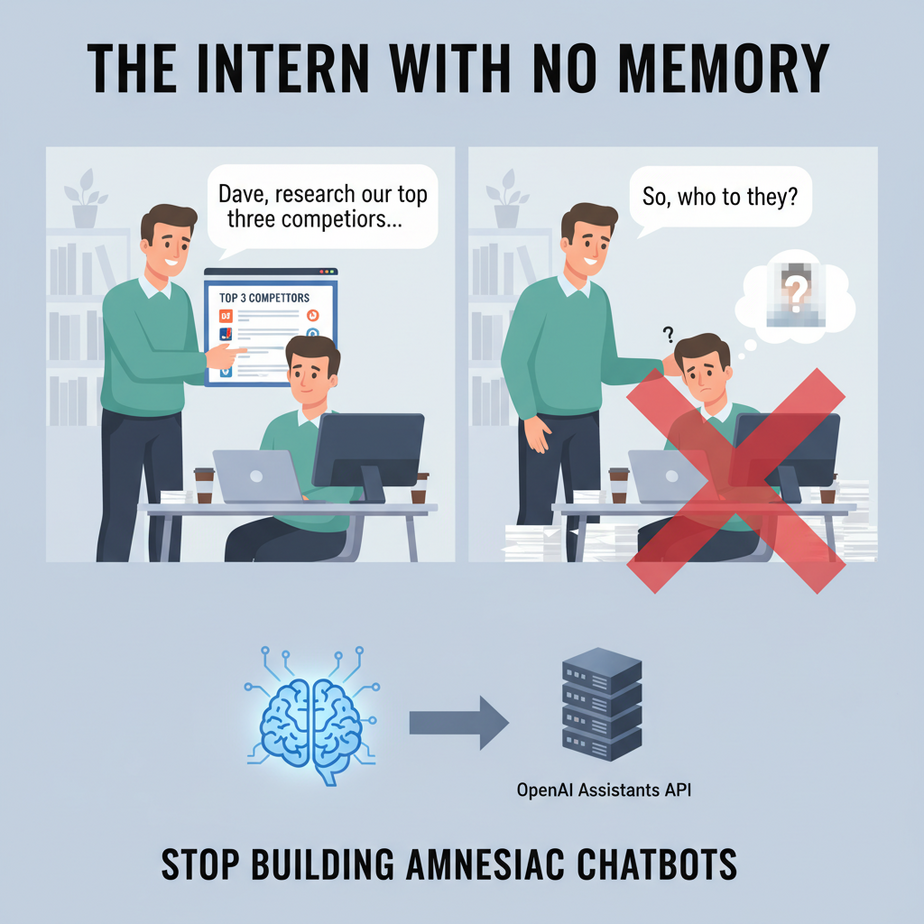
The Intern with No Memory
Imagine you hire a new intern. Let’s call him Dave. You walk over to Dave’s desk.
You: “Dave, please research our top three competitors and summarize their pricing models. Here’s a folder with all our market research.”
Dave: “On it, boss!”
An hour later, you come back. The report is great. You say, “Excellent work, Dave. Now, based on that report, draft an email to the marketing team highlighting our key advantages.”
Dave just stares at you with a blank expression. “What report?” he asks. “Who are our competitors? Who are you?”
This is Dave the Amnesiac Intern. And if you’ve ever used the basic OpenAI Chat Completions API, you’ve been forced to hire him. Every single time you send a request, you have to re-explain the entire history of the conversation from scratch. It’s expensive, it’s slow, and it’s infuriating. Today, we’re firing Dave and hiring a professional.
Why This Matters
Building a simple one-shot Q&A bot is easy. Building a *useful* AI assistant—one that can handle a multi-step task, remember what you talked about five minutes ago, and refer to documents you gave it—has been painfully complex. Until now.
The OpenAI Assistants API is the difference between a cheap calculator and a senior analyst. This workflow replaces:
- Complex state management: You no longer have to manually track and resend conversation histories. The API handles the “memory.”
- Clunky data injection: Instead of stuffing documents into a prompt, you give your assistant its own permanent knowledge base.
- Silos of information: You’re creating a centralized AI brain that can be used across multiple applications, for multiple users, without losing context.
This isn’t just about building a better chatbot. It’s about building a digital workforce. You’re creating an agent you can delegate complex, long-running tasks to. This saves you token costs, engineering headaches, and your own sanity.
What This Tool / Workflow Actually Is
The OpenAI Assistants API is a framework for building stateful, powerful AI agents. Let’s break that down.
Instead of a single API call that you have to manage, the Assistants API gives you a set of building blocks, like LEGOs for AI:
- The Assistant: This is the AI’s core identity. You give it a name, a set of instructions (“You are a helpful financial analyst”), a model (like GPT-4o), and access to tools.
- The Thread: This is a single conversation. Each user gets their own thread. The thread holds all the messages and automatically manages the history. This is what cures the amnesia.
- The Tools: These are the Assistant’s superpowers. The main ones are File Search (letting it read documents you give it) and Code Interpreter (letting it write and run Python code to analyze data, create charts, etc.).
What it does: It provides the entire backend infrastructure for creating persistent, tool-enabled AI agents. It handles memory, file management, and tool execution for you.
What it does NOT do: It’s not a drag-and-drop builder. You still need to write some code to connect the pieces. But as you’ll see, it’s surprisingly simple.
Prerequisites
You can do this. I’m serious. Here’s all you need.
- An OpenAI Account & API Key: Go to
platform.openai.com, sign up, and generate an API key. You will need to add a payment method, as the Assistants API isn’t free, but for this tutorial, it will cost you pennies. - Python on your computer: If you’ve been following this course, you already have this. If not, a quick search for “install python” will get you set up.
- The ability to remain calm: There are a few more moving parts than a simple API call, but we’ll walk through each one. Just follow the steps.
Step-by-Step Tutorial
Let’s build the foundation. We’ll create a simple Assistant that can read a document and answer questions about it.
Step 1: Setup and Installation
First, let’s get the latest OpenAI Python library. Open your terminal and run:
pip install --upgrade openaiNow, create a new file called my_assistant.py. This is where we’ll work.
Step 2: The Basic Code Structure
Paste this into your file. It imports the library, sets up your client, and has placeholders for the main steps.
import os
import time
from openai import OpenAI

# Best practice: use environment variables for API keys
# For this tutorial, we'll just paste it. But don't do this in production!
API_KEY = "sk-proj-YOUR_API_KEY_HERE"
client = OpenAI(api_key=API_KEY)

# --- We will fill in the steps below ---
Remember to replace `sk-proj-YOUR_API_KEY_HERE` with your actual OpenAI API key.
Step 3: Create the Assistant
The Assistant is a reusable template. You create it once and then use it for many conversations. We’ll make one that’s an expert on AI automation. We’ll also enable the `file_search` tool.
# Step 1: Create an Assistant
assistant = client.beta.assistants.create(
    name="Automation Academy Tutor",
    instructions="You are an expert tutor for the AI Automation Academy. Use the provided files to answer student questions.",
    tools=[{"type": "file_search"}],
    model="gpt-4o",
)
print(f"Assistant created with ID: {assistant.id}")
Why this works: We’re defining the Assistant’s personality and giving it a tool. Run this file once. It will print an ID (like `asst_…`). Save that ID! You can reuse this assistant later without creating it again.
Step 4: Create a Thread
A Thread is a fresh, empty conversation. Every time a new user starts talking to your bot, you’ll create a new thread for them.
# Step 2: Create a Thread
thread = client.beta.threads.create()
print(f"Thread created with ID: {thread.id}")
Why this works: This is like opening a new, empty text message conversation with your assistant.
Complete Automation Example
Now let’s put it all together into something useful. We’ll build a “Company Policy Bot”. It will read a simple policy document and answer an employee’s question.
First, create a text file in the same directory called policy.txt and put this inside it:
AI Automation Academy - Remote Work Policy

Employees are permitted to work from home up to 3 days per week.
Fridays are mandatory in-office days for all-hands meetings.
Requests for fully remote work must be approved by direct managers.
Now, let’s write the full Python script. This will upload the file, link it to the assistant, ask a question, and get the answer. We’ll use the Assistant and Thread IDs from the previous steps if you saved them, or create new ones.
import os
import time
from openai import OpenAI

API_KEY = "sk-proj-YOUR_API_KEY_HERE"
client = OpenAI(api_key=API_KEY)

# --- 1. Create a Vector Store and upload your file ---
vector_store = client.beta.vector_stores.create(name="Company Policies")

file_paths = ["policy.txt"]
file_streams = [open(path, "rb") for path in file_paths]

file_batch = client.beta.vector_stores.file_batches.upload_and_poll(
  vector_store_id=vector_store.id,
  files=file_streams
)

print(f"File batch status: {file_batch.status}")

# --- 2. Create an Assistant with the file search tool and attached vector store ---
assistant = client.beta.assistants.create(
  name="HR Policy Bot",
  instructions="You are a helpful HR assistant. Answer employee questions based on the provided policy documents.",
  model="gpt-4o",
  tools=[{"type": "file_search"}],
  tool_resources={"file_search": {"vector_store_ids": [vector_store.id]}}
)

# --- 3. Create a Thread and add a Message ---
thread = client.beta.threads.create()
message = client.beta.threads.messages.create(
    thread_id=thread.id,
    role="user",
    content="Can I work from home on Fridays?"
)

# --- 4. Create and Poll a Run ---
run = client.beta.threads.runs.create_and_poll(
    thread_id=thread.id,
    assistant_id=assistant.id,
)

# --- 5. Display the Assistant's Response ---
if run.status == 'completed':
    messages = client.beta.threads.messages.list(
        thread_id=thread.id
    )
    # The response is the first message in the list
    print(f"Assistant: {messages.data[0].content[0].text.value}")
else:
    print(f"Run failed with status: {run.status}")
When you run this, it will take a few seconds (because it’s processing the file and thinking), and then it will print the correct answer based on the document: that you cannot work from home on Fridays.
You’ve just built an AI that can read. Congratulations.
Real Business Use Cases
- E-commerce – The Fit-Finder Bot: A shoe company uploads detailed sizing charts and customer fit feedback as PDFs. The Assistant helps customers find the perfect size, answering questions like “I wear a size 10 in Nike, what size should I get for your boots?”
- Financial Services – The Portfolio Analyst: A financial advisor uploads a client’s quarterly performance reports. The Assistant can then answer the client’s questions via a secure portal, such as “What was my best performing asset last quarter?” using the Code Interpreter tool to do the math.
- SaaS Onboarding – The Interactive Guide: A software company uploads its entire technical documentation. A new user can ask the Assistant, “How do I integrate your API with Shopify?” and get a step-by-step guide based on the official docs.
- Travel – The Itinerary Planner: A travel agency uploads city guides, hotel info, and tour brochures. The Assistant helps users build a custom trip, remembering their preferences. “Okay, you liked the museum idea. How about a food tour in that same neighborhood?”
- Healthcare – The Post-Op Assistant: A hospital provides patients with an AI assistant that has access to their specific, approved post-op care instructions. Patients can ask, “Can I take ibuprofen?” or “What exercises are safe to do today?”
Common Mistakes & Gotchas
- Fire and Forget: Creating a `Run` is asynchronous. You can’t just create it and expect an answer. You *must* wait for it to complete. The `create_and_poll` helper function we used does this for you, but under the hood, it’s a loop checking the run’s status.
- One Thread To Rule Them All: Do NOT use the same Thread for different users. This will cross-contaminate conversations and is a massive privacy and usability nightmare. One user = one thread. Period.
- Ignoring Costs: File Search and Code Interpreter have costs associated with them, both for storage and for usage. It’s more powerful than a simple prompt, and it’s priced accordingly. Keep an eye on your usage dashboard.
- Re-uploading Files: You don’t need to upload your policy document every single time. You create a Vector Store, upload your files once, and then attach that same store to your assistant. Think of it as the Assistant’s permanent library.
How This Fits Into a Bigger Automation System
An Assistant is the brain, but it’s not the whole body. This is a component you drop into a larger system.
- Website Chatbot: Your website’s front-end code would create a new Thread for each visitor. Their messages get sent to your server, which then passes them to the Assistant API. The Assistant’s response is then sent back to the user’s browser.
- Email Automation: An inbound email can trigger a script that creates a new Thread (or finds an existing one for that sender). The email body becomes a new Message, and the Assistant’s reply can be automatically sent back.
- Connecting to a CRM: This is the next level. The Assistant API also supports a third tool: Function Calling. This allows the assistant to not just talk, but to *do things*. It could understand “Create a new lead for Bob from Acme Corp” and then call YOUR code that actually updates your Salesforce or HubSpot account.
What to Learn Next
You’ve done it. You fired the amnesiac intern and hired a professional assistant with a perfect memory and its own personal library. This is a massive leap forward.
But right now, our assistant can only think and read. It can’t *act*. It can’t interact with the outside world.
In our next lesson, we’re going to give it hands. We will dive deep into the most powerful part of this entire system: Function Calling. We will teach our AI assistant how to interact with other APIs, how to browse the web, and how to trigger real-world automations. We’re going to turn our know-it-all into a do-it-all.
This is where the real magic begins. Get ready.
“,
“seo_tags”: “openai assistants api, openai v2, stateful chatbot, ai agent, file search, retrieval, python tutorial, ai automation, chatbot memory”,
“suggested_category”: “AI Automation Courses