
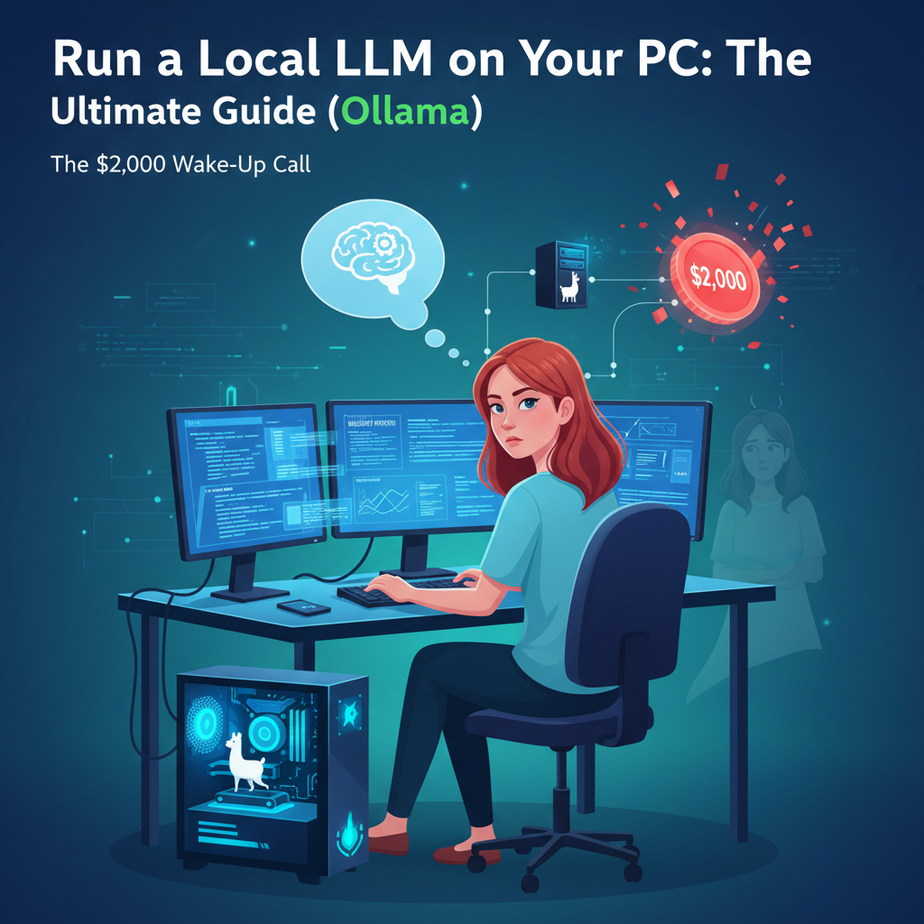
The $2,000 Wake-Up Call
I once had a student, a bright entrepreneur named Chloe, who built a clever little automation. It scanned new industry reports, summarized them, and drafted a market analysis email for her team. Genius, right? She hooked it up to the fanciest, most powerful AI model in the cloud and went on vacation, proud of her new robotic employee.
She came back to a bill for over $2,000. Her script had found a treasure trove of 10,000 reports and, like an over-caffeinated intern, worked through the entire night, racking up API charges with every single summary.
Chloe learned a hard lesson: renting an AI brain from a big tech company is powerful, but it’s like leaving your credit card at a bar with an open tab. What if you could have that same power, running quietly on your own computer, for free, with zero chance of a surprise bill? What if you could build an AI intern that lives on your laptop, keeps your data private, and whose only cost is a little electricity?
Welcome to the world of local LLMs. Today, we’re firing the expensive cloud intern and hiring a free one that never sleeps and never leaks your secrets.
Why This Matters
Running a Large Language Model (LLM) locally isn’t just a nerdy party trick. It’s a strategic business decision.
- Cost Control: The price is zero. Zilch. Nada. After the one-time cost of your computer hardware, you can run millions of automations without paying a penny per word. Your CFO will love you.
- Data Privacy: When you send data to a cloud API, you’re sending your business secrets to someone else’s computer. Customer lists, financial reports, secret product plans… all of it. A local model keeps your data on your machine. Period. It’s the digital equivalent of working in a soundproof room.
- Speed & Reliability: No internet? No problem. Your local AI doesn’t care. It’s also incredibly fast for smaller tasks because there’s no network lag. It’s right there, next to your CPU.
- Customization: You’re not stuck with the generic, sanitized models from the big guys. You can run specialized models fine-tuned for coding, writing, or even medical analysis.
This automation replaces expensive, unpredictable API bills and the security risk of sending sensitive data to third parties. It’s the foundation for building truly independent, resilient, and cost-effective AI systems.
What This Tool / Workflow Actually Is
We’re going to use a tool called Ollama. Let’s be crystal clear about what it is.
What Ollama IS: It’s a simple, no-fuss tool that downloads, manages, and runs powerful open-source LLMs on your own computer (Mac, Windows, or Linux). More importantly, it instantly turns those models into an API. Think of it as a local factory manager for AI brains. You tell it which brain you want, and it puts that brain to work, ready to receive instructions from your other scripts and tools.
What Ollama is NOT: It’s not a fancy chat application like ChatGPT. It doesn’t have a user interface beyond a command-line tool. It’s the engine, not the car. We, the builders, are going to put that engine into our own automated vehicles.
Prerequisites
I know some of you see the words “command line” and want to close the tab. Don’t. If you can order a pizza online, you can do this. I promise.
- A reasonably modern computer. Anything made in the last 5 years will probably work. If you have a dedicated graphics card (GPU), it’ll be much faster, but it’s not strictly required for the smaller, yet still powerful, models we’ll start with.
- The ability to find and open the ‘Terminal’ (Mac/Linux) or ‘Command Prompt’ / ‘PowerShell’ (Windows). This is the black-box-with-text you see in hacker movies. We’re only going to type three or four things into it. It’s less scary than assembling IKEA furniture.
- 10-20 GB of free disk space. These AI models are chunky files.
That’s it. No coding experience is needed to get the model running. I’ll even give you the code to copy-paste for the automation part.
Step-by-Step Tutorial
Let’s get our free, private AI intern set up.
Step 1: Install Ollama
Go to the Ollama website: https://ollama.com. Click the big download button. Run the installer. It’s as simple as installing any other application. Once it’s done, Ollama will be running quietly in the background, waiting for instructions.
Step 2: Download Your First AI Model
Open your Terminal or Command Prompt. We need to give our factory an AI brain to manage. We’ll start with Meta’s brand new, highly capable Llama 3 model (the 8 billion parameter instruction-tuned version). It’s a fantastic all-rounder.
Type this command and press Enter:
ollama run llama3:8bThe first time you run this, it will download the model file, which is about 5 GB. Go grab a coffee. Once it’s done, you’ll see a message like >>> Send a message (/? for help). You’ve just started a direct chat with the AI! You can type a question and see it respond right there. To exit the chat, type /bye.
Step 3: Understand the Real Power: The API
Chatting is fun, but automation is our goal. When you ran that command, Ollama didn’t just start a chat; it also started a web server on your machine. This server is an API endpoint, identical in format to the one used by OpenAI. This is the secret sauce. It means any tool or script that can talk to OpenAI’s API can now talk to your local AI instead.
Let’s prove it. Keep that first terminal running. Open a new Terminal or Command Prompt window and paste this command:
curl http://localhost:11434/api/chat -d '{ "model": "llama3:8b", "messages": [ { "role": "user", "content": "Briefly explain the concept of photosynthesis." } ], "stream": false }'Press Enter. You’ll get back a block of text called JSON. Buried inside it is the AI’s answer. What you just did is the core of all AI automation: you sent a structured request to an API endpoint and got a structured response back. You didn’t use a fancy UI; you used the raw language of machines.
Complete Automation Example
Let’s solve a real business problem: categorizing customer feedback. Imagine you have a text file filled with hundreds of customer comments. You need to sort them into “Positive,” “Negative,” or “Suggestion.” Doing this manually is soul-crushing.
Our local AI intern will do it for us in seconds.
Step 1: Create Your Data File
Create a file on your computer named feedback.txt. Put a few lines of feedback in it, one per line. For example:
The new dashboard design is amazing!
I can't find the export button anywhere, this is frustrating.
The delivery was slower than expected.
It would be great if you could add a dark mode feature.
Step 2: Create the Automation Script
This requires a tiny bit of Python. If you’ve never used Python, don’t panic. Just follow the instructions. Make sure you have Python installed on your machine.
Create a new file named categorize.py and paste this exact code into it:
import requests
import json

# The API endpoint for your local Ollama server
OLLAMA_ENDPOINT = "http://localhost:11434/api/chat"

# The model you want to use
MODEL = "llama3:8b"

# The name of your feedback file
FEEDBACK_FILE = "feedback.txt"

def categorize_feedback(feedback_text):
    """Sends feedback to the local LLM and asks for categorization."""
    system_prompt = "You are an expert at analyzing customer feedback. Categorize the following text as either 'Positive', 'Negative', or 'Suggestion'. Respond with ONLY one of these words."

    payload = {
        "model": MODEL,
        "messages": [
            {"role": "system", "content": system_prompt},
            {"role": "user", "content": feedback_text}
        ],
        "stream": False
    }

    try:
        response = requests.post(OLLAMA_ENDPOINT, json=payload)
        response.raise_for_status() # Raise an exception for bad status codes

        # Extract the content from the response
        response_data = response.json()
        category = response_data['message']['content'].strip()
        return category
    except requests.exceptions.RequestException as e:
        return f"Error: {e}"

# Main script execution
if __name__ == "__main__":
    try:
        with open(FEEDBACK_FILE, 'r') as f:
            for line in f:
                feedback = line.strip()
                if feedback: # Make sure the line isn't empty
                    category = categorize_feedback(feedback)
                    print(f'Feedback: "{feedback}"\
Category: {category}\
---')
    except FileNotFoundError:
        print(f"Error: The file '{FEEDBACK_FILE}' was not found.")
Step 3: Run Your Automation
Make sure categorize.py and feedback.txt are in the same folder. Open your Terminal/Command Prompt in that folder and run the script:
python categorize.pyWatch the magic happen. Your script will read each line, ask your local AI for a category, and print the results instantly. You just built a batch processing automation that costs nothing to run, no matter how many feedback entries you have.
Real Business Use Cases (MINIMUM 5)
This exact same pattern—a script feeding data to a local LLM API—can be adapted for countless tasks:
- E-commerce Store: The problem is writing unique product descriptions for 5,000 different coffee mugs. The automation script reads a CSV of mug features (color, size, punny quote) and asks the local LLM to generate a fun, 2-sentence description for each.
- Marketing Agency: The problem is drafting 50 variations of a social media post for A/B testing. The automation script takes a core message and asks the local LLM to rewrite it in different tones: “professional,” “witty,” “urgent,” “Gen-Z slang.”
- Law Firm Paralegal: The problem is pre-screening thousands of discovery documents for relevance. The automation script feeds document summaries to a local LLM with the prompt, “Does this document mention ‘Project Alpha’? Respond only with YES or NO.” This keeps sensitive client data off the cloud.
- Software Development Shop: The problem is standardizing code comments and documentation. The automation script reads functions from code files and asks the local LLM, “Generate a standard docstring for this Python function.”
- Local News Publisher: The problem is summarizing municipal meeting transcripts. The automation script feeds the long, boring text to the local LLM and asks, “Extract the key decisions and voting outcomes from this transcript into five bullet points.”
Common Mistakes & Gotchas
- Choosing a Model That’s Too Big: Don’t try to run a 70-billion-parameter model on a laptop with 8GB of RAM. It will crash. Start small with models like `llama3:8b` or `phi3`. They are shockingly capable.
- Forgetting the Server is Running: Your `curl` commands or Python scripts will fail if the Ollama application isn’t running in the background. The first `ollama run` command usually starts it, but you can always ensure it’s on with `ollama serve`.
- API Request Formatting: The API is picky. If you forget a comma or a curly brace in your JSON payload, it will fail. Copy-paste the examples carefully. The `stream: false` part is important for simple scripts; it makes the API wait until the full answer is ready before sending it.
- Expecting GPT-4 Quality: A local 8B model is a genius intern, not a 20-year-veteran Ph.D. It’s fantastic for 90% of structured tasks like categorization, summarization, and reformatting. For deeply nuanced creative writing or complex reasoning, the giant cloud models still have an edge. Use the right tool for the job.
How This Fits Into a Bigger Automation System
What we’ve built today is a fundamental building block: a private, free, and reliable AI brain. This brain is currently isolated. The real power comes when you connect it to the rest of your digital nervous system.
- CRM Integration: You could write a script that pulls new leads from your CRM’s API every hour, sends their company info to your local LLM to draft a personalized opening line, and then pushes that draft back into a field in your CRM.
- Email Automation: You can connect this to an email server. When an email arrives in a specific inbox (e.g., `support@mycompany.com`), a tool can grab the email body, send it to your local LLM for categorization, and then automatically forward it to the right department.
- Multi-Agent Workflows: In more advanced setups, you can have multiple local AI models working together. One model could be a “researcher” that summarizes articles, passing its findings to another “writer” model that drafts a blog post. This local setup makes such complex workflows economically feasible.
This local API is the first step away from simply using AI tools and toward building your own AI-powered systems.
What to Learn Next
Okay, you have an AI brain running on your machine. It can think, but it can’t *do* anything. It can’t click buttons, it can’t send emails, it can’t update a spreadsheet. It’s a brain in a jar.
In our next lesson, we’re going to give it hands. We will connect our local Ollama API to a visual automation platform like n8n. We’ll build the same feedback-categorizer, but this time with zero code, using drag-and-drop blocks. We’ll show you how to take the AI’s output and automatically write it to a Google Sheet, send a Slack notification, and create a Trello card.
You’ve installed the engine. Next time, we build the car.
This is where the real power of automation begins. Stick with the course.
“,
“seo_tags”: “local llm, ollama, ai automation, run ai locally, llama 3, private ai, business automation, python ai, api tutorial”,
“suggested_category”: “AI Automation Courses