
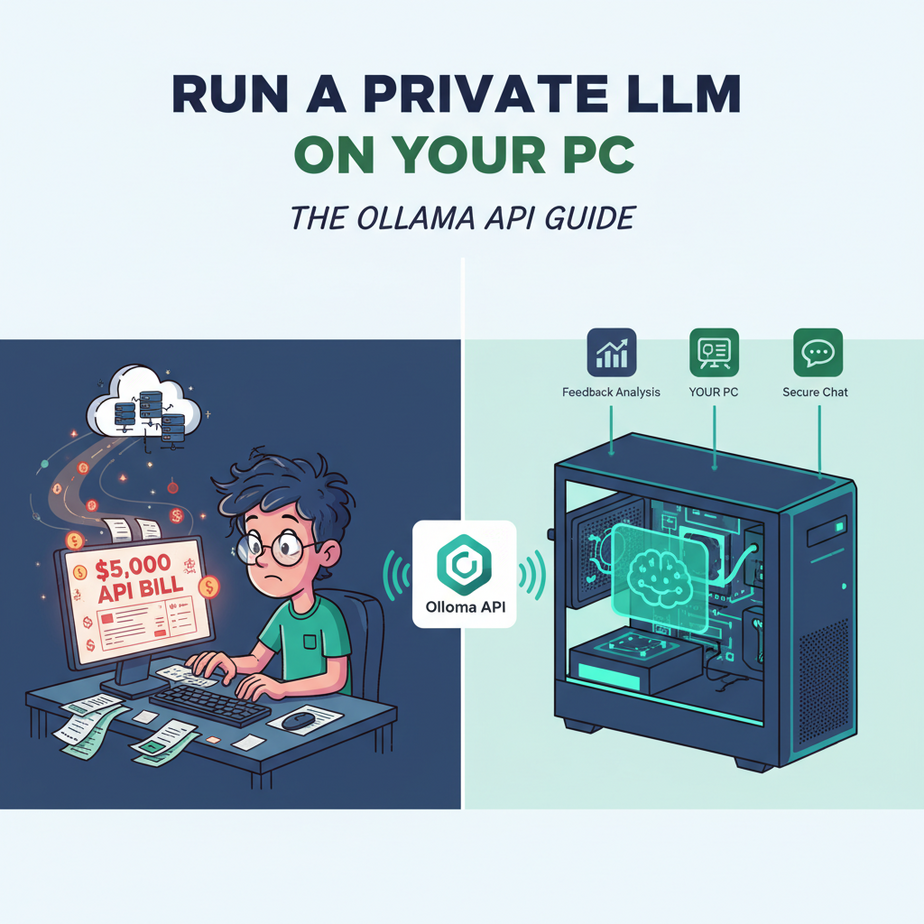
The Intern Who Racked Up a $5,000 API Bill
Let me tell you a story. A few years back, I was helping a startup automate their customer feedback analysis. They had thousands of survey responses coming in every week. The plan was simple: pipe the text into an AI API, get a summary and sentiment score, and dump it in a spreadsheet. Easy.
So, I set up the script, handed the API key to their junior dev—let’s call him “Timmy”—and went to get coffee. What I didn’t realize was that Timmy, in his infinite enthusiasm, decided to re-process the *entire historical database* of 2 million survey responses. Just to, you know, “test it.”
The next morning, the founder called me, making a sound I can only describe as a dying whale. The bill from the AI provider was over $5,000. For one night. Of “testing.”
Timmy was trying to build a productivity machine, but he ended up building the world’s most efficient money incinerator. That’s the day I decided I needed a better way. A way to get all the power of these AI models without wiring my company credit card directly to a Silicon Valley server farm.
Why This Matters
Look, the big AI models from OpenAI, Google, and Anthropic are incredible. They’re also a potential budget black hole. Every time you ask them to summarize an email, categorize a support ticket, or generate a product description, a meter is running. It feels cheap at first… until you scale.
This workflow isn’t just about saving money. It’s about control and privacy.
- It replaces: The need to pay per-word or per-token for 90% of your text-based automation tasks.
- It upgrades: Your data security. When you run a model locally, your sensitive customer data, proprietary documents, and secret plans for world domination never leave your computer. You’re not sending your crown jewels to a third party to be processed.
- The business impact: You can run millions of automations for the fixed cost of electricity. You can build AI features into your products for clients who have strict data privacy requirements (think healthcare, legal, finance). You unlock unlimited scale without unlimited cost.
You’re essentially building your own private, loyal, and—most importantly—free AI intern that lives on your machine.
What This Tool / Workflow Actually Is
We’re going to use a tool called Ollama.
In simple terms, Ollama is a program that lets you download, manage, and run powerful open-source Large Language Models (LLMs) on your own computer. Think of it like a game launcher, but instead of launching Cyberpunk 2077, you’re launching a private brain like Llama 3 or Mistral.
The magic trick, and the reason we’re here, is that Ollama automatically wraps any model you run in a simple, clean API. It creates a local web server on your machine that behaves almost exactly like the official OpenAI API. This means any tool, script, or application that knows how to talk to OpenAI can be pointed at your local model instead.
What it does:
- Runs powerful LLMs on your Mac, Windows, or Linux machine.
- Exposes them via a local API endpoint (
http://localhost:11434). - Manages downloading and updating models with simple commands.
What it does NOT do:
- Miraculously make a 2015 laptop run a giant 70-billion-parameter model. You need decent hardware.
- Replace GPT-4 Turbo for highly complex, creative, or multi-faceted reasoning. It’s perfect for defined, repetitive automation tasks.
Prerequisites
This is brutally honest. You don’t need to be a genius, but you can’t run this on a potato.
- A Decent Computer:
- Mac: An M1, M2, or M3 Mac is fantastic. 8GB of RAM is the bare minimum, 16GB or more is much better.
- PC (Windows/Linux): A modern NVIDIA graphics card (GPU) with at least 8GB of VRAM. The more VRAM, the bigger the models you can run.
- Ollama Installed: Go to ollama.com and download it. It’s a standard installer, just click “Next” until it’s done.
- Comfort with the Terminal: I mean *very basic* comfort. You need to know how to open it (Terminal on Mac, PowerShell or CMD on Windows) and type a command. If you can order a pizza online, you have the required technical skills. I will give you the exact text to copy and paste.
Don’t be nervous. This is easier than setting up a new printer. I promise.
Step-by-Step Tutorial: Your First Local API Call
Step 1: Download an AI Model
First, we need a brain for our robot intern. We’ll grab Llama 3, Meta’s latest powerful open-source model. The 8B version is a great balance of speed and intelligence.
Open your terminal and run this command:
ollama pull llama3:8bThis will download the model files to your computer. It might take a few minutes, depending on your internet speed. It’s about 4.7GB. Go get a coffee.
Step 2: Start the Ollama Server
The beauty of Ollama is that the server starts automatically when the application is running. On Mac, you’ll see a little llama icon in your menu bar. On Windows, it’ll be in the system tray. If it’s running, the server is ready. You don’t have to do anything else.
Step 3: Make Your First API Call with `curl`
curl is a command-line tool for making web requests. It’s built into Macs and Linux, and available in modern Windows. It’s how we’ll talk to our new local AI.
Go back to your terminal and paste in this entire block of code, then press Enter:
curl http://localhost:11434/api/generate -d '{
  "model": "llama3:8b",
  "prompt": "In one sentence, explain why automation is important for businesses.",
  "stream": false
}'
Step 4: Understand the Result
You should get back a JSON object that looks something like this (I’ve formatted it to be readable):
{
  "model": "llama3:8b",
  "created_at": "2024-05-21T10:30:00.123Z",
  "response": "Automation is important for businesses because it increases efficiency, reduces errors, and frees up human employees to focus on more strategic, high-value tasks.",
  "done": true,
  "context": [...],
  "total_duration": 1234567890,
  "load_duration": 123456,
  "prompt_eval_count": 21,
  "eval_count": 42,
  "eval_duration": 987654321
}
Let’s break down the important parts:
"model": Confirms which model answered you."response": This is it! This is the AI’s answer. This is the gold we’re mining."done": true: This tells you the process is complete.
Pay attention to the "stream": false part of our request. This is critical. By default, Ollama streams the response back word by word, like a chatbot. For automation, we almost always want the complete answer at once. Setting `stream` to `false` ensures that.
Congratulations. You just ran a powerful AI model on your computer and interacted with it like a professional developer. No credit card required.
Complete Automation Example: The Email Categorizer
Let’s put our new intern to work on a real business problem. Imagine you have a support inbox getting flooded with emails. Your task is to build a robot that reads an email and categorizes it as a “Billing Question”, “Technical Issue”, or “Sales Inquiry”.
The Input: A Customer Email
Here’s a sample email we need to process:
“Hi there, I was looking at my latest invoice and the charge seems higher than I expected. Can someone from the billing department help me understand the new line item? Also, I was wondering if you offer enterprise plans. Thanks, Sarah.”
The Magic: A Structured Prompt
We can’t just ask the AI to “categorize this.” We need to be specific and demand a structured output that a computer can understand, like JSON.
Here’s our prompt:
You are an expert email categorization system. Analyze the following email and classify it into ONE of the following categories: ["Billing Question", "Technical Issue", "Sales Inquiry"]. The user mentions both billing and sales, but the primary request is about an invoice. Respond with ONLY a JSON object containing a single key "category".

Email:
---
Hi there, I was looking at my latest invoice and the charge seems higher than I expected. Can someone from the billing department help me understand the new line item? Also, I was wondering if you offer enterprise plans. Thanks, Sarah.
---
The API Call
Now we just wrap that prompt into our `curl` command. It’s a bit long, so make sure you copy the whole thing. Note that we have to escape the quotes inside the JSON string.
curl http://localhost:11434/api/generate -d '{
  "model": "llama3:8b",
  "prompt": "You are an expert email categorization system. Analyze the following email and classify it into ONE of the following categories: [\\"Billing Question\\", \\"Technical Issue\\", \\"Sales Inquiry\\"]. The user mentions both billing and sales, but the primary request is about an invoice. Respond with ONLY a JSON object containing a single key \\"category\\".\
\
Email:\
---\
Hi there, I was looking at my latest invoice and the charge seems higher than I expected. Can someone from the billing department help me understand the new line item? Also, I was wondering if you offer enterprise plans. Thanks, Sarah.\
---",
  "stream": false
}'
The Result: Structured Data!
The model will spit back its response. Because we were so specific in our prompt, the useful part of the output will be clean and predictable:
"response": "{\\"category\\": \\"Billing Question\\"}"
Boom. That’s not just text; it’s data. Your script can now easily parse this JSON, see the category is “Billing Question,” and automatically forward the email to the `billing@yourcompany.com` email address, or tag it in your helpdesk software. You just replaced 30 seconds of manual human labor with a 2-second, free API call. Now imagine doing that 10,000 times a day.
Real Business Use Cases
This same pattern—taking unstructured text and turning it into structured data or new text—can be applied everywhere.
- E-commerce Store: Feed a list of bullet points about a product (e.g., “100% cotton, machine washable, blue”) into a prompt that asks for a 50-word, SEO-friendly product description.
- Marketing Agency: Automate the summarization of competitor press releases. A script can watch a competitor’s news feed, and when a new article appears, send it to the local LLM with a prompt to return a 3-sentence summary, then post that summary to a private Slack channel.
- Recruiting Firm: Parse resumes. Feed the raw text of a PDF resume into the LLM and ask it to extract the candidate’s name, email, phone number, and years of experience into a clean JSON format to be automatically entered into an Applicant Tracking System (ATS).
- Legal Tech Company: Create a document redactor. Use a prompt that identifies and replaces Personally Identifiable Information (PII) like names, addresses, and social security numbers with placeholders (e.g., `[REDACTED]`). Because it’s local, the sensitive document is never exposed.
- Software Development Team: Triage user feedback from a web form. The raw feedback can be sent to the local model to classify it as a `bug_report`, `feature_request`, or `user_question`, and even generate a suggested title for a new Jira ticket.
Common Mistakes & Gotchas
- Vague Prompting: If you get unreliable or chatty responses, your prompt is too loose. Be ruthless. Tell the model *exactly* what format you want (e.g., “Respond ONLY with a single word,” or “Return a JSON object with keys ‘name’ and ’email’.”).
- Forgetting `”stream”: false`:** If your code is breaking because it’s getting weird, incomplete chunks of JSON, you probably forgot this. For automation, you want the whole response at once.
- Using the Wrong Model: Don’t use a giant 70B model to classify emails. It’s slow and overkill. Don’t use a tiny 3B model to write a complex legal summary. Match the tool to the job. `llama3:8b` is a fantastic starting point for most tasks.
- Ignoring the Context Window: Models have a limit to how much text they can read at once. You can’t just paste a 300-page book into the prompt. For large documents, you’ll need to process them in chunks (a topic for a future lesson!).
How This Fits Into a Bigger Automation System
Think of your local Ollama API as a new, powerful brain you can plug into any workflow. It’s a universal text processor.
- CRM Integration: When a new contact is added to HubSpot, you can trigger a workflow that sends the contact’s company website to your local LLM to generate a summary of what their business does, and add it as a note to the contact record.
- Connecting to Email & Slack: You can build systems that watch for new emails or Slack messages, send the content to Ollama for analysis or categorization, and then perform an action based on the result (like replying, archiving, or alerting someone).
- Building RAG Systems: This is a perfect use case. RAG (Retrieval-Augmented Generation) lets you “chat” with your own documents. You can use local models to scan your company’s private knowledge base and answer questions, with zero data ever leaving your servers.
- Multi-Agent Workflows: This local API is a building block. You can chain models together. For example, Agent 1 (a local `llama3:8b` model) could write a first draft of a sales email. Agent 2 (a different local model) could then review that draft for tone and clarity before it gets sent.
This isn’t just a standalone trick; it’s a foundational component for building truly intelligent, private, and cost-effective automation factories.
What to Learn Next
Okay, you have a brain in a box. It’s powerful, private, and free to use. You can talk to it from your terminal.
…now what?
How do you actually connect this to your Gmail inbox? Or your Google Drive? Or that weird accounting software your boss makes you use? Writing `curl` commands all day is for nerds (like me), but it’s not a business system.
In the next lesson in our Academy course, we’re going to give our new brain arms and legs. I’m going to show you how to use a visual automation tool like n8n to connect your local Ollama API to hundreds of real-world applications using a simple drag-and-drop interface. No more command line. Just pure, powerful automation pipelines.
You’ve built the engine. Next, we build the car.
Stay sharp.
“,
“seo_tags”: “Ollama, Local LLM, AI Automation, Private AI, Open Source AI, Business Automation, API Tutorial, Llama 3”,
“suggested_category”: “AI Automation Courses