
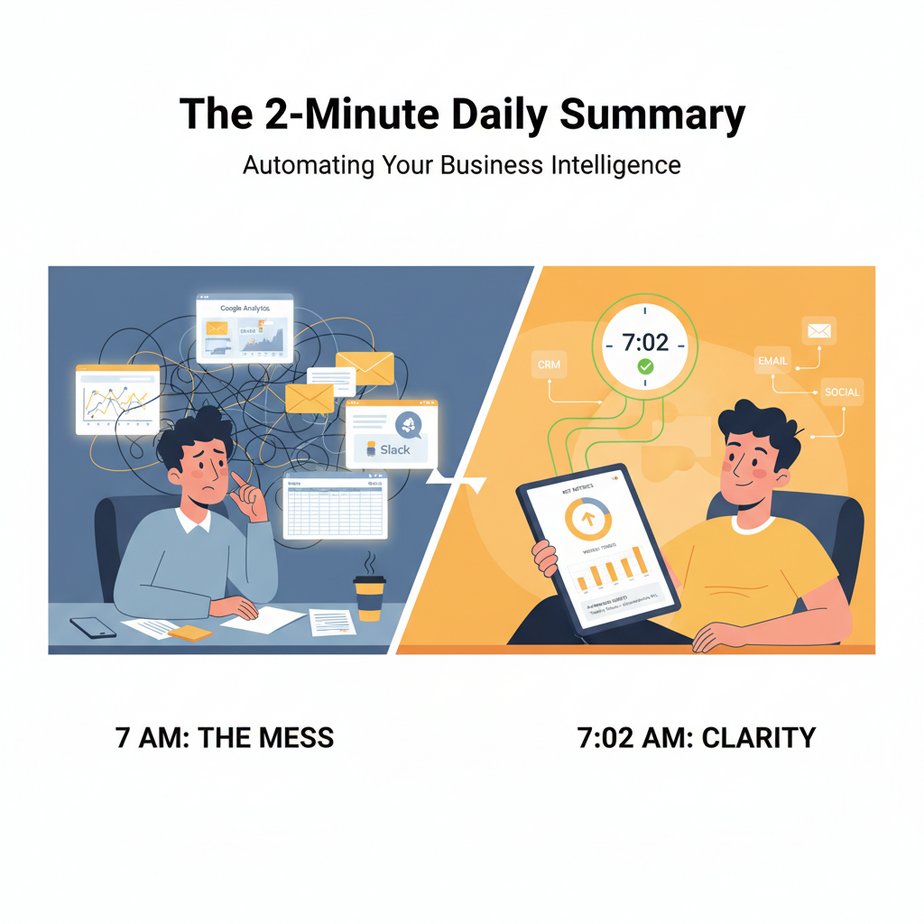
The Hook: Your Morning Is a Mess
Imagine it’s 7 AM. You’re bleary-eyed, scrolling through five different tabs: Google Analytics, your email inbox, a spreadsheet of last week’s sales, and Slack notifications from 2 AM. You’re looking for the one thing that actually matters: “What’s going on with my business?”
You spend 30 minutes piecing it together. By then, your coffee’s cold, and you’ve already been distracted by three urgent but minor fires.
This is the reality for most founders, managers, and solopreneurs. You’re a detective, but your clues are scattered across a million crime scenes. What you need isn’t another dashboard—you need an analyst.
What if you had an analyst who worked overnight, read every report, scanned every email, and delivered a crisp, one-page brief to your inbox every morning? That’s not a fantasy. That’s a 2-hour automation build.
Why This Matters: The Cost of Manual Intelligence
Manually checking data sources is a productivity black hole. It’s repetitive, error-prone, and scales poorly. Every minute you spend hunting for information is a minute you’re not making decisions, talking to customers, or building your product.
Who does this replace? Interns, VAs, and junior analysts who spend hours copying data into a presentation. It also replaces your own chaotic morning routine, giving you back 30 minutes of focus every single day.
Business impact? Speed. Clarity. Scale. You start your day with insights, not overwhelm. As your business grows, the volume of data grows, but your morning briefing stays the same size. That’s leverage.
What This Workflow Actually Is
This is a simple, scheduled AI workflow. It’s a set of tasks that run automatically at a set time (e.g., 6 AM), gather information from specific sources, process it with an AI model, and send a polished email to you.
What it does:
- Reads connected data sources (e.g., Google Sheets, Email APIs, web analytics).
- Uses an AI model to synthesize and summarize the key points.
- Formats the summary into a clean, scannable email or PDF.
- Sends it on a schedule.
What it does NOT do:
- It doesn’t make decisions for you. It presents the data clearly.
- It doesn’t hack into systems you don’t have access to. You must connect the sources you control.
- It isn’t real-time (by default). It’s a daily digest, which is often better for strategic focus.
Prerequisites: Zero Panic, Zero Code
If you can send an email, you can build this. Seriously.
What you need:
- A Zapier or Make.com account: These are visual automation builders. They have free tiers. We’ll use Make for this walkthrough because its free plan is generous.
- Access to your data sources: A Google Sheet with your daily metrics, an email account, or a connection to an analytics tool like Google Analytics 4 (GA4) via their API. If you don’t have these, we’ll create a mock example you can follow.
- An OpenAI or similar AI account: You’ll need an API key for the AI step. (Note: Some automation platforms, like Zapier, have built-in AI actions that can handle this without a separate key.)
If you’re nervous about APIs, don’t be. We’ll use a platform that handles the technical complexity, and you’ll just click and connect.
Step-by-Step Tutorial: Build Your Daily AI Analyst
Let’s build this in Make.com. The logic is simple: Trigger → Gather Data → Process with AI → Send Email.
Step 1: Set Up Your Google Sheet (Your Data Hub)
Before anything else, you need a data source. Let’s create a simple metrics tracker.
- Open a new Google Sheet.
- Create the following columns:
Date,Website Visitors,Leads,Sales,Notes. - Fill in a few rows of mock data for yesterday and today.
Step 2: Create a Make.com Scenario (The Automation Blueprint)
- Sign up at make.com and create a new scenario.
- Click the big purple + to add your first module (a trigger).
- Search for and select Schedule by Make.
- Set it to run at 6:00 AM, every Monday to Friday.
Step 3: Connect Your Google Sheet
- Click the + after your trigger. Search for Google Sheets.
- Select the module Get a row.
- Connect your Google account.
- Find your new spreadsheet and select the worksheet.
- For the “Row Number”, we need to dynamically get the last row. In Make, we can use an advanced setting. For simplicity now, let’s assume you know the latest row is, say, row 10. You’ll connect this later in the full flow.
Pro Tip: For a dynamic “get last row,” you’d typically use a second module to search for all rows, sort by date descending, and take the first item. We’ll keep it simple for this tutorial.
Step 4: Connect Your Email (Optional but Recommended)
- Add another module after the Google Sheets module.
- Search for Gmail or your email provider.
- Select Search Emails (if you want to scan specific emails) or Watch for new emails in folder (if you want new customer inquiries). For this tutorial, we’ll focus on the Sheet data. You can add email search as an extra input for the AI.
Step 5: Add the AI (The Magic Synthesis)
This is the core. We’ll use OpenAI’s GPT-3.5 or GPT-4.
- Add a new module after your data sources. Search for OpenAI.
- Select Create a Chat Completion.
- Connect your OpenAI account (you’ll need an API key from platform.openai.com).
- For the Model, select gpt-3.5-turbo (it’s cheaper and fast).
- For the Messages, create one user message. This is where you instruct the AI.
You’ll craft a prompt that tells the AI what to do with the data from your Google Sheet. The prompt is everything. Here’s a template:
You are a business intelligence analyst. I will provide you with daily metrics from a Google Sheet. Your task is to summarize the key points, note any significant changes or trends, and suggest one focus area for the day. Keep it concise, professional, and under 200 words.

Data:
{{ Sheet Row Data }}
In Make, you’ll map the data from the Google Sheets module into the prompt. You do this by clicking the “Add Data” button in the message content field and selecting the fields (Date, Website Visitors, Leads, etc.).
Step 6: Send the Final Summary Email
- Add a final module: Email by Email (by Make) or Gmail → Send an Email.
- Set the To field to your own email.
- Subject:
Daily Briefing: {{Google Sheets Date}} - Body: Click into the body and map the output from the OpenAI module. This will be the text the AI generated.
Step 7: Test and Activate
- Click “Run Once” to test the scenario. It will execute the steps with your data.
- Check your inbox. You should see a formatted email with an AI-generated summary of your Google Sheet row.
- If it works, turn the scenario to “ON.” It will now run automatically every weekday at 6 AM.
Complete Automation Example: The E-commerce Daily Pulse
Let’s put this into a real-world context. You run a small e-commerce store.
- Trigger: Schedule, 6 AM on Weekdays.
- Data Source 1: Google Sheet tab “Sales.” Rows have Date, Orders, Revenue, Top Selling Product.
- Data Source 2: Gmail. Searches emails from the last 24 hours with the label “Customer Inquiry.”
- AI Prompt: “You are a business analyst for an e-commerce store. Analyze the sales data and the new customer inquiries from the past 24 hours. Summarize revenue, identify the top product, list the main customer questions or complaints, and suggest one action for the customer service team today. Keep it under 250 words.”
- Output: Email to founder, titled “E-commerce Pulse: [Date].”
The email body might look like this (AI-generated):
Good morning! Yesterday’s revenue was $845 (12 orders), led by the ‘Basic T-Shirt’ (5 sales). We had 4 customer emails: 2 order status inquiries, 1 shipping delay question, and 1 product return request. Action: Follow up on the shipping delay email and process the return. The store is healthy; focus on expediting the delayed orders.
Real Business Use Cases (MINIMUM 5)
- Marketing Agency: The agency owner automates a daily brief that pulls key metrics from 3 client Facebook ad accounts and Google Analytics, sending one consolidated summary to the strategy lead instead of digging through 12 dashboards.
- Real Estate Agent: Every morning, the agent gets a summary of new MLS listings in their target zip codes, alongside a scan of their email for new leads from their website’s contact form.
- SaaS Founder: The founder combines daily user sign-ups (from a database), support ticket volume (from Help Scout via API), and revenue (from Stripe) into a single health check email, highlighting any sudden drop or spike.
- Consultant/Freelancer: Automates a review of all project management boards (Trello/Asana via API) for “overdue” tasks and time-tracking data from Toggl, generating a daily focus list.
- Local Restaurant Owner: Uses a simple Google Form for daily ingredient costs and sales figures. The AI summary compares cost ratios, highlights low-stock items, and suggests menu specials for the day.
Common Mistakes & Gotchas
- Garbage In, Garbage Out: If your Google Sheet data is messy or inconsistent, the AI summary will be confusing. Maintain clean data formats.
- Prompt is King: A vague prompt yields a vague summary. Be specific about the tone, length, and focus areas in your AI instructions.
- Over-Automating Too Soon: Start with ONE data source (your Sheet). Adding 10 sources at once makes debugging a nightmare. Get your core flow stable first.
- API Costs: If you use OpenAI directly, monitor your usage. A daily summary uses minimal tokens (pennies per month). But if you scale to 100 daily summaries, costs creep up. Platforms like Make’s built-in AI can be more predictable.
- Timezone Trap: Schedule your run in YOUR local time zone. If you travel or have team members in other zones, sync carefully.
How This Fits Into a Bigger Automation System
Think of this Daily Briefing as your “control tower.” It’s the central nervous system that informs all other actions.
- CRM Integration: When the AI spots a drop in sales, it could trigger a follow-up sequence in your CRM (e.g., HubSpot) for high-value leads.
- Voice Agents: The summary could be converted to speech (via a text-to-speech API) and sent as a voice note to your phone, for a hands-free morning briefing.
- Multi-Agent Workflows: This could be Agent A. Agent A’s summary goes to Agent B, which is a “Task Prioritizer” that creates tasks in Asana based on the insights. Agent C could be a “Competitive Analyst” that adds context.
- RAG (Retrieval-Augmented Generation):** For a more advanced version, you could store past daily briefings in a vector database. Then, when you ask an AI assistant, “What was our big challenge in Q2 last year?” it can pull from your stored briefings to give a context-aware answer.
What to Learn Next
You’ve just built the foundation of an AI-powered business intelligence system. You’ve taken scattered, noisy data and turned it into actionable insight with a schedule.
In our next lesson, we’ll take this one step further: ‘From Daily Briefings to Smart Actions.’ We’ll show you how to set up triggers that automatically create tasks, send Slack messages to your team, or update project boards based on the very insights your daily briefing uncovers.
You’ve built your analyst. Now, let’s give that analyst a toolbox.
Stay tuned. And remember: your best time is spent on strategy, not searching. Automate the search. Keep the strategy for you.
“,
“seo_tags”: “AI automation, daily briefing, business intelligence, no-code automation, Zapier alternative, Make.com tutorial, business productivity, automating reports, AI for small business, workflow automation”,
“suggested_category”: “AI Automation Courses