
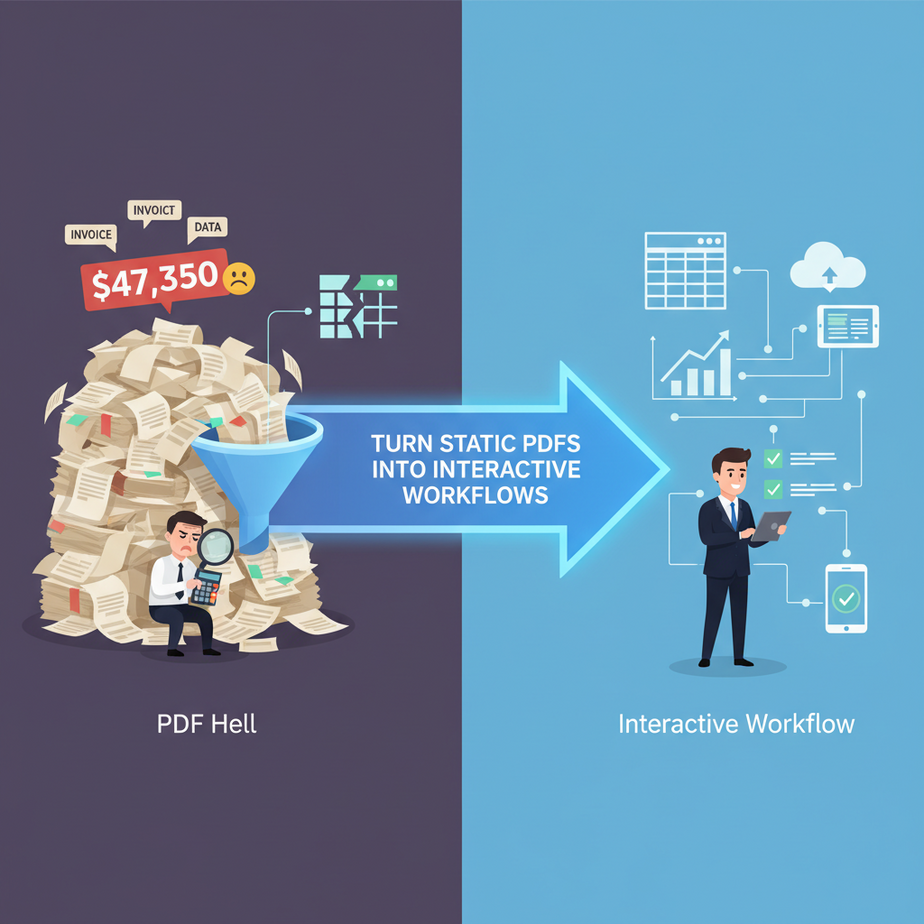
Hook: The PDF Hell That Awaits Us All
Picture this: You just landed a client. They send you a PDF invoice for $47,350. But your accounting system needs the data in a neat spreadsheet. So you spend 45 minutes with two browser tabs open: PDF on the left, Excel on the right. You squint at numbers, type invoices, dates, and line items. You make a typo. Your eyes burn. This is manual data entry purgatory—where PDFs go to be repeatedly tortured by human fingers.
And here’s the kicker: That invoice is just one PDF. What about the 50 others you need to process every month? What about contracts? Reports? Applications? If your job involves wrangling data from PDFs, you’re not doing business—you’re building a paper dungeon for yourself.
Why This Matters: The PDF Prison Break
Automating PDF data extraction isn’t just about saving time—it’s about scaling your operation without hiring an army of interns to stare at screens. Let’s get specific:
- Money: An intern at $15/hour spending 5 hours a day on PDFs costs you $1,500 a month. An automation costs $0 after setup.
- Sanity: No more mouse clicking and copy-pasting. Your brain stays for creative work.
- Scale: 50 invoices? 500? Doesn’t matter. The bot handles volume.
- Accuracy: Humans make typos. Scripts don’t (unless you write bad code).
Who gets replaced? Your manual data-entry intern, your overworked accountant, and that nagging feeling of “I can’t accept another client because my admin can’t keep up.”
What This Tool / Workflow Actually Is
We’re going to use n8n—a visual workflow automation tool. Think of n8n as your personal robot factory. You design a conveyor belt of tasks using drag-and-drop nodes.
What it does: It watches a folder (or email) for new PDFs, extracts data using OCR (Optical Character Recognition), structures that data into JSON, and pushes it anywhere you need: a spreadsheet, a CRM, a database, or even a Slack notification.
What it does NOT do: It won’t handwrite love letters. It won’t magically understand handwritten notes (we’ll discuss limits). It’s not a “smart PDF” app—it’s a workflow engine that uses PDF tools as part of the process.
Prerequisites
Brutally honest: You don’t need to be a developer.
- Technical: You need to understand folders and files. That’s it.
- Tool: You need an n8n account (free tier works for starters). Sign up at
n8n.io. - Files: A sample PDF invoice. Grab one from your accounting system or download a template online.
If you’ve ever emailed a file, you’re ready.
Step-by-Step Tutorial: Extract Data from an Invoice PDF
We’ll build a workflow that triggers when a PDF lands in a Google Drive folder, extracts the invoice number, date, and total amount, then saves that data to a Google Sheet.
Step 1: Set Up Your n8n Workflow
- Log into your n8n instance.
- Create a new workflow. Name it “PDF Invoice Processor.”
- In the top right, set your workflow to Active (we’ll only trigger on demand for this demo).
Step 2: Add the PDF Trigger Node
- Click the “+” node to add a trigger. Search for Google Drive.
- Select “When a file is added to a folder”.
- Connect your Google account (n8n will guide you).
- Set the Folder ID to a specific folder (e.g., “Invoices”).
- Set the file type to PDF.
// Example Configuration (You’ll fill this in n8n’s UI):
Service: Google Drive
Operation: When a file is added to a folder
Folder ID: 1A2B3C... (your folder’s ID)
Filters: MimeType = application/pdf
Step 3: Add the PDF Data Extraction Node
- Add a new node connected to the Google Drive trigger. Search for PDF Parse.
- For a simple invoice, you might use an OCR service. But for structured PDFs, you can use the “Extract Table” option if it’s a table-based PDF. For this example, we’ll assume it’s a standard invoice with text.
- Use a node like “PDF Extract Text” or “Google Cloud Vision” (for OCR). Let’s use the simpler “PDF Extract Text” node.
- Map the file from the previous node: drag and drop the “File” parameter from the trigger node.
// Node: PDF Extract Text
PDF Binary Data: {{ $binary.file }}
Output Format: text
Step 4: Parse the Text with a Code Node (Optional but Powerful)
- Add a “Code” node after the PDF extraction.
- We’ll write a simple JavaScript snippet to find patterns like Invoice Number and Total.
- This is where you train your “intern” to recognize what’s what.
// Node: Code (JavaScript)
// The text from the PDF is available as: $input.item.json.text
const pdfText = $input.item.json.text;

// Simple regex examples (adjust for your PDF layout)
const invoiceNumber = pdfText.match(/Invoice #(:?\\s+)(\\w+-\\d+)/);
const date = pdfText.match(/Date:\\s+(\\d{2}\\/\\d{2}\\/\\d{4})/);
const total = pdfText.match(/Total:\\s+\\$?([\\d.,]+)/);

return {
  json: {
    invoice_number: invoiceNumber ? invoiceNumber[2] : null,
    date: date ? date[1] : null,
    total: total ? total[1] : null,
    raw_text: pdfText.substring(0, 200) // For debugging
  }
};
Step 5: Send Data to Google Sheets
- Add a “Google Sheets” node as the final step.
- Choose “Append Row” operation.
- Connect your Google account and select your spreadsheet and sheet name.
- Map the fields from the Code node to the columns.
// Node: Google Sheets
Operation: Append Row
Spreadsheet ID: {{ $json.spreadsheetId }} // Or paste your ID
Sheet Name: Invoices
Mapping:
Column A (Invoice No): {{ $json.invoice_number }}
Column B (Date): {{ $json.date }}
Column C (Total): {{ $json.total }}Step 6: Test Your Workflow
- Save your workflow.
- Manually upload a PDF invoice to your Google Drive folder.
- Check the n8n workflow execution history.
- Verify the data appears in your Google Sheet.
Done! Your first PDF pipeline is live.
Complete Automation Example: From Email to Database
Let’s build a production-ready system:
- Trigger: Watch an email inbox (Gmail node) for PDFs from known vendors.
- Download: Use the “Gmail” node to get the PDF attachment.
- Extract: Use “PDF Parse” to get text/tables.
- Validate: Add a “Logic” node to check if the invoice total matches a PO (Purchase Order) from your database.
- Action: If valid, push to QuickBooks via API. If invalid, send a Slack alert to the finance team.
This isn’t a fantasy. This is how mid-sized agencies handle 200+ vendor invoices monthly.
Real Business Use Cases (MINIMUM 5)
- Real Estate Agency: Extract property details from scanned contracts (address, price, clauses) into a deal-tracking system. No more manual data entry from 50-page contracts.
- Medical Clinic: Process patient intake forms (PDFs) to populate appointment systems and billing records. Reduces admin time by 70%.
- Legal Firm: Parse court documents and client agreements to flag key dates, parties, and clauses for case management software.
- Recruitment Agency: Automate extraction of candidate resumes (PDFs) into a structured database of skills, experience, and contact info.
- E-commerce Seller: Process return authorizations (PDF forms) to auto-update inventory and trigger refund processes in their ERP.
Common Mistakes & Gotchas
- OCR is messy: Handwritten text or low-resolution PDFs will fail. Always pre-process images (convert to high-res PDF first).
- PDF Layouts Change: If your vendor updates their invoice template, your regex might break. Build a validation step that flags mismatches.
- Security: Don’t process sensitive data without encryption. Use n8n’s credential management and consider on-premise hosting.
- Scale: Free tiers have limits. For 1000+ PDFs/day, consider self-hosted n8n or enterprise plans.
How This Fits Into a Bigger Automation System
This PDF processor is a single robot on your assembly line. Now imagine connecting it to the rest of your factory:
- CRM: Extract client details from contracts → auto-create client in HubSpot/Salesforce.
- Email: Process PDF attachments in Gmail → send confirmation emails via Outlook.
- Voice Agents: When a high-value invoice is processed, trigger a voice call to the CFO for approval.
- Multi-Agent Workflows: PDF → Extraction Agent → Validation Agent → Approval Agent → Notification Agent.
- RAG Systems: Feed extracted PDF text into a vector database, then ask questions like “What’s our total spend with Vendor X?”
Your PDF automation is the entry point to a fully autonomous business operations system.
What to Learn Next
You’ve just broken the PDF chains. In our next lesson, we’ll take the extracted data and feed it into a multi-agent workflow that automatically approves expenses, schedules payments, and logs everything in a centralized dashboard.
This is Lesson 6 of the Underground AI Automation Academy. Every post is a step in building your personal army of digital workers. Your next assignment: Find one PDF that gives you a headache and automate it. Do it this week.
Onward to the next bot in your factory.
",
"seo_tags": "AI automation, n8n tutorial, PDF data extraction, business automation, workflow automation, beginner automation, OCR automation, Google Sheets automation, invoice processing, document automation",
"suggested_category": "AI Automation Courses