
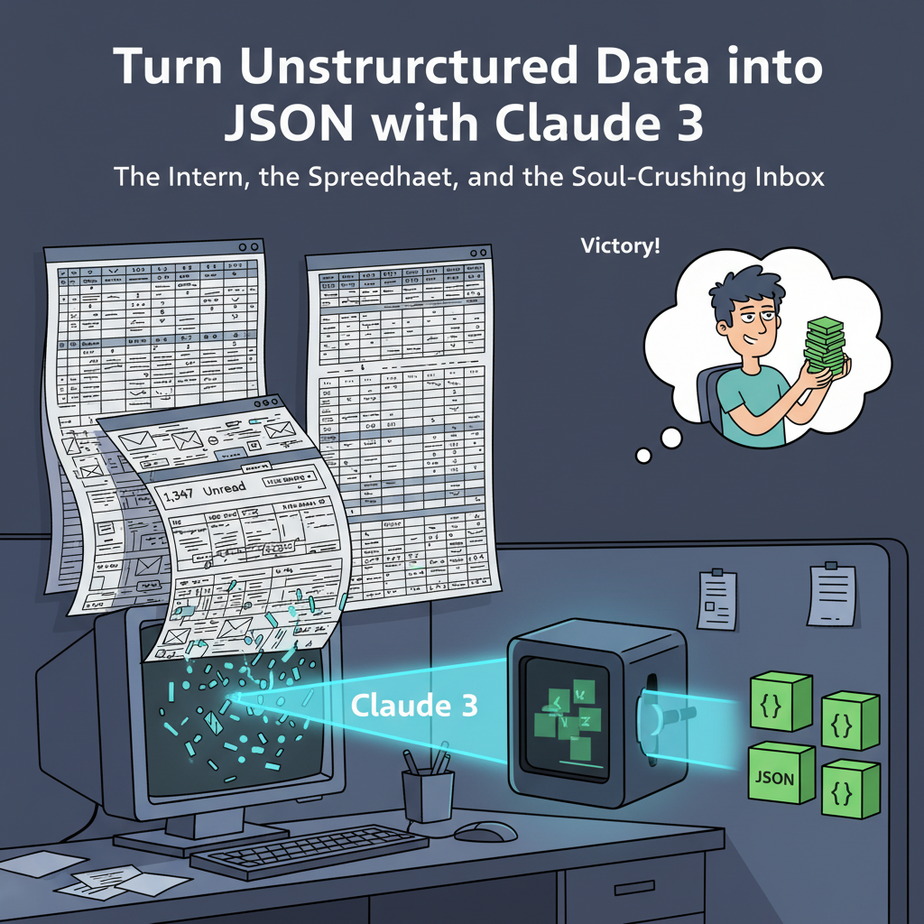
The Intern, the Spreadsheet, and the Soul-Crushing Inbox
Picture this. It’s 9 AM on a Monday. Somewhere in a poorly lit office, an intern we’ll call Brad is staring at an inbox with 1,347 unread emails. His mission, should he choose to accept it (he has no choice), is to manually read every customer support ticket and copy-paste the customer’s name, order number, and complaint into a giant, horrifying spreadsheet.
Some customers forget their order number. Some use their weird gamer tag instead of their real name. Some write a seven-paragraph emotional saga about a missing shipment of artisanal cat socks. It’s a mess. Brad’s soul is slowly leaking out through his ears.
This pathetic, error-prone, mind-numbingly manual process is how thousands of businesses operate. They throw cheap human labor at a data problem. Today, we fire Brad (don’t worry, we’ll re-hire him to do something more useful) and replace him with a ruthlessly efficient AI robot that never gets tired, never complains, and never makes typos.
Why This Matters
This isn’t just about saving Brad’s sanity. This is about turning chaotic, unstructured text—emails, PDFs, support tickets, customer reviews, legal documents—into clean, predictable, machine-readable data.
Why do we want that? Because structured data (like JSON) is the universal language of automation. You can’t tell your CRM to “kinda find the angry guy’s order number from that long email.” But you *can* tell it: “Here is a perfect JSON object. Update customer ID CUST-9876 with this new ticket.”
This workflow is the bridge from human chaos to machine efficiency. It’s the digital sorting factory that takes a pile of garbage text and spits out perfectly organized, valuable information, 24/7, for pennies.
What This Tool / Workflow Actually Is
We’re going to use Anthropic’s Claude 3 model. But we’re not just going to *ask* it nicely to give us JSON. That’s for amateurs. Models can get creative and mess up the format. No, we are going to *force* it.
We’ll use a feature called Tool Use. Think of it like this: instead of giving the AI a blank piece of paper and asking it to take notes, we’re handing it a pre-printed form with specific boxes: “Name,” “Order Number,” “Sentiment.” The AI’s only job is to fill in the boxes. It can’t draw outside the lines. It *must* return data in the exact structure we define.
What it is: A highly reliable method for extracting structured data from unstructured text by providing the AI with a strict output schema (the “form”).
What it is NOT: It’s not a magical agent that can browse websites or take actions on its own. It’s a specialized data structuring robot. For now, that’s exactly what we need.
Prerequisites
I want you to get this working five minutes after you finish reading. No excuses.
- An Anthropic API Key: Go to the Anthropic Console, sign up, and create an API key. It costs money to use, but you get some free credits to start, which is more than enough for this lesson. Keep that key safe.
- A Way to Talk to the API: You have two options. For absolute non-coders, you can use a tool like Postman. For everyone else, I highly recommend a few lines of Python. It’s cleaner and what you’ll use in real automation. We’ll use Python for our main example because it’s the standard.
- A tiny bit of courage: This might look intimidating, but it’s just copy-pasting and changing a few text fields. You can do this.
Step-by-Step Tutorial
Let’s build our Brad-replacing robot. The mission is to extract key details from a customer email.
Step 1: Define Your “Containers” (The JSON Schema)
First, we decide what data we want. We need a blueprint for our output. This is a simple JSON Schema. It describes the “boxes” on our form.
We want to extract the customer’s name, their order number, their customer ID (if available), and the general sentiment of their message.
{
  "type": "object",
  "properties": {
    "customer_name": {
      "type": "string",
      "description": "The full name of the customer."
    },
    "order_number": {
      "type": "string",
      "description": "The unique identifier for the customer's order."
    },
    "customer_id": {
      "type": "string",
      "description": "The customer's unique ID, often starting with CUST-."
    },
    "sentiment": {
      "type": "string",
      "enum": ["positive", "neutral", "negative"],
      "description": "The overall sentiment of the email."
    }
  },
  "required": ["customer_name", "order_number", "sentiment"]
}
Notice the `required` field. We’re telling the AI that it absolutely MUST find a name, order number, and sentiment. The `customer_id` is optional.
Step 2: Wrap it in the Tool Definition
Anthropic’s API needs this schema wrapped in a “tool” definition. We give it a name and a description.
{
  "name": "extract_customer_data",
  "description": "Extracts key customer and order details from an email.",
  "input_schema": {
    "type": "object",
    "properties": {
        "customer_name": { "type": "string", "description": "The full name of the customer." },
        "order_number": { "type": "string", "description": "The unique identifier for the customer's order." },
        "customer_id": { "type": "string", "description": "The customer's unique ID, often starting with CUST-." },
        "sentiment": { "type": "string", "enum": ["positive", "neutral", "negative"], "description": "The overall sentiment of the email." }
    },
    "required": ["customer_name", "order_number", "sentiment"]
  }
}
This is the complete “form” we’re handing to the AI.
Step 3: Make the API Call with Python
Now for the fun part. We’ll write a Python script to send the email text and our tool definition to Claude 3. Make sure you install the library first by running pip install anthropic in your terminal.
This script looks long, but it’s mostly just setting things up. The magic is in the `tools` and `tool_choice` parameters.
import anthropic
import json

# --- 1. SETUP ---
# Get your API key from https://console.anthropic.com/
client = anthropic.Anthropic(api_key="YOUR_ANTHROPIC_API_KEY_HERE")

# --- 2. THE UNSTRUCTURED DATA ---
# This is the messy email we want to process
messy_email = """
Hey team,

My name is Jane Doe and I'm super annoyed. My order #123-ABC hasn't arrived yet.
I'm really disappointed with the service.
My customer ID is CUST-9876.

Pls help!!!

- Jane
"""

# --- 3. THE TOOL DEFINITION (OUR "FORM") ---
# This tells Claude EXACTLY what data to extract and what format to use.
# It's the schema we defined in Step 2.
customer_data_tool = {
    "name": "extract_customer_data",
    "description": "Extracts key customer and order details from an email.",
    "input_schema": {
        "type": "object",
        "properties": {
            "customer_name": { "type": "string", "description": "The full name of the customer." },
            "order_number": { "type": "string", "description": "The unique identifier for the customer's order." },
            "customer_id": { "type": "string", "description": "The customer's unique ID, often starting with CUST-." },
            "sentiment": { "type": "string", "enum": ["positive", "neutral", "negative"], "description": "The overall sentiment of the email." }
        },
        "required": ["customer_name", "order_number", "sentiment"]
    }
}

# --- 4. THE API CALL ---
# We send the email and our tool definition to Claude.
# tool_choice tells the model it MUST use our tool.
response = client.messages.create(
    model="claude-3-haiku-20240307", # Haiku is fast and cheap for this!
    max_tokens=1024,
    messages=[
        {
            "role": "user",
            "content": f"Please extract the relevant information from this email: \
\
\
{messy_email}\
"
        }
    ],
    tools=[customer_data_tool],
    tool_choice={"type": "tool", "name": "extract_customer_data"}
)

# --- 5. EXTRACT THE CLEAN DATA ---
# The JSON data is nested inside the response.
for content_block in response.content:
    if content_block.type == 'tool_use':
        tool_input = content_block.input
        # Pretty print the final, clean JSON
        print(json.dumps(tool_input, indent=2))
Step 4: Run it and See the Magic
Save that code as a Python file (e.g., extractor.py), replace "YOUR_ANTHROPIC_API_KEY_HERE" with your actual key, and run it from your terminal with python extractor.py.
You should see this beautiful, perfect, structured output:
{
  "customer_name": "Jane Doe",
  "order_number": "123-ABC",
  "customer_id": "CUST-9876",
  "sentiment": "negative"
}
Take a moment to appreciate this. We went from a chaotic block of text to perfectly structured data in a single API call. Brad is officially obsolete.
Complete Automation Example
Let’s use the exact script above as our complete example. We fed it a messy, multi-line email filled with conversational fluff. We defined a strict schema for what we cared about: name, order number, customer ID, and sentiment. By using the `tool_choice` parameter, we forced Claude to respond *only* by using our `extract_customer_data` tool. It couldn’t refuse or get creative. The output is clean JSON, ready to be fed into any other software system on the planet.
Real Business Use Cases (MINIMUM 5)
This single pattern can automate a shocking amount of white-collar work.
- E-commerce Returns: An automation watches the returns@ email address. When an email arrives, it uses this method to extract the order number, item(s) being returned, and reason for return. The resulting JSON is then used to automatically generate a return label and create a ticket in Zendesk.
- Real Estate Lead Processing: A realtor receives unstructured inquiries from Zillow. The automation parses emails like “Hi I’m interested in 123 Main St, does it have a yard? My number is 555-123-4567.” It extracts the property address, contact name, phone number, and the specific question, then creates a new Lead record in their Salesforce CRM.
- Legal Contract Analysis: A law firm uploads a 50-page PDF contract (after converting it to text). They use a tool schema to extract the names of the two parties, the effective date, the termination date, and the governing law jurisdiction. This saves hours of paralegal time.
- Recruiting and HR: A company gets hundreds of job applications. The automation reads the text from resumes to extract the candidate’s name, email, phone number, years of experience with “Python,” and university degree. The structured JSON is then used to populate a record in their Applicant Tracking System (ATS).
- Financial Document Processing: An accounting firm needs to process scanned invoices. After using OCR to get the text, this workflow extracts the vendor name, invoice number, invoice date, total amount, and due date, creating a structured record ready for entry into QuickBooks.
Common Mistakes & Gotchas
- Vague Schema Descriptions: If your schema description for `customer_name` is just “name”, the AI might pull the company name or the signature. Be specific: “The full name of the person writing the email.” The descriptions are your instructions.
- Expecting JSON Directly: The API doesn’t just return the JSON you want. It returns a larger object with a `tool_use` block inside it. Newcomers often forget to parse the response and find the `input` field within that block.
- Using the Wrong Model: For structured data extraction, you often don’t need the most powerful (and expensive) model like Opus. Start with Haiku—it’s incredibly fast, cheap, and more than capable for these tasks. Only upgrade if Haiku struggles.
- Not Handling Missing Data: What happens if the email doesn’t contain a `customer_id`? In our schema, we didn’t list it in the `required` array, so the AI will simply omit it. If you require a field that isn’t present, the AI might hallucinate a value or fail. Plan your `required` fields carefully.
How This Fits Into a Bigger Automation System
This workflow is never the end of the story; it’s the beginning. It’s the gatekeeper that turns the messy outside world into clean data for your internal systems.
- Into a CRM: The JSON output can be directly passed to the HubSpot or Salesforce API to create a new contact or update a deal stage.
- Into an Email System: Extract an email address and a complaint type, then use that to trigger a specific automated email sequence via Mailgun or SendGrid.
- Into a Voice Agent: A customer leaves a voicemail. The transcript is processed by our extractor. The resulting JSON (customer ID, issue) is then passed to an AI voice agent that calls the customer back with full context: “Hi Jane, I’m calling about order 123-ABC…”
- Into Multi-Agent Workflows: This is the job of our “Triage Agent.” It extracts the data and determines the sentiment is “negative.” It then passes the JSON to the “Escalation Agent,” which is responsible for notifying a human manager.
What to Learn Next
Congratulations. You’ve just built a foundational piece of any serious automation system: a reliable information extractor. You can now look at any piece of text and see the potential for structured data locked inside.
But getting the data is only half the battle. Now we need to *do* something with it.
In the next lesson in this course, we’re going to take the perfect JSON we created today and use it to trigger real-world actions. We’ll connect our extractor to other APIs to automatically create a support ticket and send a confirmation email, closing the loop and building our first true end-to-end AI agent. You’ve built the eyes and ears; next, we build the hands.
“,
“seo_tags”: “Claude 3, JSON, structured data, data extraction, AI automation, Anthropic API, business automation, Python, no-code AI”,
“suggested_category”: “AI Automation Courses