
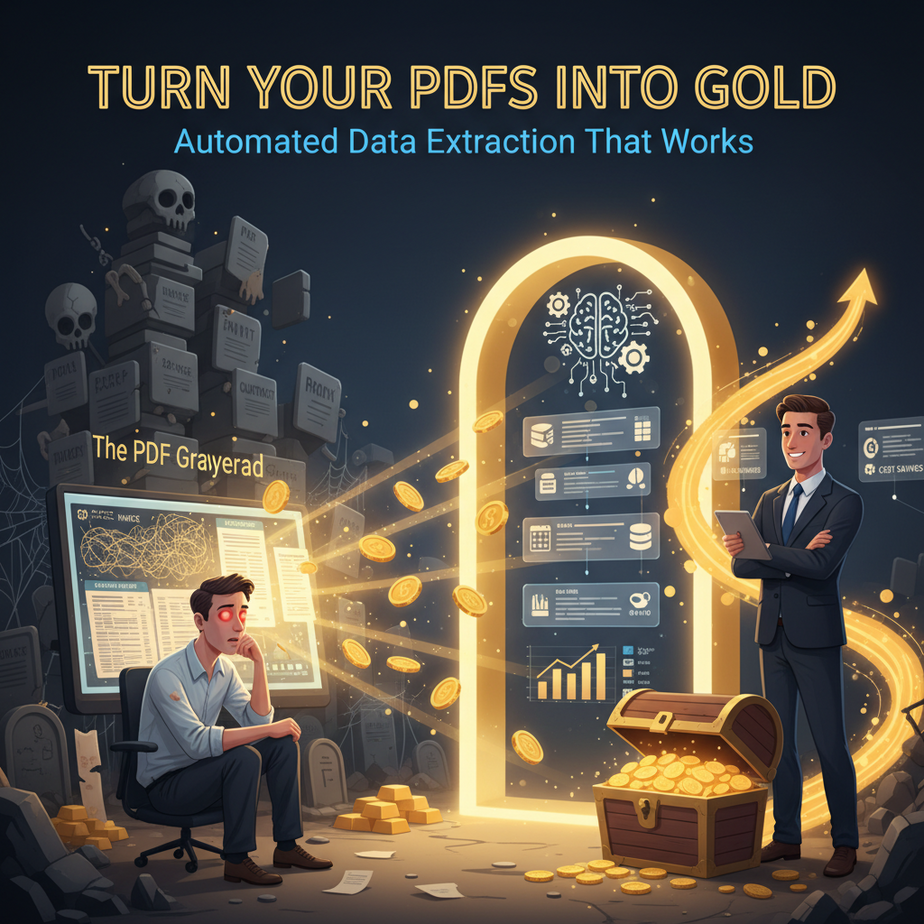
The PDF Graveyard: A Story
Imagine this: It’s Tuesday. You’ve just received a 50-page vendor invoice PDF, a 120-page contract renewal, and a quarterly report full of tables. Your eyes glaze over. You spend the next 3 hours manually copying line items into a spreadsheet. You make a typo. You find it an hour later. You start over.
This isn’t work. This is punishment.
PDFs are the final frontier of manual labor. They’re digital paper. Companies send them because they’re “compatible,” but the data is trapped inside a grid of pixels. Someone, somewhere, is reading a screen and typing. That someone could be your expensive junior analyst, or it could be a robot you train in 15 minutes.
Welcome to the PDF Dinosaur. Today, we learn to tame it.
Why This Matters: Your Time vs. The Robot’s Time
Automating PDF extraction isn’t about being fancy. It’s about getting your brain back.
The Business Impact:
- Time: A 3-hour task becomes a 3-minute task. That’s 146 hours back per year, per person.
- Accuracy: Humans copy-paste and make mistakes. Robots, when trained, don’t. Your data quality shoots up.
- Scale: Processing 500 invoices per month becomes as easy as processing 5. Your business can grow without adding headcount.
- Sanity: It kills the “grunt work” that drains morale. Let your team focus on analysis, not data entry.
Who does this replace? The intern. The overwhelmed admin. The part-time bookkeeper who really just needs the numbers in the right columns. You’re not firing them; you’re promoting them to higher-value work.
What This Tool Actually Is (And Isn’t)
What it IS: A pipeline that takes a PDF file as input, uses AI to understand its structure (text, tables, headings), and outputs clean, structured data (like JSON, CSV, or an Excel file). It’s like giving your computer a set of reading glasses.
What it ISN’T: It’s not magic. You need to tell it what to look for (e.g., “Find the table after the line that says ‘Total Amount’ and get the cell below ‘Net'”), at least the first time. It’s not perfect on handwritten or terribly scanned docs—expect 90-95% accuracy for clean digital PDFs. It’s not a single “click” button for every PDF ever; you’ll set up rules for your common document types.
Prerequisites: Let’s Keep It Simple
If you can use email and a web browser, you can do this. Seriously.
What you need:
- A free Google account (for Google Colab, where we’ll write our code).
- Some PDFs to practice with (invoices, reports, whatever you have).
- Patience to follow 8-10 clear steps.
You don’t need to buy software. You don’t need to be a programmer. You’re just going to run a script—a pre-written recipe—that does the heavy lifting.
Step-by-Step Tutorial: Extract Data from a PDF Invoice
Let’s automate a real-world example: reading an invoice PDF and pulling out the client name, total amount, and invoice date.
Step 1: Set Up Your Lab (Google Colab)
- Go to https://colab.research.google.com and sign in with your Google account.
- Click “File” > “New Notebook.” You now have a blank page with one cell.
Step 2: Install the “Reading Glasses”
We’re using a library called PyMuPDF to read PDFs and pandas to organize the data. Copy and paste this into your first code cell and press the play button (▶️) to run it:
# Install the necessary libraries
!pip install PyMuPDF pandas
Why? This downloads the tools our Python script needs to understand PDFs and handle spreadsheets.
Step 3: Upload Your PDF
In Colab’s sidebar, click the folder icon, then click “Upload” and choose a sample invoice PDF from your computer. Let’s say it’s named invoice_123.pdf. For this tutorial, we’ll assume you’ve uploaded it.
Step 4: Write the Extraction Script
Here’s our core recipe. This script opens the PDF, searches for our key phrases, and extracts the values right after them.
import fitz  # This is PyMuPDF
import pandas as pd

def extract_invoice_data(pdf_path):
    # Open the PDF
    doc = fitz.open(pdf_path)
    text = ""

    # Extract all text from all pages
    for page in doc:
        text += page.get_text()

    # Close the doc
    doc.close()

    # Simple keyword search (customize this for your PDFs!)
    client = "Client:"
    total = "Total Amount:"
    date = "Invoice Date:"

    # Find the data
    client_name = ""
    invoice_total = ""
    invoice_date = ""

    lines = text.split('\
')

    for line in lines:
        if client in line:
            client_name = line.split(client)[1].strip()
        if total in line:
            invoice_total = line.split(total)[1].strip()
        if date in line:
            invoice_date = line.split(date)[1].strip()

    return {
        "client": client_name,
        "total": invoice_total,
        "date": invoice_date
    }

# Use the function
pdf_file = '/content/invoice_123.pdf'  # This is the path in Colab
extracted_data = extract_invoice_data(pdf_file)

print("Here's what I found:")
print(extracted_data)

# Optional: Save to a CSV
pd.DataFrame([extracted_data]).to_csv('extracted_invoice.csv', index=False)
print("Data saved to 'extracted_invoice.csv'")
Step 5: Run & Refine
Paste the code into a new cell, replace '/content/invoice_123.pdf' with your actual PDF filename, and run it. The script will print the extracted data and save it to a CSV file.
Key Insight: The magic is in the lines that start with if "Client:" in line:. You are teaching the script where to look. For a different invoice format, you’d change those phrases to match the document’s layout.
Complete Automation Example: The Monthly Invoice Processor
Let’s build a real system. Imagine you receive invoices in a shared Google Drive folder. You want to extract all data and compile a monthly report.
- Set Up: Create a Drive folder called “Incoming Invoices.”
- Automation: Use Make.com (formerly Integromat) or Google Apps Script to trigger a Google Colab notebook every time a new PDF is dropped in that folder.
- Advanced Extraction: Instead of keyword searches, use a pre-trained model like Nvidia’s Nemotron or a simple GPT-4o via API with a specific prompt: “Extract the following fields from this invoice: Vendor Name, Invoice Date, Line Items (Description, Quantity, Unit Price, Total), and Grand Total. Output as JSON.”\em>
- Output: The script appends the extracted JSON data to a master spreadsheet in Google Sheets, creating a live dashboard of all invoice totals, vendor spends, and dates.
- Alert: If a line item total exceeds $10,000, the system emails you a Slack alert.
This is a real business system. You’ve just replaced a part-time bookkeeper’s monthly process with a 24/7, error-free robot. The human now reviews exceptions and negotiates with vendors, using the clean data your robot provided.
5 Real Business Use Cases
- E-commerce Seller:
Problem: Needs to pull product specs from PDFs to list on Amazon.
Solution: Auto-extract product name, description, and dimensions to populate the Amazon listing in bulk. - Law Firm:
Problem: Paralegals spend days reviewing contracts for specific clauses.
Solution: Extract all clauses with a “Termination” header, flagging them for attorney review. - Real Estate Agency:
Problem: Property disclosures, lease agreements, and inspection reports pile up.
Solution: Auto-extract key dates, parties, and amounts into a deal-tracking dashboard. - Medical Practice:
Problem: Patient intake forms are scanned PDFs that need data entry into the EMR.
Solution: Extract patient name, DOB, and reason for visit to pre-fill the electronic record. - Recruitment Agency:
Problem: Parsing candidate PDF resumes for skills and experience.
Solution: Extract skills, job titles, and companies to automatically score candidates in an ATS.
Common Mistakes & Gotchas
- Scanned PDFs: If the PDF is just an image of text, standard libraries will fail. You’ll need OCR (Optical Character Recognition) like Tesseract first. Always test if text is selectable in your PDF viewer.
- Inconsistent Layouts: Vendors send PDFs in a dozen formats. Build multiple extraction profiles or use an AI model that’s flexible with layout.
- Over-Automation: Don’t automate a one-off task. The ROI is in volume. Automate what happens 10+ times per week.
- Forgetting Validation: Always have a human spot-check the first few runs. Garbage in, garbage out.
How This Fits Into Your Larger Automation System
PDF extraction is not a standalone trick. It’s the first critical link in a chain.
Link 1: RAG (Retrieval-Augmented Generation): Your extracted PDF data is perfect fuel for RAG systems. Now your company chatbot can answer questions like “What was our total spend with ACME Corp last quarter?” because it has the structured data.
Link 2: CRM Integration: When a new contract PDF lands in your inbox, extract the client name and dates, then automatically create a new client record in HubSpot with the right renewal date.
Link 3: Multi-Agent Workflows: The PDF extraction agent hands off the clean data to a “Financial Analysis” agent, which then sends a summary report to your Slack. You’re building a team of specialized AI workers.
What to Learn Next
You’ve now tamed the PDF Dinosaur. You’ve unlocked the ability to turn any document into structured data. But data is just the start.
In our next lesson, we’ll take that clean data and build an AI-Powered Decision Dashboard that visualizes your spreadsheets, spots trends, and sends you proactive alerts when something looks off.
Remember: This isn’t about becoming a coder. It’s about becoming an architect of efficiency. You’re learning to build the systems that run your business, so you can focus on growing it.
Go extract your first PDF. And when you do, tell me one piece of data you’ve been manually entering for years. I’ll show you how to automate it next.
“,
“seo_tags”: “PDF automation, data extraction, business automation, AI for business, Google Colab, workflow automation, repetitive tasks, invoice processing, document processing”,
“suggested_category”: “AI Automation Courses