
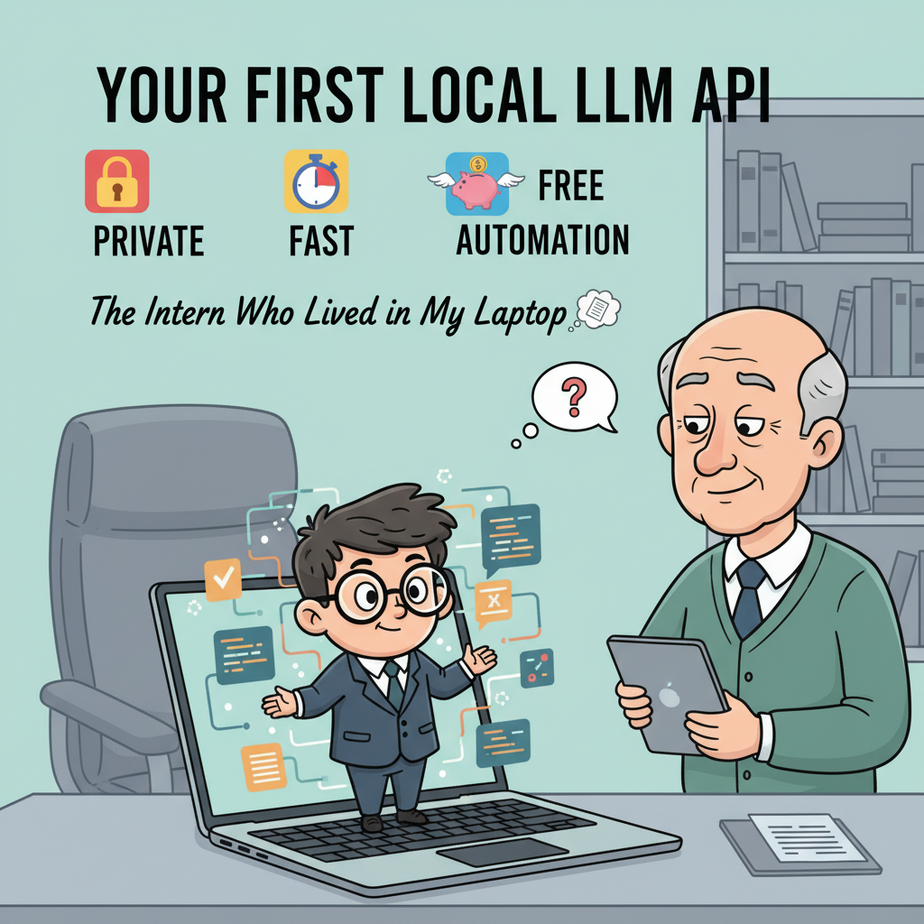
The Intern Who Lived in My Laptop
I once consulted for a small law firm. The senior partner, a man we’ll call Bob, was both fascinated by AI and utterly terrified of it. He’d heard you could use it to summarize mountains of case documents—a task they were paying paralegals a fortune to do.
“Ajay,” he said, clutching his coffee mug like a holy relic, “Can we use this GPT thing to summarize depositions? But—and this is the important part—it can’t go on the internet. Our client data is sacred. If it touches a third-party server, we could be disbarred.”
Bob wanted the magic without the magician. He wanted the work done, but he didn’t want to let the AI out of his sight. He essentially wanted a brilliant, free, hyper-fast intern who lived inside his computer, saw nothing, said nothing, and would never, ever gossip about the firm’s confidential business.
Most people think that’s impossible. They think “AI” means sending your data to some giant tech company in California and praying they don’t lose it. Today, I’m going to show you how to hire that magic intern. We’re putting a brain in a box, right on your machine.
Why This Matters
This isn’t just a cool tech demo. Running your own local AI is a fundamental shift in how you build automations. It’s about taking back control. This workflow replaces the part of your brain that constantly worries about three things:
1. The Bill. API calls to services like OpenAI cost money. It’s pennies per thousand words, but what happens when you need to process ten million words? Or run a constant loop of analysis? A local model costs you exactly zero dollars per query. Run it all day. It’s free.
2. The Snoop. When you send data to a third-party API, you’re trusting them. For most things, that’s fine. For customer lists, financial records, medical data, or top-secret business strategies? It’s a non-starter. A local model means your data never leaves your computer. Period.
3. The Connection. The internet goes down. APIs have outages. A local model works offline. Your automation becomes a fortress—self-contained and reliable.
This lesson gives you a foundational building block: a secure, private, free source of text generation you can plug into literally anything.
What This Tool / Workflow Actually Is
We are going to install a piece of software called Ollama. Think of it as a dead-simple manager for language models. It downloads powerful, open-source models (the ‘brains’) and runs them on your computer.
Crucially, Ollama also starts a small web server on your machine that acts as an API. This means any other program on your computer can ‘talk’ to the AI model by sending it a simple request, just like it would talk to the OpenAI API.
What it does:
- Runs powerful AI models entirely on your own hardware.
- Exposes a simple, standard API endpoint (
localhost:11434) for other apps to use. - Gives you access to tons of different open-source models for various tasks.
What it does NOT do:
- It is NOT GPT-4. Local models are incredibly capable, but often smaller. They are fantastic for 80% of business tasks (summarizing, formatting, classifying) but may struggle with highly complex, multi-step reasoning.
- It does NOT magically make a slow computer fast. You need a reasonably modern machine.
Prerequisites
I mean this in the kindest way possible: if you can’t handle this, the rest of this course will be a struggle. But I promise it’s easy.
- A Decent Computer. Mac, Windows, or Linux. If your computer was made in the last 4-5 years, you’re probably fine. You should have at least 8GB of RAM, but 16GB is where things get comfortable. A dedicated graphics card (GPU) makes it much faster, but it’s not required.
- The Ability to Open a Terminal. On Mac, it’s called Terminal. On Windows, it’s PowerShell or Command Prompt. We are only going to copy and paste a few commands. No actual coding is required for this part. You can do this.
That’s it. Seriously.
Step-by-Step Tutorial
Let’s get our intern installed and ready for work.
Step 1: Install Ollama
Go to the Ollama website and download the installer for your operating system. For Mac and Linux, you can also often run a single command in your terminal.
On macOS:
curl -fsSL https://ollama.com/install.sh | shFollow the on-screen instructions. Once it’s done, Ollama will be running quietly in the background.
Step 2: Download Your First AI Model
Now we need to give our manager a brain to manage. We’ll download Meta’s Llama 3 8B model. It’s a fantastic, powerful, and relatively small model—perfect for starting out. Open your terminal and run this:
ollama pull llama3:8bYou’ll see a download progress bar. It’s a few gigabytes, so it might take a minute. This command downloads the model and stores it locally for Ollama to use. You only have to do this once per model.
Step 3: Chat with the Model to Confirm it Works
Before we touch the API, let’s make sure the brain is actually working. In the same terminal, run:
ollama run llama3:8bYour terminal prompt will change. You’re now chatting directly with the AI. Ask it something like, “What are the top 3 benefits of automation for a small business?” It will answer right there in your terminal. To exit, type /bye.
If that worked, congratulations. You have a powerful AI running on your machine.
Step 4: Make Your First API Call
This is the magic step. The whole point is to access this AI from *other programs*. We can simulate this using a simple command line tool called curl, which is pre-installed on virtually every computer.
Open a new terminal window and paste this entire command in. This tells Ollama to generate text based on our prompt.
curl http://localhost:11434/api/generate -d '{ "model": "llama3:8b", "prompt": "Summarize the concept of an API for a non-technical person in one sentence.", "stream": false }'Press enter. After a second or two, you’ll get back a block of text called JSON. It will look something like this:
{ "model": "llama3:8b", "created_at": "2024-05-21T19:25:22.956Z", "response": "An API is like a waiter in a restaurant that takes your order (request) to the kitchen (system) and brings back your food (data) without you needing to know how the kitchen works.", "done": true, ...}Look at that! The golden nugget is inside the "response" field. You just programmed an AI. You sent a request and got a structured response. That’s the entire foundation of AI automation.
Complete Automation Example
Let’s solve a real problem. Imagine you have a text file with messy notes from a client call, and you want a clean summary.
The Goal:
Create an automated script that reads a text file and uses our local AI to summarize it.
Step 1: Create the Input File
Create a file named notes.txt on your computer and paste this text into it:
Client Call Notes - Project Phoenix
Date: May 21
Attendees: Sarah (client), Me

- Sarah is concerned about the project timeline. Says Q3 deadline is firm.
- She mentioned needing better reporting features. Wants a weekly PDF summary.
- Budget is tight. Asked if we could defer the 'nice-to-have' features to Phase 2 to save costs.
- Follow-up: Send revised project plan by EOD Friday.
Step 2: The Python Automation Script
Don’t worry if you’ve never written Python. You can just save this code as a file named summarize.py in the same directory as your notes.txt file. This script is our robot worker.
import requests
import json

# The URL of our local Ollama API
ollama_api_url = "http://localhost:11434/api/generate"

# Read the messy notes from the text file
with open("notes.txt", "r") as f:
    notes = f.read()

# Create the prompt for the AI
prompt = f"""Please summarize the following meeting notes into three clear action items for our team:

{notes}"""

# The data we'll send to the API
data = {
    "model": "llama3:8b",
    "prompt": prompt,
    "stream": False
}

# Make the API call
response = requests.post(ollama_api_url, json=data)

# Get the summary from the response
response_json = response.json()
summary = response_json["response"]

# Print the clean summary
print("--- AI-Generated Summary ---")
print(summary)
Step 3: Run the Automation
You’ll need Python installed for this. If you don’t have it, a quick Google for “install python” will get you there. In your terminal, navigate to the directory where you saved the files and run:
python3 summarize.pyThe output will be a beautiful, clean summary generated entirely on your machine, for free, with zero data leakage.
--- AI-Generated Summary ---
Here are the three key action items for the team:

1.  **Revise Project Plan:** Update the project plan to address the firm Q3 deadline and move non-essential features to Phase 2.
2.  **Deliver Revised Plan:** Send the updated project plan to Sarah by the end of the day on Friday.
3.  **Investigate Reporting:** Begin scoping out the requirements for the weekly PDF summary reporting feature.
Real Business Use Cases
This exact pattern can be used everywhere:
- E-commerce Store: You have a CSV of 5,000 product specs. Loop through each row and use the local AI to write a unique, SEO-friendly product description. Cost: $0.
- Recruiting Agency: A folder full of resumes in PDF format. A script extracts the text from each one and sends it to the local AI with the prompt, “Extract the name, years of experience, and top 3 skills from this resume into a JSON format.” The output is perfectly structured data for your database. Privacy: 100% maintained.
- Therapist’s Office: After a session, the therapist dictates notes. A speech-to-text tool creates a transcript, and the local AI summarizes it into the standard SOAP note format, ensuring patient confidentiality.
- Marketing Team: Scrape 1,000 customer reviews for your product. The local AI classifies each one as ‘Positive’, ‘Negative’, or ‘Feature Request’. You get instant market intelligence without paying for a sentiment analysis tool.
- Software Developer: Feed a block of old, messy code to the local AI with the prompt, “Add comments to this Python function explaining what it does.” Instantly improve your codebase without sending proprietary code to the cloud.
Common Mistakes & Gotchas
- Using a Giant Model on a Laptop: Don’t try to run a 70-billion-parameter model on your MacBook Air. It will cry. Start with 7B or 8B models. They are surprisingly capable and fast.
- API Payload Errors: The data you send with
curlor any script must be perfectly formatted JSON. A single missing comma or quote will cause an error. Copy and paste is your friend. - Forgetting
stream: false: If you forget this, the API will stream the response back word-by-word, which is great for chatbots but messy for automation. For simple tasks, you want the whole response at once. - Expecting GPT-4 Quality: A local model might need more specific instructions (prompt engineering) than a frontier model like GPT-4. If it gives a bad answer, don’t give up. Tweak your prompt to be more explicit.
How This Fits Into a Bigger Automation System
Think of your new local LLM API as a Lego brick. It’s a universal ‘text processing’ block that you can plug into anything.
- Connect to your CRM: When a deal is marked ‘Closed-Won’ in Salesforce, a webhook could trigger a script that pulls all the call notes, sends them to your local AI for summarization, and posts the summary in a private Slack channel.
- Power an Email System: An automation tool like Make.com or Zapier can watch for new emails. When one arrives, it can forward the body to your local API (via a webhook) to classify the ticket, extract key information, and draft a reply.
- The Brains of a Multi-Agent Workflow: This is where it gets fun. You can use your fast, free local model as a ‘worker’ agent. For example, a powerful GPT-4 model could act as a ‘manager’ that decides on a plan, then delegates simple, repetitive text-formatting tasks to your local ‘intern’ model, saving you a fortune on API costs.
- Private RAG Systems: This is the holy grail for many businesses. You can combine this local LLM with a vector database (we’ll cover this later) to create a private search engine that answers questions about *your* company’s documents. An internal, private ChatGPT for your business.
What to Learn Next
Okay, Professor. You built the engine. You now have a private, obedient AI brain sitting on your computer, ready for commands. It’s powerful, but it’s also dumb. It knows nothing about your business, your customers, or your documents. It only knows what it was trained on from the public internet.
So, the obvious next question is: How do we give it a memory? How do we make it an expert on *our* stuff?
In the next lesson in this series, we’re going to do just that. We’re going to take this local API and build our first Retrieval-Augmented Generation (RAG) system. We’ll give our AI a library of our own private documents and teach it how to look up information before answering questions. We’re turning our intern into a seasoned subject-matter expert.
You’ve built the foundation. Now, we build the skyscraper.
“,
“seo_tags”: “local llm, ollama tutorial, ai automation, private ai, business automation, api basics, self-hosted llm, python automation”,
“suggested_category”: “AI Automation Courses